
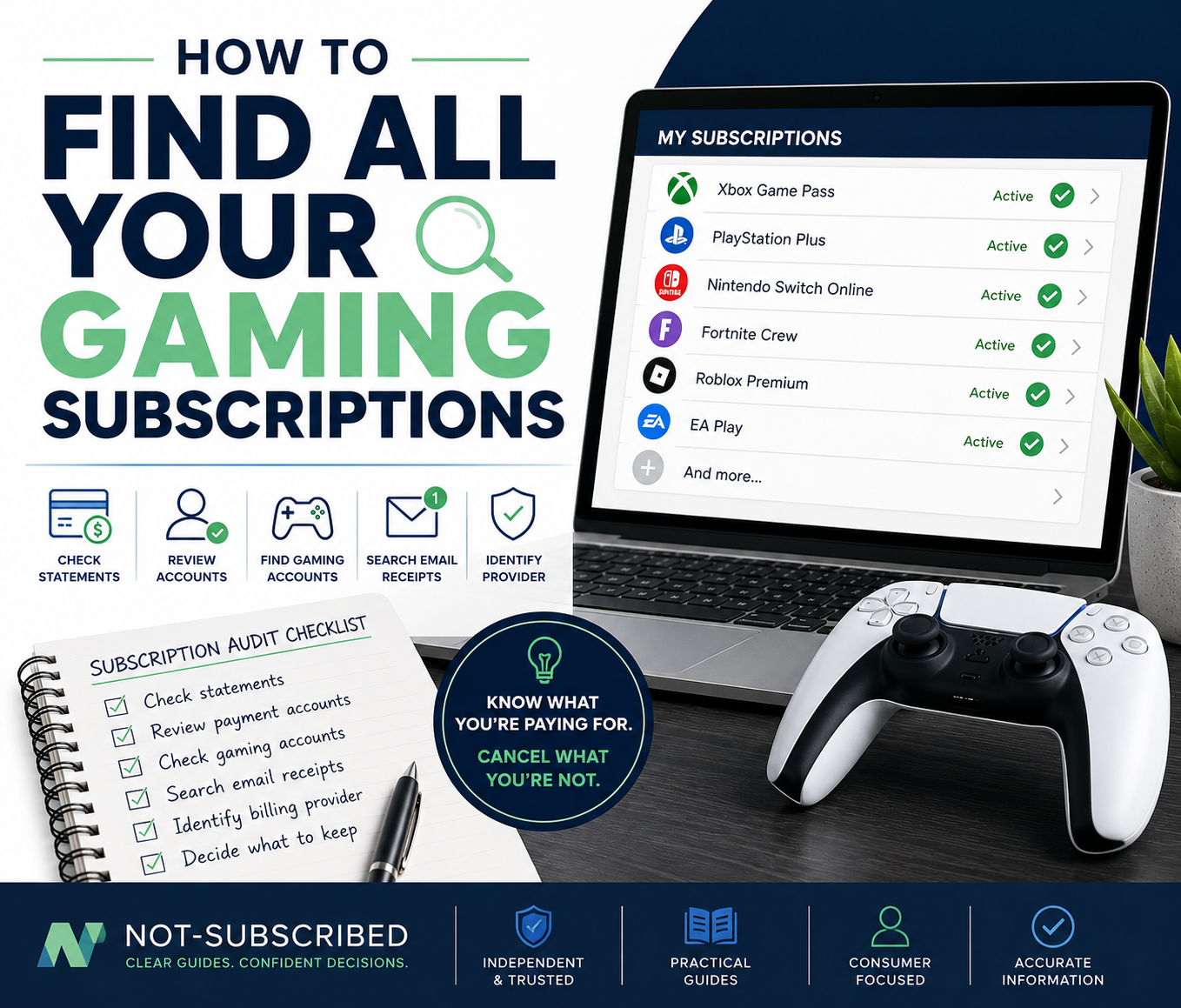
How to Find All Your Gaming Subscriptions
Gaming subscriptions can be surprisingly easy to lose track of.
You might have a console membership, a game subscription, an app-store purchase, or a recurring payment that was started months ago and forgotten. Some subscriptions are billed directly by the gaming company, while others are handled by Apple, Google Play, PayPal, PlayStation, Xbox, Nintendo, or another payment platform.
The easiest way to find them all is to check every place that could be handling the recurring payment instead of looking at only one gaming account.
Here is a practical gaming subscription audit you can work through.
Start With Your Bank and Credit Card Statements
Before opening every gaming account you have ever created, look at the money leaving your accounts.
Review several months of:
Credit card statements
Debit card transactions
Bank account activity
PayPal activity
Look for charges that repeat monthly, quarterly, or annually.
Do not search only for the name of a game. A gaming subscription may appear under the name of the company or payment provider instead.
For example, a subscription connected to a game might be processed through a console platform, an app store, PayPal, or the game publisher itself.
Write down anything that looks recurring, including:
Merchant or billing name
Amount
Charge date
Payment method
How often it appears
Do not immediately assume an unfamiliar charge is fraudulent. First determine whether it matches one of your gaming accounts, a family member's purchase, or an automatic payment you previously authorized.
Check Your Xbox and Microsoft Account
If you play on Xbox or use Microsoft gaming services, review the subscriptions associated with the Microsoft account you use for gaming.
Look for active gaming memberships and other recurring services connected to that account.
Also consider whether you have more than one Microsoft account. An old email address or a second gaming profile can make a legitimate subscription easy to overlook.
If your bank statement shows a Microsoft-related recurring charge but you do not see the expected subscription, check the other Microsoft accounts you may have used.
Once you identify the membership, record its next billing date and decide whether you still use it.
Check Your PlayStation Subscriptions
PlayStation subscriptions can be reviewed through your PlayStation account.
On a PS5, current PlayStation support directs users to:
Settings > Users and Accounts > Account > Payment and Subscriptions > Subscriptions
You can also sign in to PlayStation Account Management in a web browser and select Subscription.
Review every subscription shown rather than checking only PlayStation Plus. Some individual games and services may also use PlayStation's subscription system.
Pay attention to the account you are signed into. If you have used multiple PlayStation accounts, repeat the check for each relevant account.
Check Nintendo Switch Online
Nintendo Switch Online membership information can be checked from a Nintendo Switch or Nintendo Switch 2.
One current method is:
Select Nintendo Switch Online from the HOME Menu.
Select the account you want to review.
Check the membership information displayed for that Nintendo Account.
Nintendo also allows you to review membership information through Nintendo eShop. Select the account used for purchases, open the account information from the profile icon, and review the Nintendo Switch Online section.
The important part is checking the Nintendo Account that purchased the membership. If several people use the same console, the membership may belong to a different account than the one you normally use.
Check Your Apple Subscriptions
Some gaming subscriptions are purchased through Apple's App Store rather than directly from the game company.
On an iPhone, Apple currently directs users to:
Open Settings.
Tap your name.
Tap Subscriptions.
Review the subscriptions associated with that Apple Account.
Look through the entire list.
You may find gaming memberships, premium game features, game-related subscriptions, or other recurring app purchases that you no longer associate with gaming.
If something is missing, make sure you are checking the Apple Account that made the original purchase.
Apple also recommends searching your email for an Apple receipt or invoice if you cannot identify which account was used.
Check Your Google Play Subscriptions
If you have subscribed to games or gaming services through an Android device, check Google Play.
Sign in to the Google Account you use for purchases and open your Google Play subscriptions.
Review each subscription and its renewal information.
If the subscription you expect is missing, switch between any other Google Accounts you use. Google specifically notes that a missing subscription may be associated with a different account.
Remember that uninstalling a game does not cancel a Google Play subscription. Removing the app from your phone and stopping its recurring payment are separate actions.
Check PayPal Automatic Payments
PayPal can be another hiding place for recurring gaming payments.
On the PayPal website, current PayPal guidance directs users to:
Open Settings.
Select Payments.
Open Subscriptions and saved businesses or Automatic Payments.
Review the merchants listed.
Look for gaming companies, console services, publishers, or other merchants you recognize.
This check can be especially useful because a recurring PayPal agreement may help you identify the company receiving the payment even when the charge itself was not obvious.
However, stopping a payment arrangement and formally ending an underlying service are not always the same thing. Once you identify the subscription, confirm the correct cancellation process with the service that controls it.
Check Individual Gaming Accounts
Not every gaming subscription is controlled by a console or app store.
Some publishers and games maintain their own subscription systems.
Think about games and services where you may have signed up directly, especially those offering:
Monthly memberships
Premium game access
Game libraries
Recurring passes
VIP memberships
Server or online-service memberships
Subscription-based in-game benefits
Fortnite Crew is a useful example of why the billing provider matters. Epic Games says the subscription can be associated with Epic Games, Xbox, PlayStation, or Nintendo depending on where it was started.
Epic's account subscription page can also show the platform associated with a Fortnite Crew subscription.
The broader lesson applies beyond Fortnite: the game you play is not necessarily the company processing your recurring payment.
Follow the receipt before following the settings menu.
Search Your Email for Subscription Receipts
Your inbox can fill gaps that account settings miss.
Search the email addresses you use for gaming for terms such as:
subscription
membership
renewal
recurring
receipt
invoice
payment
trial
auto-renew
billing
Then search for gaming companies and platforms you use.
Receipts can help you determine:
Which email address owns the subscription
Which company processed the payment
When the subscription started
How much you paid
Whether it renews
Which payment method was used
This is particularly helpful when you have several gaming accounts and cannot remember which one made the purchase.
Check Old Accounts, Too
A subscription does not disappear because you stopped using the account.
Think about old:
Email addresses
Xbox or Microsoft accounts
PlayStation accounts
Nintendo Accounts
Apple Accounts
Google Accounts
PayPal accounts
Publisher accounts
Gaming profiles
You may have started a subscription with an account you rarely use today.
This is one reason a subscription can seem impossible to find: you may be looking in the right place but using the wrong account.
Don't Forget Family Gaming Subscriptions
Shared consoles can make subscription audits more complicated.
If several people in your household use the same console, device, payment card, or PayPal account, determine who actually purchased each membership.
Do not cancel something simply because you do not recognize it.
First check whether it belongs to:
Your spouse or partner
A child
Another family member
Another account on a shared console
Then determine who controls the billing account before making changes.
Build One Master Gaming Subscription List
As you work through the audit, keep one list of everything you find.
For each subscription, record:
Subscription name
Billing provider
Account or email used
Current cost
Billing frequency
Next renewal date
Payment method
Whether you still use it
Whether you plan to keep or cancel it
This turns a collection of scattered charges into something you can actually manage.
It also makes your next subscription audit much faster.
What If You Still Can't Identify a Gaming Charge?
If a recurring charge remains unexplained, go back to the transaction itself.
Check the exact merchant description and compare it with your receipts, gaming accounts, payment platforms, and family purchases.
If PayPal processed the transaction, check your automatic payments. If Apple or Google Play appears connected to it, check the appropriate app-store account. If the payment appears related to a console, check every account you have used on that platform.
If you still cannot identify the transaction and believe it may be unauthorized, contact the payment provider or card issuer and follow its process for reporting an unrecognized transaction.
Do not label a charge as fraudulent solely because the billing name looks unfamiliar.
Finding the Subscription Comes Before Canceling It
A common subscription mistake is trying to cancel through the company you associate with the game without first finding out who controls the billing.
That can send you to the wrong place.
A subscription purchased through one platform may need to be managed through that platform, even though you use the subscription somewhere else.
That is why the best order is:
Find the recurring charge.
Identify the subscription.
Identify the account that purchased it.
Identify the billing provider.
Check the renewal date.
Decide whether to keep or cancel it.
Use the correct cancellation process.
Save the cancellation confirmation if you cancel.
Once you know where the payment originates, managing the subscription becomes much easier.
Frequently Asked Questions
How can I see all my gaming subscriptions in one place?
Usually, you cannot.
Gaming subscriptions can be spread across console accounts, app stores, PayPal, publisher accounts, and direct card payments. The most reliable approach is to review your financial statements and then check each possible billing platform.
Creating your own master subscription list gives you one place to track everything after you find it.
Why can't I find a gaming subscription I'm paying for?
You may be signed into the wrong account or looking at the wrong billing provider.
Check other email addresses and accounts you have used. Then look at the original receipt or recurring transaction to determine which company processed the purchase.
Does deleting a game cancel its subscription?
Not necessarily.
Deleting or uninstalling software and canceling recurring billing are different actions. Google Play, for example, explicitly states that uninstalling an app does not cancel its subscription.
Always confirm the subscription itself has been canceled through the appropriate billing provider.
Can gaming subscriptions be billed through Apple or Google Play?
Yes. Some game and app subscriptions can be purchased through an app store.
That is why Apple and Google Play should be included in a complete gaming subscription audit, particularly if you play on a phone or tablet.
How often should I check my gaming subscriptions?
There is no required schedule, but reviewing recurring payments periodically can help you catch memberships you no longer use.
It is also useful to review your list before an annual subscription renews or whenever you notice a gaming-related charge you do not recognize.
The Bottom Line
If you want to find all your gaming subscriptions, follow the money first.
Check your bank and credit card statements, then work through Xbox or Microsoft, PlayStation, Nintendo, Apple, Google Play, PayPal, and individual gaming accounts. Search your email receipts and repeat the process for old or secondary accounts.
Do not assume the game company is the billing provider.
Once you have identified every subscription, put them into one master list with the cost, billing provider, renewal date, and account used.
Then you can decide what is worth keeping—and what you are ready to cancel.
Cancel smarter. Subscribe slower.