
Quick Answer
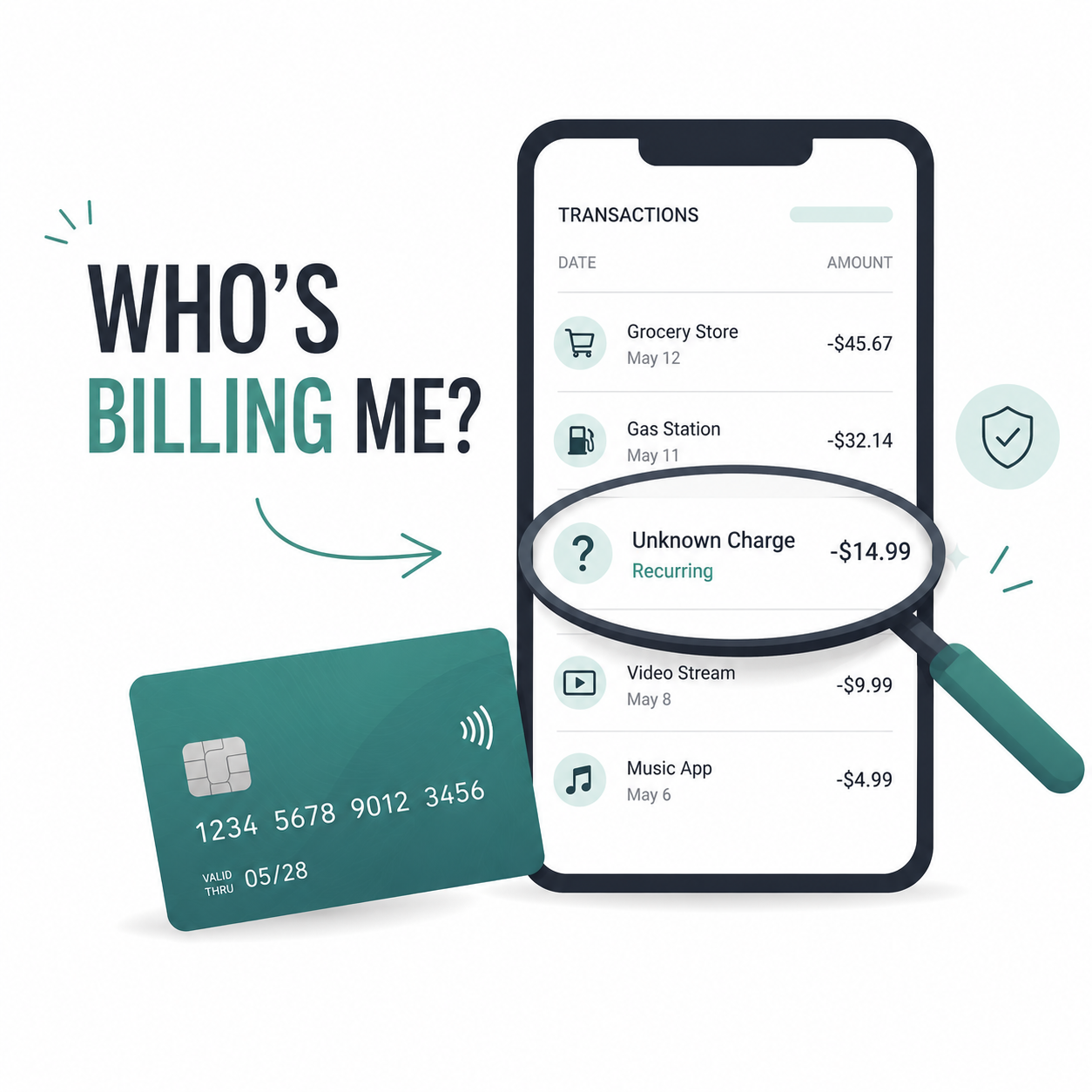
To find out what subscription is charging your card, start with the charge description on your bank or credit card statement. Then check the most common billing sources: Apple, Google Play, Amazon, Roku, PayPal, and the subscription company’s own website.
A confusing charge does not always mean the company name will appear clearly. Many subscriptions are billed through an app store, payment wallet, streaming device, or parent company, which can make the charge look unfamiliar.
The fastest path is:
Copy the exact charge name from your card statement.
Search your email for that name, the amount, and the word “receipt.”
Check Apple, Google Play, Amazon, Roku, and PayPal subscriptions.
Look inside the app or service account if you recognize the brand.
Contact the billing provider if you still cannot identify it.
Deleting an app usually does not cancel the subscription. You need to find who is billing you and cancel through that provider.
Why Subscription Charges Can Be Hard to Recognize
Subscription charges are not always labeled with the brand name you remember signing up for.
For example, a charge might show up as:
GOOGLE *AppName
PAYPAL *Merchant
AMZN DIGITAL
ROKU FOR [Service]
A parent company name instead of the app name
A billing processor name instead of the service name
That is why this is a billing detective job, not just a “check the app” job.
The Not-Subscribed playbook classifies this kind of article as a Billing Detective Guide: content that helps readers figure out where a charge is coming from and what to do next.
Step 1: Look Closely at the Card Statement
Start with the exact wording on your bank or credit card statement.
Write down:
The merchant name exactly as shown
The amount
The date of the charge
Whether it repeats monthly, weekly, annually, or irregularly
The card that was charged
Any phone number or location listed next to the charge
Do not rely on memory here. A $9.99 charge could be a streaming service, cloud storage plan, app subscription, game subscription, dating app, delivery membership, or software tool.
If the same amount appears every month around the same date, it is probably a recurring subscription or membership.
Step 2: Search Your Email for Receipts
Your email inbox is often the fastest way to identify the subscription.
Search for:
The exact charge amount, like 9.99 or 29.99
The merchant name from your card statement
“receipt”
“invoice”
“subscription”
“renewal”
“trial”
“your order”
“payment”
“membership”
“Apple”
“Google Play”
“PayPal”
“Amazon”
“Roku”
Also check old email accounts. Many people sign up for subscriptions with an older Gmail, iCloud, Yahoo, school, or work address and then forget that account is connected.
Look especially for emails sent around the same date as the charge.
Step 3: Check Apple Subscriptions
If the charge says APPLE.COM/BILL, Apple, or looks like an App Store charge, check your Apple subscriptions.
On iPhone or iPad:
Open Settings.
Tap your name at the top.
Tap Subscriptions.
Review active subscriptions.
Tap any subscription you do not recognize.
Check the renewal date and price.
Apple says subscriptions purchased through Apple or inside apps from the App Store can be viewed, changed, or canceled from the App Store subscription area. Apple’s cancellation steps also note that if there is no cancel button or you see an expiration message, the subscription may already be canceled.
Also check Purchase History if you do not see the subscription under active subscriptions. Some charges may be one-time purchases, in-app purchases, iCloud storage, AppleCare, media purchases, or family sharing charges.
Step 4: Check Google Play Subscriptions
If the charge says GOOGLE, Google Play, or includes the name of an Android app, check Google Play.
On Android:
Open the Google Play Store.
Tap your profile icon.
Tap Payments & subscriptions.
Tap Subscriptions.
Review active subscriptions.
Select the subscription to manage or cancel it.
Google’s official help says Android users can go to subscriptions in Google Play, select the subscription, tap Cancel subscription, and follow the instructions. Google also provides options for managing, pausing, or changing some subscriptions.
Important: make sure you are signed into the correct Google account. If you have more than one Gmail account, check each one.
Step 5: Check PayPal Automatic Payments
If the charge says PAYPAL, the subscription may be running through PayPal even if the actual service is something else.
On PayPal’s website:
Log in to PayPal.
Go to Settings.
Click Payments.
Select Automatic Payments or Subscriptions and saved businesses.
Review the merchant list.
Select the merchant to view or manage the payment.
PayPal’s help center says automatic payments can be found from Settings → Payments → Subscriptions and saved businesses or Automatic Payments, where you can select the merchant.
PayPal can be sneaky in a boring way: you may remember subscribing to one service, but your statement only says PayPal. The PayPal activity page can usually reveal the actual merchant behind the charge.
Step 6: Check Amazon Memberships and Digital Subscriptions
If the charge says AMZN, Amazon, Prime Video, Audible, Kindle, or Amazon Digital, check your Amazon account.
Places to check:
Your Memberships and Subscriptions
Prime membership settings
Prime Video Channels
Audible membership
Kindle Unlimited
Subscribe & Save
Amazon Appstore subscriptions
Digital orders
Amazon says you can manage Amazon subscriptions from the Your Memberships and Subscriptions page, where active, canceled, and expired subscriptions can be viewed.
For Prime Video add-on channels, Amazon’s Prime Video help says to go to Account & Settings → Your subscriptions, choose the add-on, then select Unsubscribe and confirm.
Amazon charges can be especially confusing because several different subscription products may appear under the same broad Amazon billing label.
Step 7: Check Roku, Streaming Devices, and TV Platforms
If you subscribed through a Roku device, smart TV, cable provider, or streaming platform, the charge may not come directly from the streaming service.
For example, you might subscribe to a channel through Roku, Amazon Prime Video Channels, Apple TV Channels, YouTube Primetime Channels, or a cable account.
Check:
Roku account subscriptions
Apple TV app subscriptions
Amazon Prime Video Channels
YouTube purchases and memberships
Cable or internet provider add-ons
Smart TV app store subscriptions
This is common with streaming services. You may think you subscribed to the service directly, but the billing provider may be the device or platform where you originally signed up.
Step 8: Search the Charge Name Online Carefully
Search the exact charge name in quotes.
Example searches:
"APPLE.COM/BILL" 12.99
"AMZN DIGITAL" subscription
"PAYPAL *[merchant name]"
"GOOGLE *[app name]"
"[charge descriptor]" subscription
Be careful with random search results. Some pages about unknown charges are low-quality or designed to capture worried consumers. Prefer official help pages from your bank, card issuer, Apple, Google, PayPal, Amazon, Roku, or the company that appears to be billing you.
Do not enter your card number into a random “charge lookup” website.
Step 9: Check the App or Service Account Directly
If you recognize the service, sign in directly and check the billing area.
Look for sections named:
Account
Settings
Billing
Membership
Subscription
Plan
Payments
Manage subscription
Auto-renewal
Invoices
Receipts
Important: if the account page says “managed by Apple,” “managed by Google Play,” “billed through Roku,” or “billed through PayPal,” you usually need to cancel through that billing provider instead of the service’s website.
This is one of the most common subscription roadblocks. The app may show the plan, but not control the billing.
Step 10: Ask Your Card Issuer for More Merchant Details
If you still cannot identify the charge, contact your bank or credit card issuer.
Ask for:
The full merchant descriptor
Merchant category
Merchant phone number
Billing location
Whether the charge is recurring
Whether there are related prior charges
Some banking apps show limited information at first, but customer support may be able to see more.
If the charge is clearly unauthorized, ask your card issuer about next steps. If it looks like a real subscription you may have signed up for, try to identify and cancel it directly first.
Common Charge Names and Where to Look
Charge says…Check first APPLE.COM/BILL Apple subscriptions and purchase history, GOOGLE or GOOGLE PLAY Google Play subscriptions, PAYPAL PayPal automatic payments, AMZN, AMAZON DIGITAL, PRIME VIDEO Amazon memberships, digital orders, Prime Video Channels, ROKU Roku subscriptions, SQ, STRIPE, or a processor name Email receipts and merchant website Company name you do not recognize, Search email, then search the charge descriptor Same amount every month Subscription, membership, app, software, storage, or service plan, Annual amount you forgot about, Yearly subscription renewal or free trial converted to paid
What If You Deleted the App but Are Still Being Charged?
Deleting an app usually does not cancel the subscription.
The app is just the software on your device. The subscription is the billing agreement attached to Apple, Google Play, PayPal, Amazon, Roku, or the company account.
To stop billing, you need to cancel the subscription where it is managed.
That may mean:
Canceling in Apple subscriptions
Canceling in Google Play subscriptions
Canceling in PayPal automatic payments
Canceling in Amazon memberships
Canceling in Roku subscriptions
Canceling directly on the company website
This is app-store billing confusion at its finest: the thing you use, the place you signed up, and the place charging you may all be different.
What If You Cannot Find the Subscription Anywhere?
Try this checklist:
Check all email accounts.
Check all Apple IDs used by your family.
Check all Google accounts.
Check PayPal.
Check Amazon.
Check Roku or smart TV accounts.
Check family sharing accounts.
Ask household members if they subscribed.
Search your password manager for the company name.
Contact your card issuer for more merchant details.
If the card is shared with a spouse, partner, child, parent, employee, or family member, ask before disputing. Many mystery subscriptions turn out to be legitimate but forgotten.
Not fun. Very common.
How to Cancel Once You Find the Subscription
Once you identify the billing source, cancel from the place that controls billing.
Use this rule:
Cancel where you are billed, not necessarily where you use the service.
Examples:
If Apple bills you, cancel through Apple.
If Google Play bills you, cancel through Google Play.
If PayPal bills you, cancel through PayPal or the merchant.
If Amazon bills you, cancel through Amazon.
If Roku bills you, cancel through Roku.
If the company bills you directly, cancel on the company’s website or through its support flow.
Keep going until you see a confirmation screen or canceled status.
How to Confirm It Is Actually Canceled
After canceling, save proof.
Look for:
A cancellation confirmation email
A subscription status showing canceled
An expiration date instead of a renewal date
A final billing date
An invoice showing no future renewal
A screenshot of the cancellation confirmation page
Take screenshots. Save emails. Future-you deserves evidence.
Also check your card statement during the next billing cycle to make sure the charge does not return.
What to Do If You Are Still Charged
If the subscription charges you again after cancellation:
Recheck the billing provider.
Make sure you canceled the right account.
Search for duplicate subscriptions.
Look for another Apple ID, Google account, PayPal account, or Amazon account.
Contact the company or billing provider.
Send screenshots or confirmation emails.
Ask whether the charge is refundable.
Contact your card issuer if the charge is unauthorized or the merchant will not help.
Do not assume one cancellation covers every billing path. Some people accidentally create duplicate subscriptions: one through the website and another through an app store.
That is annoying, but it happens.
The Not-Subscribed Note
Mystery subscription charges are a side effect of the modern subscription maze. The company you recognize may not be the company shown on your statement. The app you deleted may not be the place controlling billing. The account you use may not be the account paying.
That confusion creates cancellation friction: extra work between “I want to stop paying” and “the billing has actually stopped.”
The best defense is boring but effective: check your statement monthly, search your receipts, identify the billing provider, cancel from the source, and save proof.
Cancel smarter. Subscribe slower.