
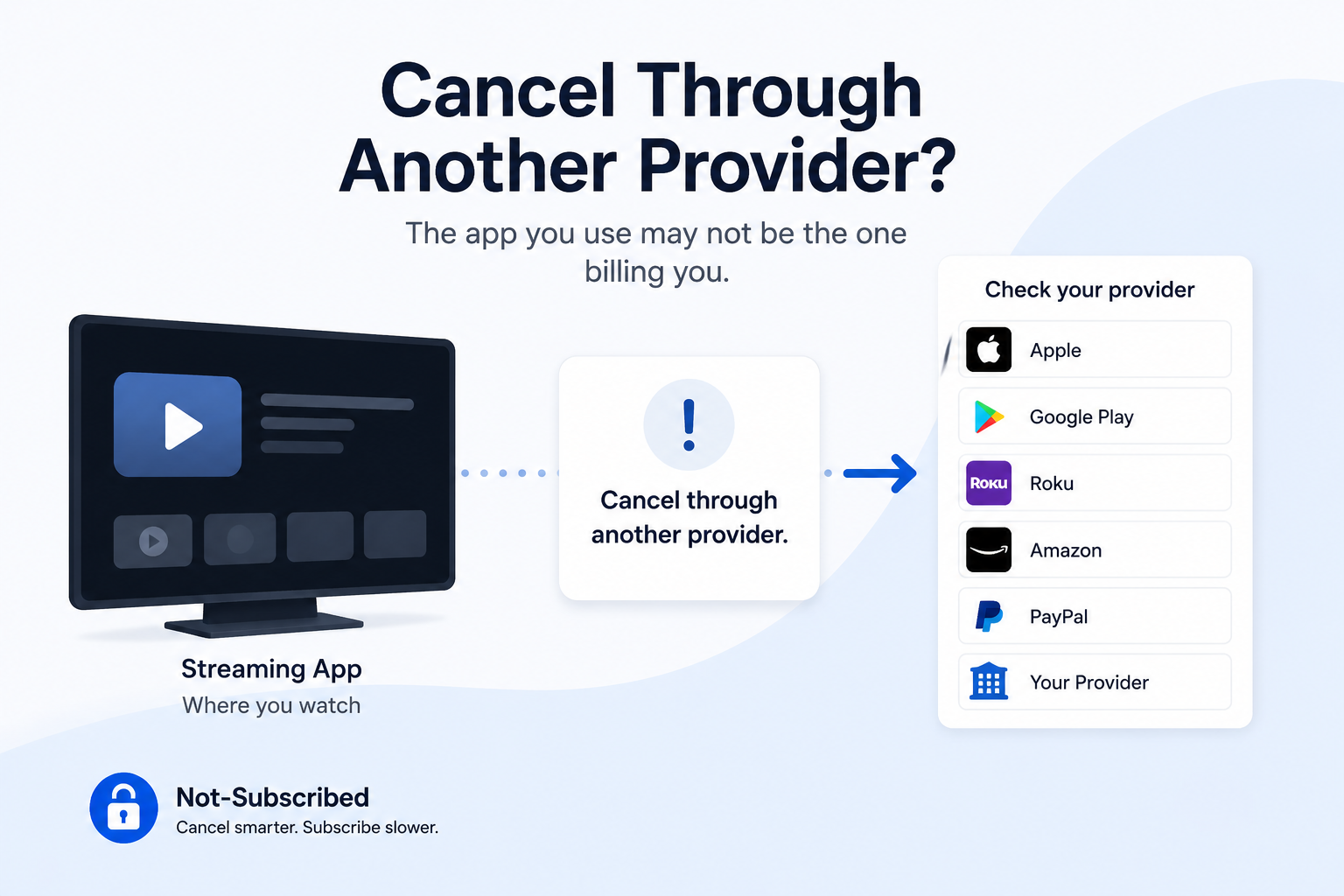
Streaming app cancel through another provider guide showing common billing providers.
Quick answer
If your streaming app says “Cancel through another provider,” it usually means the app is not the company billing you.
You may watch the service in one app, but the subscription might be managed by:
Apple
Google Play
Roku
Amazon
PayPal
A cable or internet provider
A phone carrier
A bundle partner
A smart TV app store
So the cancel button may not be inside the streaming app. It may be hiding in the account that originally sold you the subscription.
Deleting the app does not cancel the subscription.
What “cancel through another provider” means
Streaming subscriptions often have two separate parts:
The service you watch
The company that bills you
Those are not always the same company.
For example, you might watch:
Hulu in the Hulu app
Max in the Max app
Paramount+ in the Paramount+ app
Disney+ in the Disney+ app
STARZ inside Prime Video
AMC+ on a Roku device
But the bill might come from Apple, Google Play, Roku, Amazon, Verizon, Xfinity, PayPal, or another provider.
When the app says to cancel somewhere else, it usually means:
“We can see your account, but we do not control your subscription billing.”
Annoying? Yes. Unusual? Not really.
Why streaming billing gets so confusing
Streaming services want to be available everywhere. That means they let people sign up through lots of different platforms.
You may have started the subscription through:
An iPhone
An Android phone
A Roku TV
A Fire TV device
Amazon Prime Video Channels
A smart TV
A cable provider
A mobile phone plan
A free trial link
A bundle offer
Each of those paths can create a different cancellation path.
That is why one person cancels Max through Apple, another cancels through Roku, and another has to remove HBO from a cable package.
Same streaming app. Different billing maze.
Common places your streaming subscription may be hiding
Apple
Check Apple if your card statement says Apple.com/Bill or if you subscribed on an iPhone, iPad, or Apple TV.
Path:
Open Settings.
Tap your name.
Tap Subscriptions.
Select the streaming service.
Tap Cancel Subscription.
Google Play
Check Google Play if you subscribed on Android or your charge mentions Google.
Path:
Open the Google Play Store.
Tap your profile icon.
Tap Payments & subscriptions.
Tap Subscriptions.
Select the streaming service.
Tap Cancel subscription.
Roku
Check Roku if you subscribed from a Roku device or your statement mentions Roku.
Path:
Go to your Roku account.
Open your subscriptions.
Find the streaming service.
Choose Manage subscription.
Turn off auto-renewal or cancel.
One catch: just because you watch on Roku does not always mean Roku bills you. Roku may simply be the device you use.
Amazon
Check Amazon if you subscribed through Prime Video Channels, Fire TV, or an Amazon account.
Path:
Go to Amazon or Prime Video.
Open Account & Settings or Memberships & Subscriptions.
Look for the channel or streaming service.
Select Unsubscribe or turn off auto-renewal.
Confirm.
This is common for channels like STARZ, MGM+, BritBox, Paramount+, AMC+, and other Prime Video add-ons.
PayPal
Check PayPal if your subscription was approved as an automatic payment.
Path:
Log in to PayPal.
Go to your payment settings.
Open automatic payments or recurring payments.
Find the merchant.
Cancel the automatic payment.
PayPal may not be where you watch the service, but it can still be where the billing permission lives.
Cable, internet, or phone provider
Check your provider if the subscription came with a plan, bundle, promotion, or premium-channel add-on.
Look for sections called:
Add-ons
Entertainment
Subscriptions
Premium channels
Streaming benefits
Plan perks
Services
This is common with live TV, HBO/Max access, Disney bundles, and promotional streaming offers.
How to find who is billing you
Start with the evidence, not the app.
1. Check your card statement
Look at the exact charge name.
Examples:
Google Play
Roku
Amazon
Disney
Hulu
Max
Paramount+
PayPal
Your cable or phone provider
The charge name is often the best clue.
2. Search your email
Search for:
The streaming service name
“receipt”
“subscription”
“renewal”
“trial”
“welcome”
“Apple”
“Google Play”
“Roku”
“Amazon”
“PayPal”
Receipts usually tell you who processed the payment.
3. Check the app account page
The streaming app may show a message like:
“Billed through Apple”
“Billed through Roku”
“Manage with your provider”
“Subscribed through Amazon”
“Contact your billing provider”
That message is a clue, not a dead end.
4. Check common subscription dashboards
Look in:
Apple subscriptions
Google Play subscriptions
Roku subscriptions
Amazon memberships and subscriptions
PayPal automatic payments
Cable, phone, or internet provider accounts
5. Check family accounts
A household member may have started the subscription from their Apple ID, Google account, Roku account, Amazon account, or provider login.
This is especially common with shared TVs.
Why the app cannot always cancel it for you
This part feels silly, but there is a business reason behind it.
When you subscribe through a third party, that third party may control:
Payment method
Renewal date
Cancellation button
Refund rules
Receipts
Account permissions
Subscription status
The streaming app may only know that you have access. It may not be allowed to cancel the billing agreement from inside the app.
So when the app says “cancel through another provider,” it usually means the billing relationship is outside the app.
Common roadblocks
“The app says I’m subscribed, but there is no cancel button”
That usually means a third party bills you. Check Apple, Google Play, Roku, Amazon, PayPal, or your provider.
“I deleted the app, but I’m still charged”
Deleting the app removes it from your device. It does not cancel the subscription.
“I canceled in the app, but Apple still charged me”
You may have canceled the service account but not the Apple-managed subscription. Check Apple subscriptions directly.
“I canceled Amazon Prime, but I still see a streaming charge”
Prime membership and Prime Video Channels are different. You may need to cancel the individual channel.
“I canceled through Roku, but the app still works”
That may be normal if access continues until the end of the billing period. Check whether auto-renewal is off.
“The company says another provider bills me, but I do not know which one”
Use the charge name, receipt email, and subscription dashboards. If you still cannot find it, contact the company with the charge date, amount, and last four digits of the card.
How to avoid canceling in the wrong place
Before you cancel, ask:
Who has permission to charge my card?
Not:
Which app do I watch?
That one question saves a lot of frustration.
Use this quick guide:
Situation→Where to check first→
You signed up on iPhone→ Apple subscriptions
You signed up on Android→ Google Play subscriptions
You signed up on Roku TV→ Roku account
You added a channel in Prime Video→ Amazon / Prime Video subscriptions
You paid with PayPal→ PayPal automatic payments
It came with cable, phone, or internet→ Provider account
You signed up on the service website→ Streaming service account
How to confirm it is actually canceled
Do not stop after clicking the first cancel-looking button.
Look for:
A confirmation email
A canceled status
An expiration date
No future renewal date
Auto-renewal turned off
A final confirmation screen
A screenshot for your records
If the account only says paused, active, or renews on, it may not be canceled.
Save proof. A screenshot is boring until you need it.
What to do if you are still charged
Check the exact charge name.
Recheck the billing provider.
Search your email for receipts.
Make sure you canceled the correct account.
Check Apple, Google Play, Roku, Amazon, PayPal, and provider accounts.
Contact the billing provider that processed the charge.
Ask whether the charge is eligible for a refund.
Save screenshots and support messages.
Contact your card provider if the charge appears unauthorized or cannot be resolved.
Do not assume the streaming company can refund a charge processed by Apple, Google Play, Roku, Amazon, PayPal, or a provider. The biller usually controls the refund path.
The Not-Subscribed note
“Cancel through another provider” is one of the clearest examples of billing-provider confusion. The app is where you watch, but the bill may live somewhere else.
That creates cancellation friction. Not always because the cancel button is hidden, but because the user has to solve a mini mystery before they can stop paying.
The trick is simple:
Find the biller first. Cancel there. Then confirm it is canceled.
That is the cleanest path out of the streaming subscription maze.