
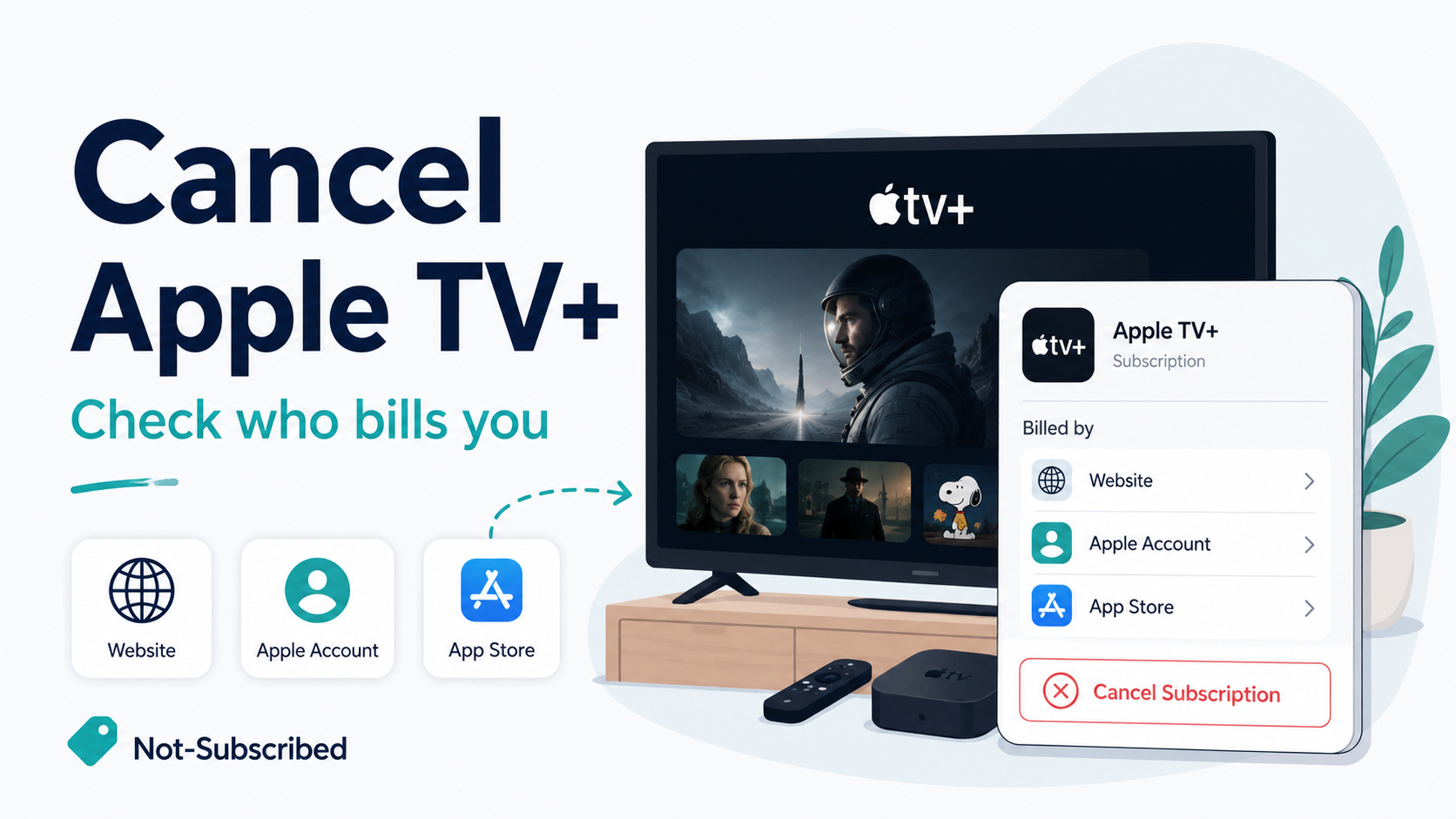
How to cancel Apple TV Plus subscription and check who bills you.
Quick answer
You can usually cancel Apple TV+ from your Apple Account subscriptions. On iPhone or iPad, go to Settings → your name → Subscriptions → Apple TV+ / Apple TV → Cancel Subscription. Apple’s official subscription help says this is the standard path for canceling subscriptions from Apple.
You can also try canceling through tv.apple.com. Apple says that if you cannot cancel the Apple TV subscription on the web, you should cancel it through Settings instead.
Deleting the Apple TV app does not cancel Apple TV+.
Before you cancel Apple TV+
Before canceling, check how you are subscribed. Apple TV+ can be billed as a standalone subscription, included in Apple One, tied to a free trial, or managed through another billing provider such as Google Play in some cases. Apple says Apple TV is also included in Apple One, and Apple One combines several Apple services into one subscription.
Check:
Which Apple Account is subscribed
Whether the subscription says Apple TV+, Apple TV, or Apple One
Your renewal date
Whether you are in a free trial
Whether you subscribed through Apple, Google Play, or another platform
Whether canceling Apple One would affect other Apple services
Also note the naming: Apple’s current support pages often refer to the subscription as Apple TV, while many users still search for Apple TV+. Treat both names as clues when checking your subscriptions.
How to cancel Apple TV+ on iPhone or iPad
Use this path if Apple bills you.
Open the Settings app.
Tap your name at the top.
Tap Subscriptions.
Select Apple TV+ or Apple TV.
Tap Cancel Subscription.
Confirm the cancellation.
Apple says you may need to scroll to find the cancel button. If there is no cancel button, or if you see an expiration message in red text, the subscription may already be canceled.
How to cancel Apple TV+ on the web
Use this path if you want to cancel from a browser.
Go to Apple TV on the web.
Sign in with the Apple Account that pays for the subscription.
Open your account or profile settings.
Look for your subscription settings.
Select Cancel Subscription.
Follow the prompts until you see confirmation.
If the web option does not let you cancel, Apple says to cancel the subscription in Settings instead.
How to cancel Apple TV+ on an Apple TV device
Use this path if you want to manage the subscription from Apple TV hardware.
Open Settings on Apple TV.
Go to Profiles and Accounts.
Choose your profile.
Select Subscriptions.
Choose the Apple TV subscription.
Follow the on-screen instructions to cancel.
Apple’s Apple TV 4K guide says subscriptions can be changed or canceled from Settings → Profiles and Accounts → [profile] → Subscriptions.
How to cancel Apple TV+ on Android or Google Play
Use this path if Google Play bills you.
Apple says that if you pay for Apple TV through Google Play, you can cancel only in the Apple TV app on your Android device or at Google Play.
Try this:
Open the Google Play Store.
Tap your profile icon.
Tap Payments & subscriptions.
Tap Subscriptions.
Select Apple TV.
Tap Cancel subscription.
Confirm.
If you do not see Apple TV in Google Play, check your Apple Account subscriptions instead.
How to cancel Apple TV+ if it is part of Apple One
If Apple TV+ is included in Apple One, canceling Apple TV+ by itself may not be the right path. You may need to manage the Apple One bundle instead.
Apple says that if you cancel Apple One, you may have the option to choose individual subscriptions you want to keep, and those services can continue separately.
Before canceling Apple One, check whether you also use:
Apple Music
iCloud+
Apple Arcade
Apple Fitness+
Apple News+
Other Apple One benefits
Canceling the bundle may affect more than Apple TV+.
How to cancel a free Apple TV+ trial
Use the same subscription settings path:
Open Settings.
Tap your name.
Tap Subscriptions.
Select Apple TV+ or Apple TV.
Tap Cancel Free Trial or Cancel Subscription.
Confirm.
Apple’s Apple TV page says the service can be offered through trials and that paid plans renew after the trial unless canceled.
Be careful with trials. If your goal is to avoid the first paid charge, cancel before the trial renewal date and save confirmation.
Common Apple TV+ cancellation roadblocks
“I cannot find Apple TV+ in subscriptions”
Check that you are signed into the correct Apple Account. If you have multiple Apple IDs, the subscription may be attached to another one.
“It says Apple TV, not Apple TV+”
That may still be the correct subscription. Apple’s current support and product pages often use Apple TV for the subscription service.
“I canceled, but I can still watch”
That may be normal. Many subscriptions remain active until the end of the billing period. What matters is whether the subscription shows an expiration date instead of a renewal date.
“I deleted the Apple TV app”
Deleting the app does not cancel the subscription. You need to cancel through Apple Account subscriptions, the web, Google Play, or the billing provider.
“Apple TV+ is part of Apple One”
Then you may need to manage Apple One instead of canceling Apple TV+ separately. Canceling Apple One can affect other Apple services.
“I do not see a cancel button”
Apple says that if there is no cancel button, or if you see an expiration message, the subscription may already be canceled.
How to confirm Apple TV+ is canceled
Before closing Settings or the browser, look for proof.
Confirm at least one of these:
A confirmation email from Apple
Subscription status showing canceled
An expiration date instead of a renewal date
No upcoming renewal charge
Google Play showing the subscription as canceled, if applicable
A screenshot of the final cancellation screen
Save proof. A screenshot is boring until you need it.
What to do if Apple TV+ charges you after cancellation
Check the exact charge name on your card statement.
Confirm which Apple Account is tied to the charge.
Check Settings → your name → Subscriptions.
Check whether the charge is for Apple TV+, Apple TV, Apple One, or another Apple subscription.
Search your email for “Apple,” “Apple TV,” “Apple TV+,” “Apple One,” “receipt,” and “renewal.”
Check Google Play if you subscribed through Android.
Make sure a family member’s account is not the billing source.
Contact Apple Support or the billing provider that processed the charge.
Ask whether the charge is eligible for a refund.
Contact your card provider if the charge appears unauthorized or cannot be resolved through the billing provider.
Apple has a refund request process for App Store, media, and subscription purchases, but eligibility is not guaranteed.
The Not-Subscribed note
Apple TV+ is usually easier to cancel than some streaming services, but it still creates a familiar kind of confusion: the subscription name, billing account, and device you watch on may not all match.
You may watch on a smart TV, Roku, Fire TV, browser, iPhone, Android device, or game console, but the cancel button usually lives with the billing account. Apple’s own site says Apple TV can be watched across many devices, including smart TVs, web browsers, Android, Windows, Roku, Fire TV, PlayStation, and Xbox.
Before canceling any streaming subscription, check who bills you first. That is usually where the real cancel button lives.