
How to cancel Amazon Prime Video Channels by checking who bills you.
Quick answer
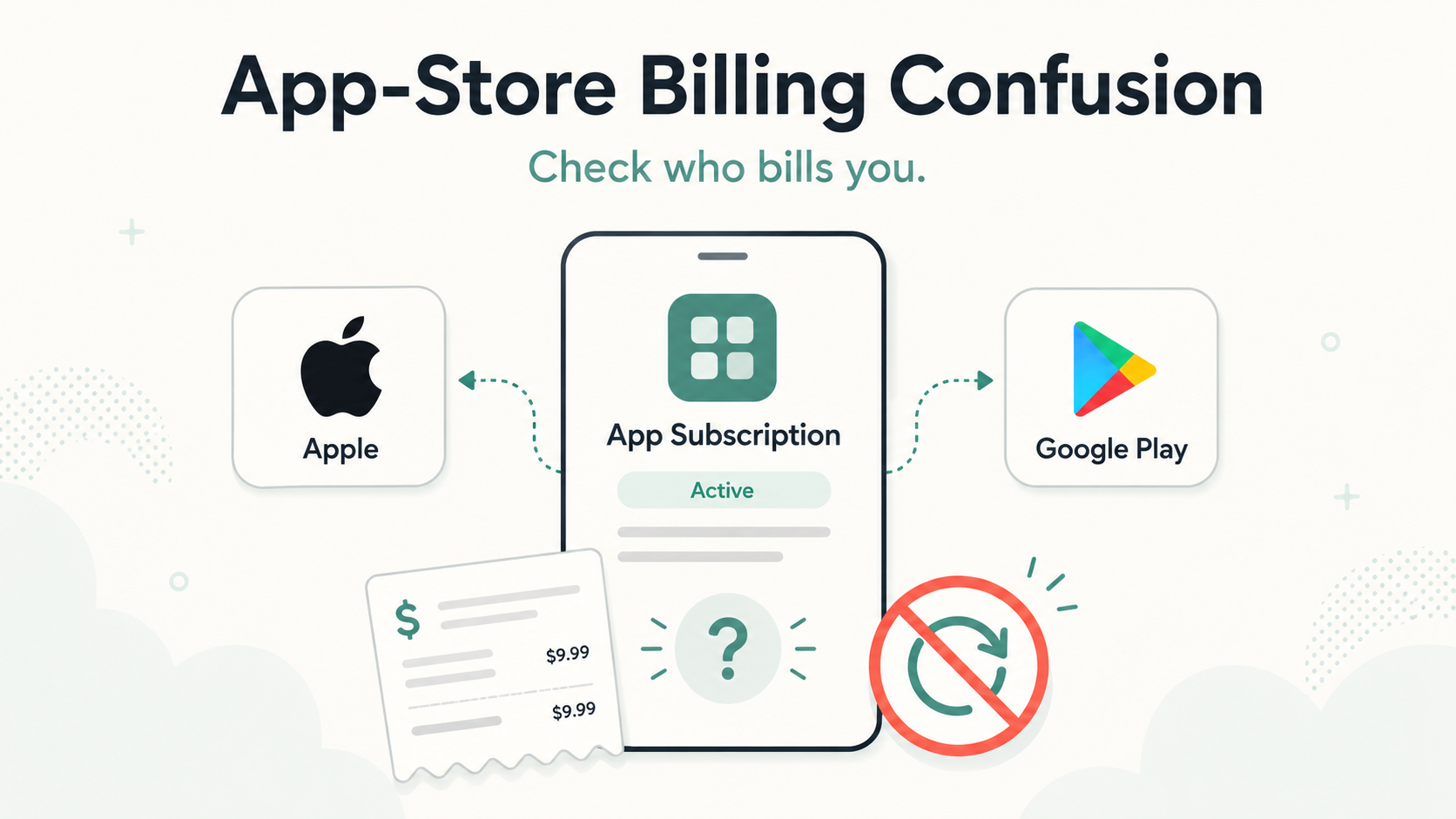
App-store billing confusion happens when you subscribe inside an app, but the app company is not the one directly managing your billing.
Instead, your subscription may be billed through:
Apple App Store
Google Play
The app or service’s website
Roku, Amazon, PayPal, or another billing provider
A bundle, carrier, or third-party partner
That matters because you usually need to cancel through the same place that bills you.
So if you subscribed through Apple, cancel through Apple. If you subscribed through Google Play, cancel through Google Play. If you subscribed directly on the company’s website, cancel there instead.
The Not-Subscribed version: don’t chase the app icon. Chase the charge.
What is app-store billing confusion?
App-store billing confusion is the mess that happens when the app you use and the company billing you are not the same.
For example, you may use a meditation app, streaming app, dating app, storage app, or fitness app every day. But your card statement might show:
Google Play
The app’s parent company
A payment processor
A totally different billing name
From the user’s point of view, this feels backwards. You open the app, look for a cancel button, and the app says something like:
“Your subscription is managed through Apple.”
or
“Manage this subscription in Google Play.”
That is app-store billing confusion.
The app may provide the service, but Apple or Google may be handling the subscription payment.
Why this happens
Apps can sell subscriptions in more than one place.
You might have signed up:
Inside an iPhone or iPad app
Inside an Android app
On the app company’s website
Through a smart TV or streaming device
Through a bundle or promotion
Through PayPal, Amazon, Roku, or another provider
The app itself may look exactly the same after you log in. But the cancellation path depends on where the subscription started.
That is why two people can use the same app and have completely different cancellation steps.
One person cancels in iPhone Settings.
Another cancels in Google Play.
Another cancels on the company’s website.
Another has to cancel through Roku or Amazon.
Same app. Different billing door.
How to cancel an app subscription on iPhone or iPad
Apple says you can cancel a subscription purchased in an app directly from the App Store subscription settings. The current iPhone/iPad path is: open Settings, tap your name, tap Subscriptions, choose the subscription, then tap Cancel Subscription. If there is no cancel button or you see an expiration message, Apple says the subscription is already canceled.
Steps:
Open Settings.
Tap your name.
Tap Subscriptions.
Tap the app or subscription.
Tap Cancel Subscription.
Confirm the cancellation.
After canceling, check that the subscription shows an expiration date instead of a renewal date.
How to cancel an app subscription on Android through Google Play
Google says Android users can cancel by going to Google Play subscriptions, selecting the subscription, tapping Cancel subscription, and following the on-screen instructions. Google also notes that if you cannot find the subscription, it may be under a different Google account.
Steps:
Open the Google Play Store.
Tap your profile icon.
Tap Payments & subscriptions.
Tap Subscriptions.
Select the subscription.
Tap Cancel subscription.
Follow the prompts until cancellation is confirmed.
Google says when you cancel, you generally keep access until the end of the current billing period, unless the subscription has special payment terms.
Why the app might not have a cancel button
A missing cancel button does not always mean the app is trying to hide cancellation.
Sometimes it means the app is not allowed to manage that billing path directly.
If Apple is billing you, the app may send you to Apple.
If Google Play is billing you, the app may send you to Google Play.
If you subscribed on the website, the app store may not show it at all.
Still, this creates cancellation friction. You came to the app to cancel the app, and now you have to remember where you subscribed six months ago. Very normal. Very annoying.
The Not-Subscribed playbook describes this kind of problem as part of the modern subscription maze: readers are often confused about whether they are billed through Apple, Google, Amazon, Roku, PayPal, or the company directly, and cancellation guides should help them find the correct billing provider first.
Common signs you are dealing with app-store billing confusion
You are probably dealing with app-store billing confusion if:
The app says “manage subscription through Apple.”
The app says “manage subscription through Google Play.”
You cannot find a cancel button inside the app.
The app’s website says you do not have an active subscription.
Your iPhone shows the subscription, but the company’s website does not.
Your Google Play account shows the subscription, but the app’s account page does not.
You deleted the app but are still being charged.
Your statement says Apple or Google instead of the app name.
Support asks for your Apple or Google receipt.
This is especially common with streaming apps, dating apps, fitness apps, learning apps, photo apps, storage apps, and “free trial” apps.
App-store subscription vs. direct subscription
Here is the simplest way to think about it.
If Apple bills you
Cancel in Apple subscriptions.
Look for:
Apple.com/bill on your card statement
Apple receipt emails
The subscription listed under iPhone Settings → your name → Subscriptions
If Google Play bills you
Cancel in Google Play subscriptions.
Look for:
Google Play on your card statement
Google Play receipt emails
The subscription listed under Google Play → Payments & subscriptions → Subscriptions
If the company bills you directly
Cancel on the company’s website or in your account settings.
Look for:
The company name on your statement
A receipt from the company
Billing, membership, or subscription settings on the website
If another provider bills you
Cancel through that provider.
This might be:
Roku
Amazon
PayPal
Your mobile carrier
Your cable or internet provider
A bundle partner
The key is not where you use the app. The key is who processes the charge.
Why deleting the app does not cancel the subscription
Deleting an app usually removes it from your phone. It does not cancel the billing agreement.
That is one of the most expensive small misunderstandings in subscription land.
If you subscribed through Apple or Google Play, the subscription can keep renewing even after the app is gone. You need to cancel the subscription in your app-store account.
Think of the app as the door. The subscription is the monthly keycard. Throwing away the door icon does not cancel the keycard.
How to figure out where your app subscription is billed
Use this checklist before contacting support.
1. Check your phone’s subscriptions
On iPhone, check:
Settings → your name → Subscriptions
On Android, check:
Google Play Store → profile icon → Payments & subscriptions → Subscriptions
If the subscription appears there, cancel it there.
2. Search your email
Search for:
The app name
“subscription”
“trial”
“receipt”
“renewal”
“Apple”
“Google Play”
“invoice”
“payment”
Receipts often reveal the real billing provider.
3. Check your card statement
Look at the exact billing descriptor.
If it says Apple or Google, start there.
If it says the company name, go to the company’s website.
If it says PayPal, Amazon, Roku, or another provider, check that account.
4. Check other Apple IDs or Google accounts
This is a sneaky one.
You might be signed into one Apple ID or Google account now, but subscribed under another account earlier.
Check:
Old Gmail accounts
iCloud email addresses
Work or school accounts
Family member accounts
Shared devices
Google specifically notes that if you cannot find a subscription, it may be on a different account.
5. Log in to the app’s website
If the app store does not show the subscription, go to the app company’s website and check:
Account
Billing
Plan
Subscription
Membership
Manage subscription
If the website says “managed through Apple” or “managed through Google Play,” go back to the app-store billing path.
Common roadblocks
“The app says I subscribed through Apple, but I don’t see it.”
You may be signed into the wrong Apple ID. Check other Apple accounts and search your email for Apple receipts.
“Google Play does not show the subscription.”
You may be signed into the wrong Google account, or the subscription may not be billed through Google Play.
“The app says I don’t have a subscription, but I’m being charged.”
The subscription may be attached to another email address or another billing provider. Check your receipts and bank statement.
“I canceled in the app, but Apple or Google still charged me.”
Make sure the subscription shows canceled or expired in Apple or Google Play. Canceling an in-app account setting is not always the same as canceling the app-store subscription.
“I started a free trial and forgot about it.”
That is negative option billing: the subscription continues unless you actively cancel before renewal. The important move is to cancel through the billing provider and save proof.
How to confirm it is actually canceled
Do not stop at “I think I canceled.”
Look for:
A confirmation email
A canceled status
An expiration date
Auto-renew turned off
No future renewal date
A screenshot of the confirmation page
In Apple subscriptions, check whether there is no cancel button or whether the subscription shows an expiration message. Apple says that can indicate it is already canceled.
In Google Play, check that the subscription is no longer set to renew and save any confirmation shown after cancellation.
What to do if you are still charged
If you are charged after canceling:
Check the billing name on the new charge.
Confirm whether the charge came from Apple, Google Play, or the app directly.
Search email for the latest receipt.
Check for duplicate accounts.
Confirm the cancellation status in the billing provider’s account.
Contact the billing provider that processed the charge.
Request a refund if appropriate.
Save screenshots and receipts.
Apple and Google each have separate refund processes for purchases or subscriptions made through their platforms; Google says refunds depend on what was bought, when and how it was paid, and location, while Apple’s billing support includes refund request options for App Store and iTunes purchases.
A refund is not guaranteed, but proof helps.
The Not-Subscribed note
App-store billing confusion is not always a dark pattern. Sometimes it is just the messy result of apps being sold through multiple platforms.
But from the user’s side, it still feels like subscription sludge.
You downloaded an app, tapped a free trial, forgot which account handled payment, and now the cancellation button is somewhere else entirely. That friction benefits subscription businesses because every extra step gives a customer another chance to give up, delay, or miss the renewal date.
The fix is boring but powerful:
Find the billing provider. Cancel there. Confirm auto-renew is off. Save proof.
Cancel smarter. Subscribe slower.