
Quick answer
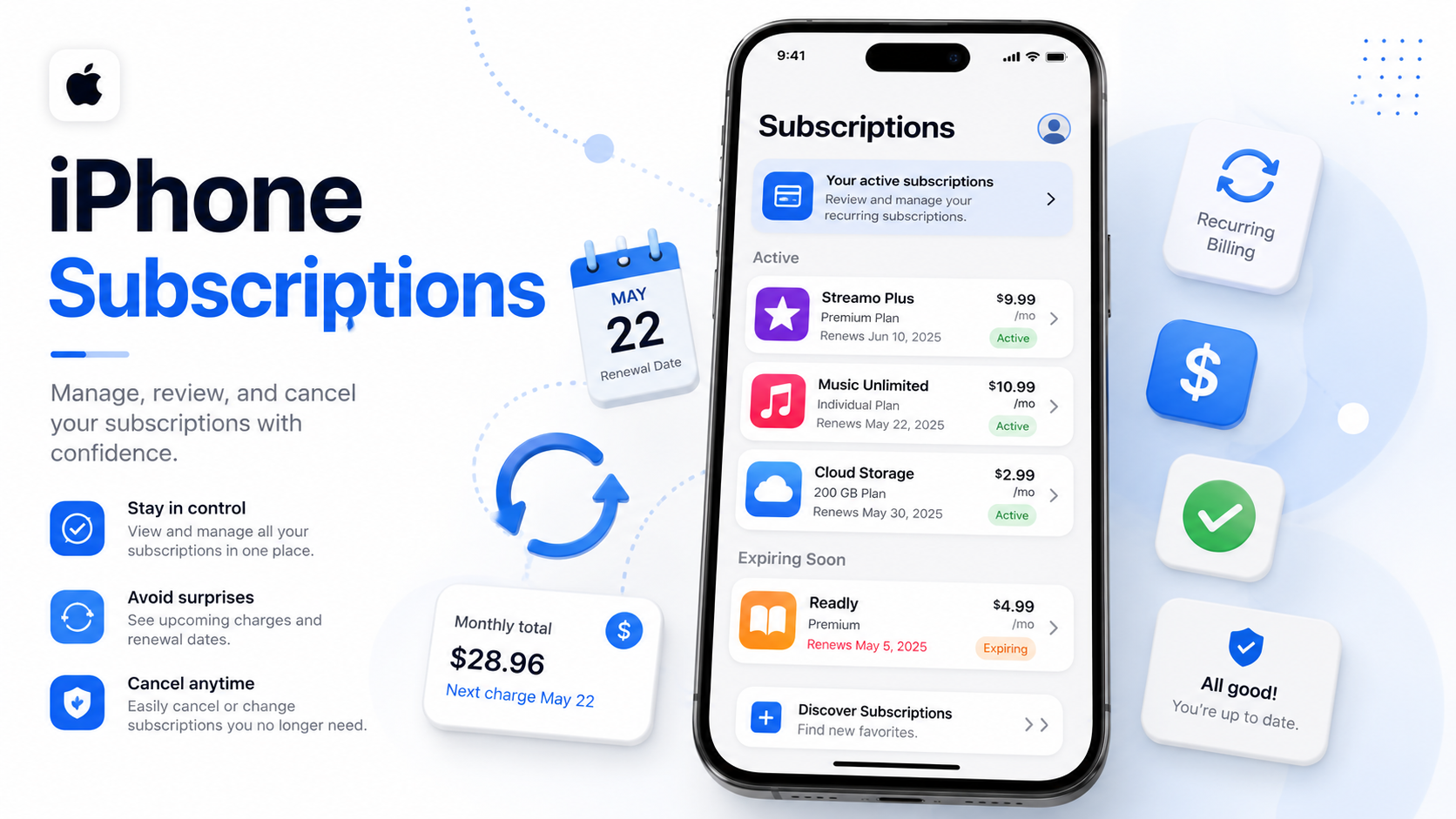
You can cancel most iPhone app subscriptions by opening Settings → your name → Subscriptions → select the subscription → Cancel Subscription. Apple says that if there is no cancel button, or you see an expiration message in red text, the subscription is already canceled.
Important: deleting the app does not cancel the subscription. You need to cancel through Apple, the app’s website, or whichever billing provider is actually charging you.
This guide follows the Not-Subscribed walkthrough format: help first, explain the billing maze second.
Before you cancel an iPhone subscription
Before tapping cancel, check a few things:
Who is billing you: Apple, the app company, Google Play, Amazon, Roku, PayPal, or another provider.
Renewal date: Cancel before the next billing date if you want to avoid another charge.
Access end date: Many subscriptions stay active until the end of the current billing period.
Apple ID: The subscription may be under a different Apple Account if you have more than one.
Family Sharing: A family member’s subscription may appear differently depending on who purchased it.
Refund expectations: Canceling usually stops future billing, but it does not automatically guarantee a refund.
How to cancel a subscription on iPhone
Open the Settings app.
Tap your name at the top.
Tap Subscriptions.
Tap the subscription you want to cancel.
Tap Cancel Subscription.
Confirm the cancellation.
You may need to scroll to find the cancel button. If there is no cancel button, Apple says the subscription may already be canceled.
How to cancel from the App Store
You can also manage subscriptions through the App Store:
Open the App Store.
Tap your profile icon in the top-right corner.
Tap Subscriptions.
Select the subscription.
Tap Cancel Subscription.
Confirm.
This usually takes you to the same Apple subscription management area.
What if the subscription does not appear on your iPhone?
If you do not see the subscription under Settings → your name → Subscriptions, one of these is probably true:
You subscribed directly through the company
Some apps let you create an account on iPhone but bill you through their own website. In that case, go to the company’s website, sign in, and check Account, Billing, Membership, or Subscription settings.
You used a different Apple Account
Search your email for:
“receipt from Apple”
“invoice from Apple”
the app name
the charge amount
Apple recommends checking receipts to see which Apple Account was used for the purchase.
You subscribed through another billing provider
The charge may be managed by:
Google Play
Amazon
Roku
PayPal
your mobile carrier
the app or service directly
The iPhone subscription screen only shows subscriptions billed through Apple.
The app was deleted, but the subscription is still active
Deleting an app removes the app from your phone. It does not necessarily stop billing. This is one of the most common subscription traps.
How to cancel iCloud+ on iPhone
iCloud+ can be a little different depending on your iOS version. For iOS 18.4 and later, Apple lists the path as Settings → your name → Subscriptions → iCloud+ → Cancel Subscription. Apple also notes that if you downgrade or cancel iCloud+, the change takes effect after your current billing period ends.
Before canceling iCloud+, make sure you understand what happens to your storage. If your photos, backups, messages, or files exceed the free storage limit, some syncing or backup features may stop working.
Common iPhone cancellation roadblocks
“I do not see Cancel Subscription”
If the subscription page shows an expiration date or no cancel button, it may already be canceled. Check the status carefully before assuming it is still active.
“The app tells me to cancel somewhere else”
That usually means Apple is not the billing provider. Go to the service’s website or check the original receipt to find out who is charging you.
“I canceled, but the app still works”
That can be normal. Many subscriptions continue until the end of the paid billing period.
“I deleted the app and still got charged”
Deleting the app does not cancel billing. Reinstalling the app is usually not necessary, but you do need to cancel through Apple or the actual billing provider.
“I see a renewal date, not a cancel button”
Read the wording carefully. Apple’s subscription screen may show whether the plan renews, expires, or has already been canceled.
How to confirm the subscription is actually canceled
Do not stop at the first “Are you sure?” screen. Keep going until you can confirm cancellation.
Look for:
A status showing Canceled, Expired, or Expires on [date]
A removed or changed renewal date
A confirmation email from Apple
The subscription moving out of the active renewal state
A screenshot of the final confirmation page
Save the screenshot or email until at least one billing cycle has passed. Future-you deserves receipts.
What to do if you are still charged after canceling
Check the charge name on your bank or card statement.
Search your email for Apple receipts or app receipts.
Check Apple subscriptions again under Settings.
Check other billing providers like PayPal, Amazon, Roku, or the service’s website.
Contact the billing provider that processed the charge.
Request a refund if appropriate.
Apple says App Store and iTunes Store purchases may be eligible for a refund, and refund requests can be started through Apple’s Report a Problem site.
Use a card dispute only after reasonable direct attempts, unless the charge is clearly unauthorized.
The Not-Subscribed note
iPhone subscriptions are convenient when you sign up, but the billing path can get confusing later. Sometimes Apple bills you. Sometimes the app company bills you. Sometimes a subscription started on another platform and the iPhone app is just where you use it.
That confusion is a classic form of app-store billing friction. The subscription may be easy to start in one tap, but stopping the charge depends on finding the right billing provider. The trick is not to panic or keep tapping around randomly. Find who is billing you, cancel there, and save proof.