
Quick answer
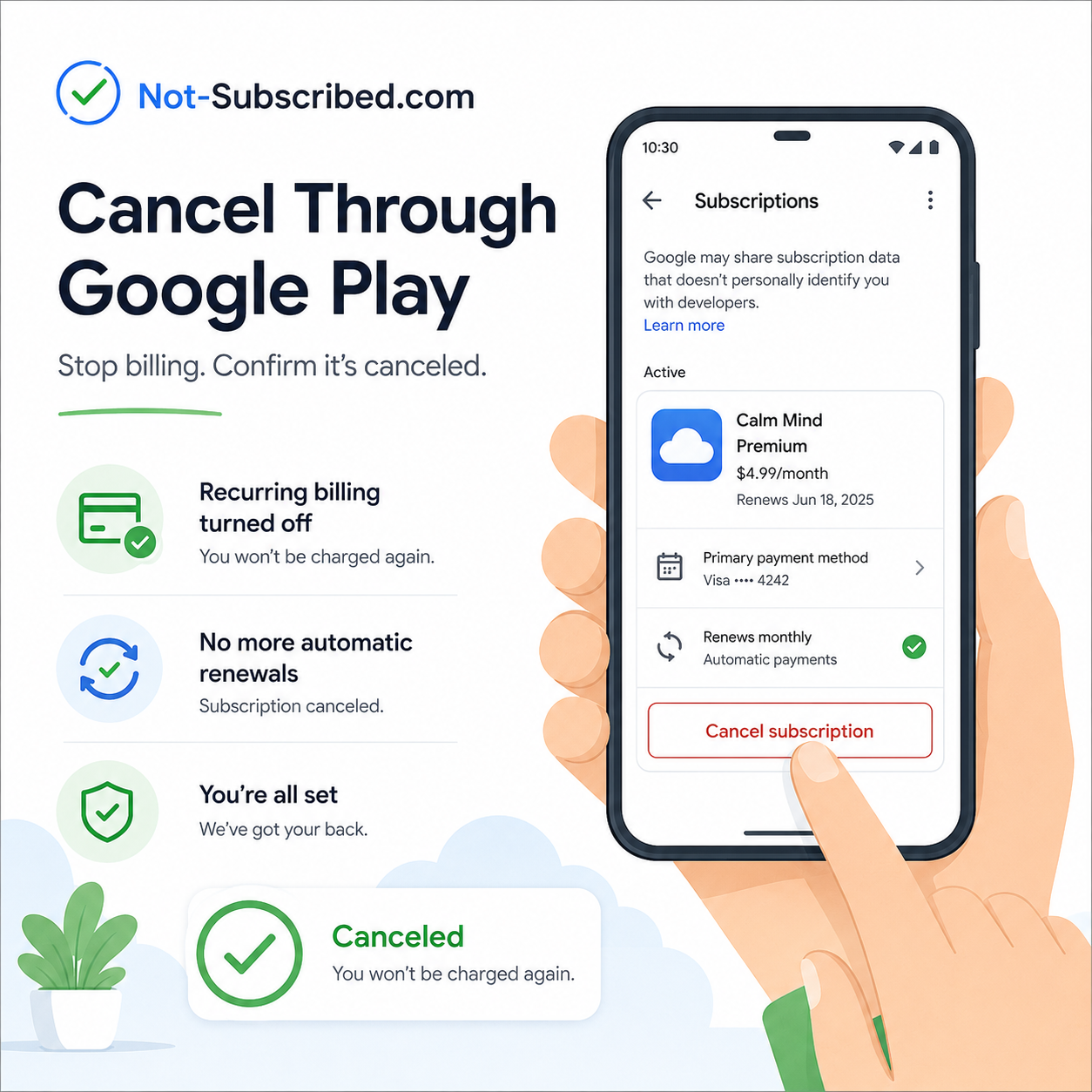
You can cancel most Google Play subscriptions by opening the Google Play Store app, tapping your profile icon, then going to Payments & subscriptions → Subscriptions, choosing the subscription, and tapping Cancel subscription.
Important: Uninstalling the app does not cancel the subscription. Google says you still need to cancel the subscription through Google Play or you may continue to be charged.
Before you cancel a Google Play subscription
Before canceling, check how the subscription is billed. This matters because not every Android app subscription is managed by Google Play.
Look for:
The billing provider: Google Play, the app company directly, Apple, Amazon, Roku, PayPal, or another provider.
The Google Account used: Subscriptions only appear under the Google Account that bought them.
The renewal date: Cancel before the next billing date if you want to avoid another charge.
Access after cancellation: Google says you can usually keep using the subscription for the time you already paid for.
Pause or downgrade options: Some apps allow pausing or plan changes instead of full cancellation.
Refund expectations: Canceling stops future renewal, but it does not automatically mean you will get money back.
How to cancel a subscription in the Google Play app
Open the Google Play Store app on your Android phone or tablet.
Make sure you are signed in to the correct Google Account.
Tap your profile icon in the top-right corner.
Tap Payments & subscriptions.
Tap Subscriptions.
Select the subscription you want to cancel.
Tap Cancel subscription.
Follow the on-screen instructions until cancellation is confirmed.
Google’s official help page lists the core flow as going to Google Play subscriptions, selecting the subscription, tapping Cancel subscription, and following the instructions.
How to cancel a Google Play subscription on a computer
Go to play.google.com in a browser.
Sign in with the Google Account that was charged.
Open your account menu.
Go to Payments & subscriptions.
Open Subscriptions.
Choose the subscription you want to cancel.
Select Cancel subscription.
Follow the prompts until you see confirmation.
Google also offers an official self-service cancellation flow for Google Play subscriptions, but you must be signed in to the correct Google Account.
How to pause a Google Play subscription
Some apps let you pause instead of cancel. This is not available for every subscription.
Open the Google Play Store app.
Tap your profile icon.
Tap Payments & subscriptions.
Tap Subscriptions.
Select the subscription.
Tap Manage.
Tap Pause payments, if available.
Choose the pause length.
Tap Confirm.
Google says paused subscriptions pause at the end of the current billing period, and available pause lengths can vary by app.
What happens after you cancel?
After you cancel a Google Play subscription, you usually keep access until the end of the period you already paid for. For example, if your monthly subscription renews on June 20 and you cancel on June 5, you may still have access until June 20, but you should not be charged for the next renewal.
For prepaid plans, Google says they automatically expire at the end of the billing period, so you usually do not need to cancel them.
Payment plans can be different. Google notes that once your payment method is charged for a payment plan, you may still be responsible for remaining payments, but you can stop the plan from auto-renewing.
What if the subscription does not appear in Google Play?
If you cannot find the subscription, try these checks.
Make sure you are in the right Google Account
Tap your profile icon in Google Play and switch accounts. A subscription only appears under the Google Account that purchased it.
Search your email for receipts
Search Gmail or your email app for:
“Google Play”
“subscription”
the app name
“order receipt”
“renewal”
The receipt can help you confirm which Google Account was billed.
Check whether the app bills you directly
Some apps let you use the Android app but bill you through their own website. In that case, cancel through the company’s account or billing settings, not Google Play.
Check other billing providers
The charge may be coming from:
Apple
Amazon
Roku
PayPal
your mobile carrier
the service’s own website
Google Play can only cancel subscriptions that were purchased through Google Play.
Common cancellation roadblocks
“I deleted the app, but I am still charged”
Deleting the app does not cancel the subscription. This is one of the most common subscription mistakes. You need to cancel the billing plan itself through Google Play or the correct billing provider.
“The cancel button is hard to find”
Open the subscription details and scroll carefully. Some apps may show plan details, renewal dates, pause options, or management options before the cancellation choice.
“Google Play says I have no subscriptions”
You may be signed in to the wrong Google Account, or the subscription may be billed outside Google Play.
“The app says to cancel somewhere else”
That usually means Google Play is not the billing provider. Go to the service’s website, check your receipt, or search your card statement for the exact billing name.
“I canceled but still have access”
That can be normal. Canceling usually turns off the next renewal; it does not always remove access immediately.
How to confirm your Google Play subscription is canceled
Do not stop until you see proof that the subscription will not renew.
Look for:
A cancellation confirmation screen
A confirmation email from Google Play
A subscription status showing canceled or expiring
No upcoming renewal date
An expiration date showing when access ends
Take a screenshot of the cancellation confirmation and save the email. Tiny admin task, big future relief.
What to do if Google Play charges you after cancellation
Recheck Google Play subscriptions under every Google Account you use.
Search your email for Google Play receipts.
Confirm the billing name on your bank or card statement.
Check whether the charge came from the app directly instead of Google Play.
Contact the app developer if the subscription content or refund issue is app-specific.
Request a refund from Google Play if the charge appears eligible.
Contact your card provider only after reasonable direct attempts, unless the charge is clearly unauthorized.
Google says refund eligibility depends on its refund policies, and for many apps or in-app purchases, including subscriptions, refund timing can matter. Google’s policy page says purchases within 48 hours may be eligible depending on the details, while after 48 hours you may need to contact the developer.
Google also says unauthorized Google Play charges should be reported within 120 days of the transaction.
The Not-Subscribed note
Google Play makes it very easy to start an app subscription, especially when you are already signed in and your payment method is saved. Canceling is usually straightforward once you know where to look, but the confusing part is figuring out who is billing you.
That is app-store billing confusion in action. The app may live on your Android phone, but the charge might be handled by Google Play, the app company, PayPal, Amazon, Roku, Apple, or another provider. The smart move is simple: find the billing source, cancel there, and save proof.