
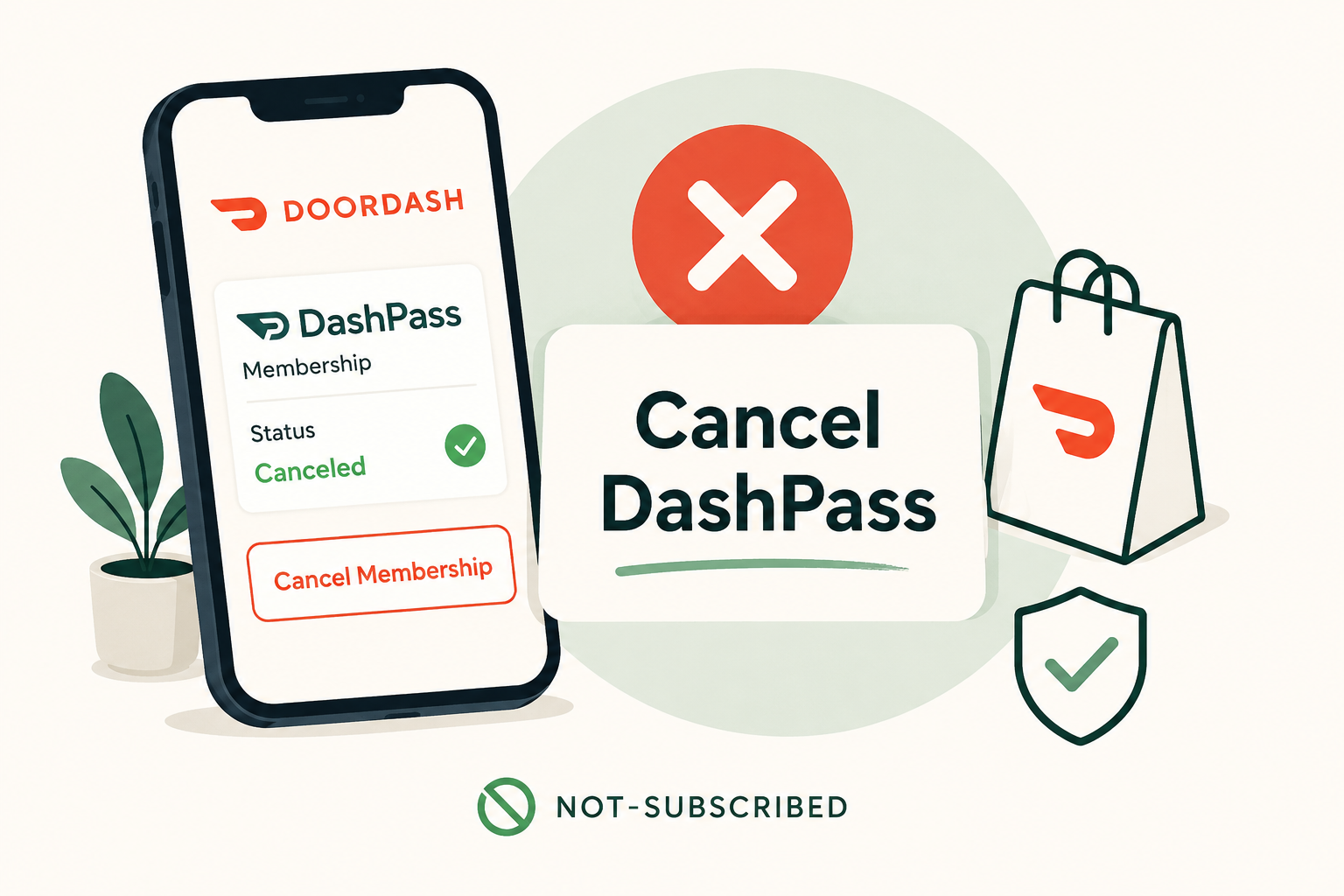
Quick Answer
You can usually cancel DashPass from your DoorDash account by going to Manage DashPass and selecting Cancel Membership. If your membership came through a promotional partner or bundled offer, you may need to follow that provider's cancellation process instead.
According to DoorDash's DashPass support page, members can manage their DashPass subscription directly through their DoorDash account settings.
Before You Cancel DashPass
Before canceling, check:
Your renewal date.
Whether you're on a monthly or annual plan.
Whether you're currently using a free trial.
Whether your DashPass membership came through a credit card benefit, mobile carrier promotion, or another partner offer.
It's also important to remember that deleting the DoorDash app does not cancel your subscription. You must cancel the membership itself to stop future billing.
According to DoorDash's DashPass information page, membership benefits generally continue until the end of the current billing period after cancellation.
How to Cancel DashPass in the DoorDash App
Open the DoorDash app.
Tap your profile icon.
Select Manage DashPass.
Tap Cancel Membership.
Choose a cancellation reason if prompted.
Continue through the remaining screens.
Confirm cancellation.
Keep going until you see a confirmation message that your membership has been canceled.
How to Cancel DashPass on the Website
Visit DoorDash.com and sign in.
Open your account menu.
Select Manage DashPass.
Choose Cancel Membership.
Follow the prompts until cancellation is confirmed.
DoorDash occasionally updates its interface, so button names may change slightly over time.
Common Cancellation Roadblocks
Retention Offers
You may see discount offers, reminders about your benefits, or additional confirmation screens before cancellation is complete.
These are common retention-flow steps designed to encourage members to stay subscribed. Read each screen carefully and continue until you receive a cancellation confirmation.
Partner Memberships
Some DashPass memberships are included with credit cards, wireless plans, or other promotional partnerships.
If your membership came through a third party, you may need to follow separate cancellation instructions or contact support for assistance.
Deleted the App but Still Charged
This is one of the most common subscription mistakes.
Removing the DoorDash app from your phone does not stop recurring billing. You must cancel the DashPass membership through your account settings.
How to Confirm DashPass Is Actually Canceled
After canceling, look for:
A confirmation email.
A cancellation confirmation screen.
A canceled or expiring membership status.
An expiration date instead of a renewal date.
Take a screenshot of the confirmation page and save any confirmation emails for your records.
What to Do If DashPass Charges You After Cancellation
If you receive another charge after canceling:
Check your cancellation confirmation date.
Review your DoorDash billing history.
Search your email for DashPass receipts and cancellation confirmations.
Contact DoorDash support and provide screenshots.
Request a refund if the charge appears to have been made in error.
According to DoorDash's DashPass support center, support can help investigate billing and membership issues.
The Not-Subscribed Note
DashPass is a good example of subscription billing confusion that happens across many apps and memberships. The subscription itself may be easy to start, but users often assume deleting the app ends the billing relationship.
In reality, subscriptions usually continue until the membership is canceled directly. That's why it's important to check your billing source, complete the cancellation flow, and save proof that the membership has been canceled.
Cancel smarter. Subscribe slower.
Sources
Subscription settings and cancellation steps can change. This guide is for general informational purposes and is not legal or financial advice. Always confirm cancellation directly in your account or with the billing provider.