
Quick Answer
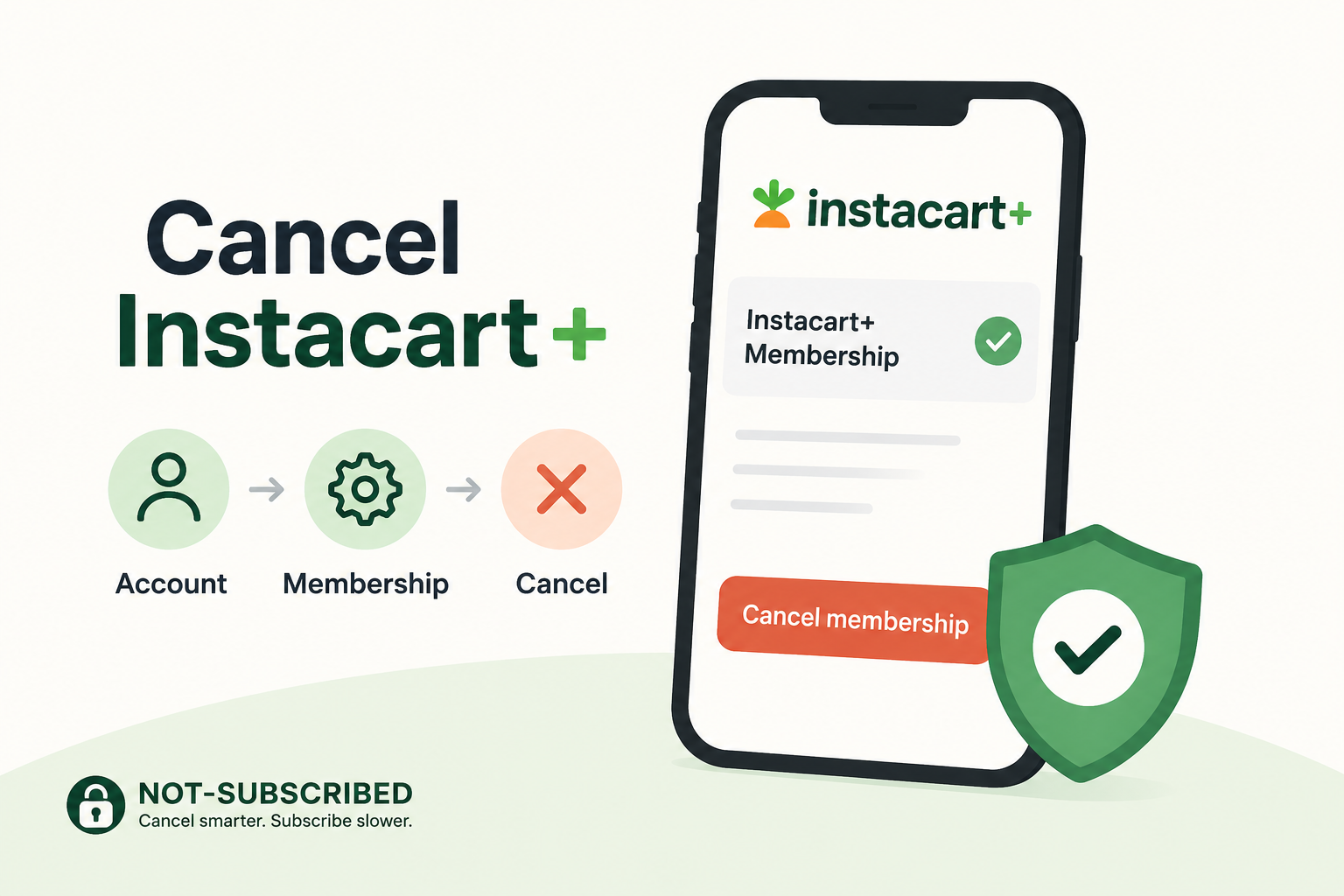
You can usually cancel Instacart+ by opening Your Instacart+ Membership page in the Instacart app or on the website and selecting Cancel Membership.
If you subscribed through Apple's App Store or Google Play, you'll need to cancel through that billing provider instead. Deleting the Instacart app does not cancel your subscription.
According to Instacart's official help page, members can manage and cancel their membership directly from the Instacart+ membership section of their account.
Before You Cancel Instacart+
Before canceling, take a minute to check a few things:
Who is billing you (Instacart, Apple, or Google Play)?
When your next renewal date occurs.
Whether you're on a monthly or annual plan.
Whether you still want to use any remaining Instacart+ benefits before your membership expires.
Whether you qualify for a refund.
According to Instacart's Membership Terms, monthly memberships are generally non-refundable. Annual memberships may qualify for a refund if canceled within the first 5 calendar days of a paid term and no Instacart+ benefits have been used.
The good news: canceling stops future renewals, but your benefits usually remain active until the end of your current billing period.
How to Cancel Instacart+ on the Website
If you signed up directly through Instacart, this is usually the fastest method.
Visit Instacart.com and sign in.
Open the menu (three horizontal lines) or your account icon.
Select Your Instacart+ Membership.
Under Manage Your Membership, select Cancel Membership.
Select Continue to Cancel.
Confirm the cancellation.
According to Instacart's official cancellation instructions, you should receive a confirmation email once the cancellation is complete.
How to Cancel Instacart+ on iPhone
If your subscription is billed through Apple:
Open Settings on your iPhone.
Tap your name at the top.
Select Subscriptions.
Tap Instacart.
Select Cancel Subscription.
Confirm the cancellation.
If you don't see Instacart listed, you are probably billed directly through Instacart instead of Apple.
For more information, see Apple Support's subscription management guide.
How to Cancel Instacart+ on Android
If you subscribed through Google Play:
Open the Google Play Store.
Tap your profile picture.
Select Payments & subscriptions.
Tap Subscriptions.
Choose Instacart.
Tap Cancel Subscription.
Follow the prompts to confirm.
If Instacart doesn't appear in your Google Play subscriptions, your membership is likely billed directly through Instacart.
For additional help, see Google Play Help.
Common Cancellation Roadblocks
You Can't Find the Cancel Button
This usually means you're looking in the wrong billing system.
Check:
Apple App Store subscriptions
Google Play subscriptions
Instacart account settings
Partner memberships bundled through another service
Instacart+ memberships obtained through certain partners may require additional steps to manage or cancel.
Instacart Offers You a Discount
You may see:
Discounted renewal offers
Membership reminders
Pause or stay options
Benefit summaries
These are examples of a retention flow—the sequence of offers and prompts shown when a customer tries to cancel.
You Deleted the App but Are Still Being Charged
Deleting the Instacart app does not cancel the subscription.
You must complete the cancellation process through the appropriate billing provider.
How to Confirm Instacart+ Is Actually Canceled
Don't stop at the final screen.
Look for:
A cancellation confirmation email.
A membership status showing canceled or expiring.
A visible expiration date instead of a renewal date.
No future renewal charge scheduled.
Take a screenshot of the confirmation page and save the email for your records.
According to Instacart's Help Center, members receive an email confirmation after cancellation.
What to Do If You're Still Charged
If a charge appears after cancellation:
Verify the charge date.
Check whether Apple, Google Play, or Instacart processed the payment.
Search your email for renewal receipts.
Locate your cancellation confirmation email.
Contact the billing provider that processed the payment.
Save screenshots and correspondence.
If you believe you were charged incorrectly, contact Instacart support before filing a dispute with your card issuer.
The Not-Subscribed Note
Instacart+ is a good example of negative option billing, where the subscription continues until you actively cancel it. Like many membership programs, the sign-up process is quick while the cancellation flow includes reminders, offers, and confirmation screens designed to encourage you to stay.
That doesn't necessarily mean the process is unfair—but it does mean it's worth checking your renewal date and confirming cancellation before assuming the charges have stopped.
Cancel smarter. Subscribe slower.
Sources
Disclaimer
Subscription settings and cancellation steps can change. This guide is for general informational purposes and is not legal or financial advice. Always confirm cancellation directly in your account or with the billing provider.