
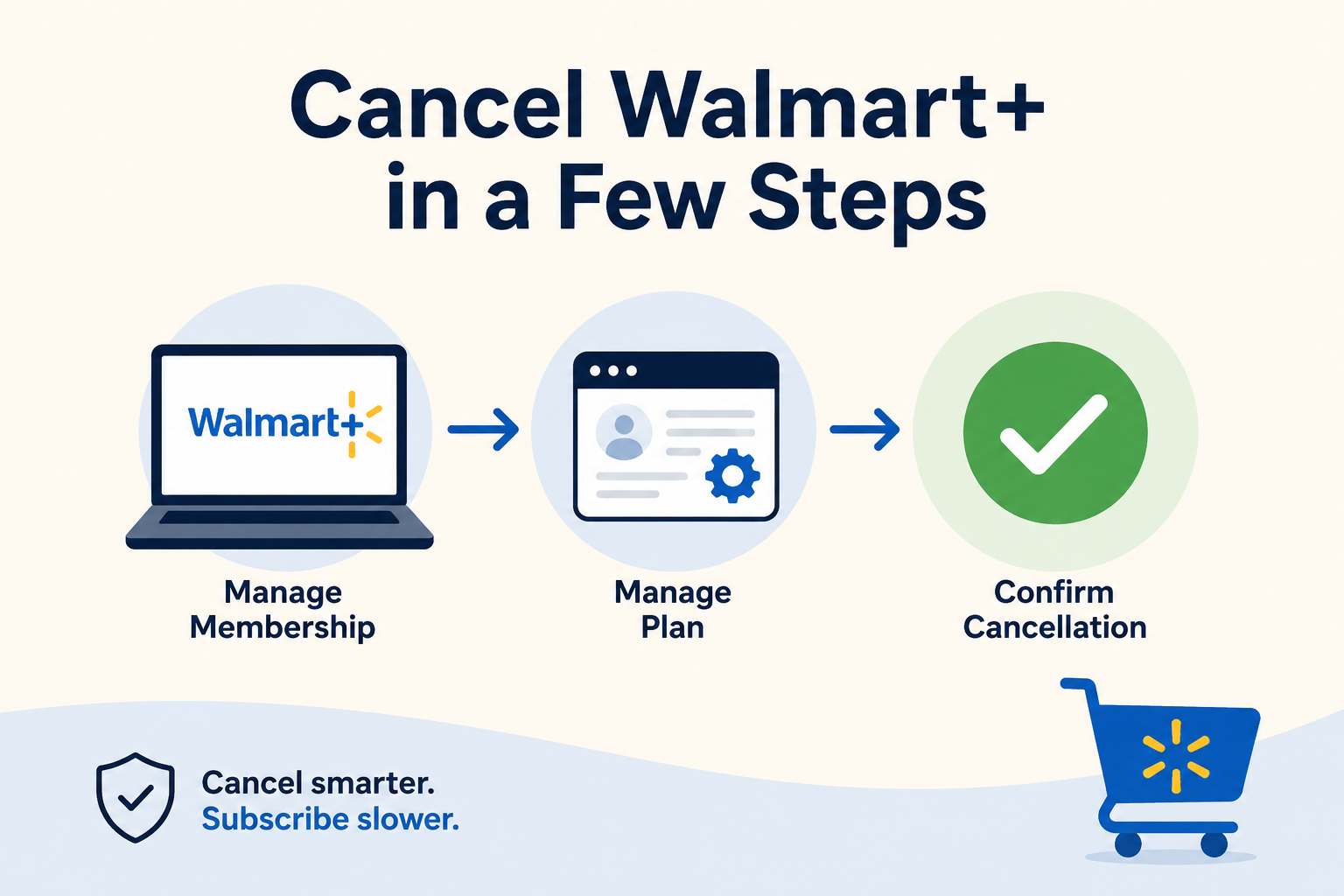
How to cancel Walmart+ in three steps: manage membership, manage plan, and confirm cancellation.
Quick Answer
You can cancel Walmart+ by signing in to your Walmart account, going to Walmart+, choosing Manage membership, selecting Manage beside your Walmart+ plan, and then choosing Cancel beside Cancel membership. Walmart says you may also cancel by calling Walmart Customer Care at (800) 924-9206.
Keep going until you see a real cancellation confirmation. Walmart’s cancellation flow may show options like Confirm cancellation, View exclusive offer, or Keep membership, so make sure you choose the option that actually finishes the cancellation.
Before You Cancel Walmart+
Before canceling, check a few things so you do not accidentally leave something active.
Look for:
Your renewal date. Cancel before the next term if you do not want another charge.
Whether you are on a monthly or annual plan.
Whether you are in a free trial or promotional offer. Walmart says trial memberships can auto-renew into a paid annual or monthly membership unless otherwise stated.
Any Plus Up benefits, such as InHome or an upgraded streaming plan.
Whether you still want access until the end of your term. Walmart’s terms say that if you cancel a paid Walmart+ membership or Plus Up benefit, you can continue using the benefit until the end of the relevant term.
Important: deleting your Walmart account is not the same thing as canceling Walmart+. Walmart has separate account deletion steps, but the membership cancellation path is handled through Walmart+ membership settings.
How to Cancel Walmart+ on the Walmart Website
Go to Walmart.com.
Sign in to your Walmart account.
Select Walmart+.
Select Manage membership.
Select Manage beside your Walmart+ plan.
Select Cancel beside Cancel membership.
Choose Confirm cancellation.
Save the confirmation page or email.
Walmart may also show View exclusive offer or Keep membership during the flow. Those are not the same as canceling. Choose Confirm cancellation if you want the membership to end.
How to Cancel Walmart+ in the Walmart App
The app layout can move around, but the general path is:
Open the Walmart app.
Tap Account.
Go to Walmart+.
Open Manage membership or the membership settings area.
Select Manage beside your Walmart+ plan.
Choose Cancel membership.
Follow the prompts until cancellation is confirmed.
Walmart’s terms describe the account path as Account > Walmart+, then selecting the gear icon.
How to Cancel Walmart+ by Phone
Walmart’s terms say you can cancel Walmart+ or a Plus Up benefit by calling Walmart Customer Care at:
(800) 924-9206
Before calling, have ready:
The email address on your Walmart account.
Your name and billing ZIP code.
The charge date and amount.
A screenshot or copy of your Walmart+ membership page, if available.
Ask the representative to confirm whether they are canceling only Walmart+ or also any Plus Up benefits attached to the account.
How to Cancel a Walmart+ Free Trial
You can cancel Walmart+ during a trial from your Walmart+ membership settings. Walmart says trial memberships may auto-renew into a full-price annual or monthly membership unless the offer says otherwise.
To avoid a surprise renewal:
Sign in to your Walmart account.
Go to Walmart+.
Open Manage membership.
Select Cancel membership.
Confirm cancellation.
One thing to know: Walmart’s terms say that if you cancel during a trial period, Walmart may end the trial benefits immediately, and no refunds will be issued.
How to Cancel Walmart+ Plus Up Benefits
Walmart+ may include or connect to extra benefits, sometimes called Plus Up Benefits, such as InHome or upgraded streaming options.
Walmart says you may cancel a Walmart+ Membership or any Plus Up Benefit through your Walmart account or by calling Customer Care. Paid benefits can generally continue until the end of the relevant term after cancellation.
For upgraded streaming plans, Walmart says to manage cancellation from the streaming services area inside your Walmart+ account.
A safe path is:
Sign in to your Walmart account.
Go to Walmart+.
Look for any extra plan, Plus Up, InHome, or streaming upgrade.
Open Manage plan.
Cancel or downgrade the add-on.
Confirm the change.
Common Walmart+ Cancellation Roadblocks
“Remind Me Later” is not cancellation
Walmart says that when you choose to cancel, you may see a Remind Me Later prompt that sends an email three days before your renewal date. That can be useful if you are not ready to cancel, but it does not sound like the same thing as completing cancellation.
You may see an offer before you leave
Walmart’s cancellation options may include View exclusive offer and Keep membership along with Confirm cancellation. This is a retention flow: the service gives you one more chance to stay before you finish canceling.
Canceling Walmart+ may not cancel every related thing
If you added InHome, an upgraded streaming plan, or another Plus Up benefit, check those separately. Walmart’s terms treat Walmart+ membership and Plus Up benefits as things that may need to be managed or canceled.
Deleting your account is different from canceling
Walmart has separate steps for deleting a Walmart.com account. Do not rely on account deletion alone as your first cancellation step. Cancel the membership from Walmart+ settings and save proof.
How to Confirm Walmart+ Is Actually Canceled
After canceling, check for at least one of these:
A cancellation confirmation email.
A Walmart+ membership page showing the plan is canceled or ending.
A final access date instead of a renewal date.
No active Plus Up or upgraded streaming plans.
A screenshot of the confirmation page.
Save the screenshot or email until after the next billing date passes. This is boring, yes. It is also how you avoid playing “find the receipt” later.
What to Do If Walmart+ Charges You After Cancellation
Check the charge date. It may have happened before cancellation was completed.
Go back to Walmart+ settings. Confirm the membership is actually canceled.
Check for Plus Up benefits. An add-on may still be active.
Search your email for Walmart receipts. Look for “Walmart+,” “membership,” “renewal,” or “subscription.”
Contact Walmart Customer Care. Use your cancellation proof and ask what the charge was for.
Contact your card provider only after reasonable direct attempts, unless the charge is clearly unauthorized.
Walmart’s terms say Walmart+ fees and Plus Up Benefit fees are non-refundable except as expressly stated in the terms, so do not assume a refund is automatic.
The Not-Subscribed Note
Walmart+ is a classic example of negative option billing: once you are subscribed, billing continues unless you actively cancel before renewal. Walmart’s terms say the membership automatically renews and charges the payment method on file unless you cancel before the next term.
The tricky part is not necessarily finding a cancel button. It is making sure you choose the real cancellation option, avoid mistaking a reminder or retention offer for cancellation, and confirm that any add-ons are stopped too.
That is the subscription maze in miniature: easy to start, slightly slower to leave, and always worth confirming.
Disclaimer
Subscription settings and cancellation steps can change. This guide is for general informational purposes and is not legal or financial advice. Always confirm cancellation directly in your account or with the billing provider.