
Quick Answer
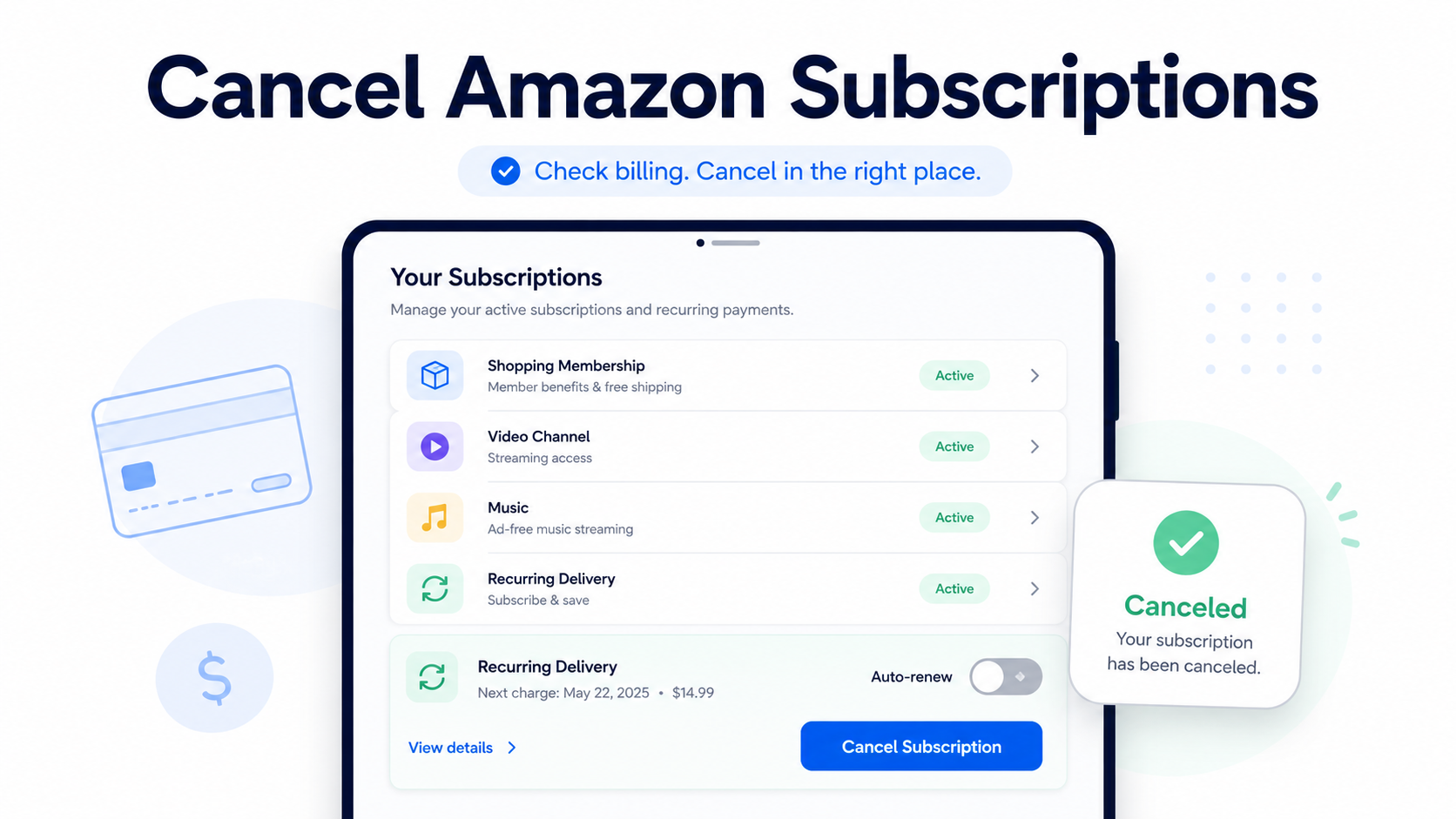
You can cancel most Amazon subscriptions from Your Memberships and Subscriptions in your Amazon account. Find the subscription, choose Manage Subscription, then select Cancel and follow the prompts until Amazon confirms it is canceled. Amazon’s own help page says this is the main place to manage and cancel subscriptions tied to your Amazon account.
For Amazon Prime, go to your Prime membership settings and choose the option to end your membership. Amazon says Prime cancellation is handled through Cancel Your Prime Membership and the prompts that follow.
For Subscribe & Save, Prime Video Channels, Amazon Music Unlimited, and Amazon Appstore subscriptions, the cancellation path may be different, so check the sections below before assuming one cancel button covers everything.
Before You Cancel an Amazon Subscription
Before canceling, check what type of Amazon subscription you have. “Amazon subscriptions” can mean several different things:
Amazon Prime
Prime Video Channels or add-on subscriptions
Subscribe & Save deliveries
Amazon Music Unlimited
Kindle Unlimited or Audible
Amazon Appstore subscriptions
Software subscriptions purchased through Amazon
A third-party service billed through Amazon
Also check:
Renewal date: Cancel before the next billing date if you want to avoid another charge.
Billing provider: Some subscriptions may be billed by Apple, Google, Roku, a mobile provider, or the service itself instead of Amazon.
Access end date: Some subscriptions continue until the end of the paid period.
Refund eligibility: Amazon may offer refunds in some cases, but do not assume every cancellation qualifies.
Saved proof: Take a screenshot of the cancellation confirmation.
Deleting the Amazon app, Prime Video app, Music app, or a streaming channel app usually does not cancel billing.
How to Cancel Most Amazon Subscriptions
Use this for many subscriptions managed through Amazon, including some digital subscriptions and services.
Go to Amazon.com.
Sign in to your account.
Open Account & Lists.
Select Memberships & Subscriptions.
Find the subscription you want to cancel.
Select Manage Subscription.
Choose Cancel Subscription or the available cancellation option.
Follow every confirmation prompt until the subscription shows as canceled.
Amazon’s help page for managing subscriptions says to go to Your Memberships and Subscriptions, locate the subscription, select Manage Subscription, and then choose Cancel.
How to Cancel Amazon Prime
Amazon Prime has its own membership area.
Go toAmazon.com.
Sign in.
Open Account & Lists.
Select Prime Membership.
Look for Manage Membership or membership settings.
Choose the option to End Membership or cancel Prime.
Follow the prompts until Amazon confirms the membership is ending.
Amazon says Prime members can cancel by visiting the Prime cancellation flow and following the prompts.
Can You Pause Amazon Prime Instead?
In some cases, Amazon allows eligible Prime Monthly or Annual members to pause their membership for up to one year and resume manually later.
That can be useful if you do not want Prime right now but may want to restart it later without fully canceling.
How to Cancel Amazon Subscribe & Save
Subscribe & Save is for recurring product deliveries, not digital access.
Go to Your Subscribe & Save Items.
Select the Subscriptions tab.
Choose the item subscription you want to cancel.
Select Cancel Subscription.
Confirm the cancellation.
Amazon says Subscribe & Save subscriptions can be canceled from Your Subscribe & Save Items by selecting the subscription and choosing the cancel option.
Tip
If you do not want to cancel forever, you may be able to skip a delivery or change the delivery schedule instead. Amazon says delivery schedules can be changed from the Subscribe & Save area.
How to Cancel Prime Video Channels or Add-On Subscriptions
This applies to channels or add-ons billed through Prime Video, such as streaming channel subscriptions purchased inside Amazon.
Go to Manage Your Subscriptions.
Select Subscriptions from the top menu.
Find the Prime Video add-on subscription.
Select Unsubscribe.
Confirm the cancellation.
Amazon says Prime Video add-on subscriptions can be canceled by going to Manage Your Subscriptions, choosing the subscription, selecting Unsubscribe, and confirming.
How to Cancel Amazon Music Unlimited
Go to Your Amazon Music Settings.
Find the Amazon Music Unlimited section.
Look for Subscription Renewal details.
Select Cancel.
Confirm the cancellation.
Amazon’s help page says Amazon Music Unlimited cancellation is handled through Your Amazon Music Settings under the subscription renewal details.
How to Cancel Amazon Appstore Subscriptions
This applies to subscriptions purchased through the Amazon Appstore.
Go to your Amazon account.
Open the Amazon Appstore subscription management area.
Find the subscription.
Choose the option to cancel or turn off auto-renewal.
Confirm the change.
Amazon says Appstore subscriptions can be managed from the website, including changing, canceling, or turning off auto-renewal for subscriptions purchased through the Amazon Appstore app.
Common Amazon Cancellation Roadblocks
“I canceled Prime, but I still see another Amazon charge.”
Prime is only one Amazon subscription. You may still have:
Prime Video Channels
Amazon Music Unlimited
Kindle Unlimited
Audible
Subscribe & Save
Appstore subscriptions
Software subscriptions
A separate third-party subscription billed through Amazon
Check Memberships & Subscriptions, Prime Video subscriptions, and Subscribe & Save separately.
“I deleted the app, but I’m still being charged.”
Deleting an app does not cancel the billing agreement. You need to cancel through the account or billing provider.
“Amazon keeps showing offers before cancellation.”
That is a retention flow. You may see reminders, benefits, discounts, pause options, or confirmation screens before the cancellation is complete. Keep going until you see a canceled status or confirmation message.
“The subscription says to cancel somewhere else.”
That usually means Amazon may not be the billing provider. Check your email receipts and card statement. If the receipt came from Apple, Google Play, Roku, PayPal, a mobile carrier, or the subscription company directly, cancel through that provider instead.
How to Confirm Your Amazon Subscription Is Canceled
Do not stop at the first “Are you sure?” screen.
Look for:
A confirmation email from Amazon
A subscription status that says canceled, ending, or not renewing
An expiration date instead of a renewal date
A canceled Subscribe & Save item
A Prime Video channel marked as unsubscribed
A screenshot of the final confirmation page
Save the screenshot until you are sure the next billing date passes without another charge.
What to Do If Amazon Charges You After Cancellation
Check which Amazon service charged you. Prime, Music, Channels, Subscribe & Save, and Appstore subscriptions may appear separately.
Search your email for receipts. Try terms like “Amazon subscription,” “Prime Video,” “Subscribe & Save,” “Amazon Music,” “Kindle Unlimited,” and “Audible.”
Check Your Memberships & Subscriptions. Make sure no active plan is still renewing.
Check Subscribe & Save separately. A recurring product delivery is different from a digital subscription.
Contact Amazon support. Ask which subscription caused the charge and whether a refund is available.
Contact the actual billing provider if the charge was processed through Apple, Google, Roku, PayPal, a carrier, or another company.
Consider a card dispute only after reasonable direct attempts, unless the charge is clearly unauthorized.
The Not-Subscribed Note
Amazon subscriptions are not all in one neat bucket. Prime, Subscribe & Save, Prime Video Channels, Music, Appstore subscriptions, and other digital memberships can each have their own cancellation path.
That is classic subscription sludge: not necessarily one big trap, but enough separate settings, renewal pages, and billing paths to make cancellation feel more confusing than signing up. The safest move is to check who is billing you, cancel in the correct place, and save proof before the next renewal date.
Subscription settings and cancellation steps can change. This guide is for general informational purposes and is not legal or financial advice. Always confirm cancellation directly in your account or with the billing provider.