
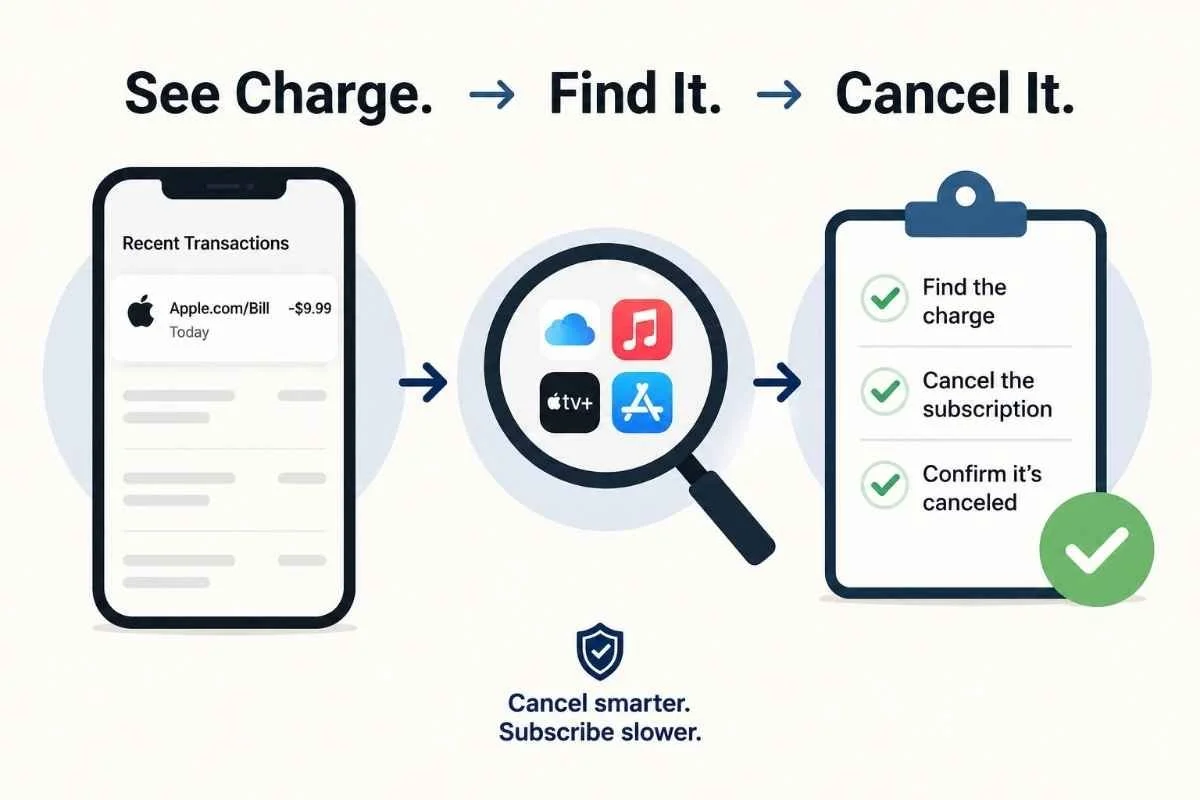
Illustration showing an Apple.com/Bill charge, app subscription search, and cancellation checklist with confirmation checkmarks.
Quick Answer
If you see Apple.com/Bill on your bank or credit card statement, it usually means Apple processed a charge for an app, subscription, iCloud storage, Apple Music, Apple TV+, an in-app purchase, a movie, a book, or another Apple digital purchase. Apple says this descriptor can appear for apps, subscriptions, music and movie purchases, and more.
The tricky part: Apple.com/Bill does not always tell you which app or subscription caused the charge. You need to check your Apple purchase history, subscriptions, receipts, and possibly Family Sharing purchases.
This article follows Not-Subscribed’s billing-help approach: help the reader identify the charge, stop future billing, confirm cancellation, and understand the subscription pattern behind it.
What Apple.com/Bill Usually Means
A charge from Apple.com/Bill may be for:
An App Store app purchase
A subscription billed through Apple
An in-app purchase
iCloud+ storage
Apple Music
Apple TV+
Apple Arcade
Apple News+
Apple Fitness+
A movie, show, song, audiobook, or book
A purchase made by someone in your Family Sharing group
Apple recommends checking your purchase history to see what was billed to your Apple Account.
First: Check Your Apple Purchase History
The fastest way to identify the charge is to look at your Apple purchase history.
On iPhone or iPad
Open Settings.
Tap your name.
Tap Media & Purchases.
Tap View Account.
Tap Purchase History.
Look for a charge that matches the date and amount on your card statement.
Apple’s official billing support page points users to purchase history as the main way to verify Apple charges.
On the Web
Go to Apple’s reportaproblem.apple.com page.
Sign in with your Apple Account.
Review recent purchases.
Match the date, amount, and item name to your bank statement.
This page is also where Apple directs users to request refunds for eligible apps or content.
Check Your Active Apple Subscriptions
If the charge repeats monthly or yearly, it is probably a subscription.
On iPhone or iPad
Open Settings.
Tap your name.
Tap Subscriptions.
Look for active subscriptions.
Tap any subscription you do not recognize.
Check the renewal date and price.
Apple says you can view, change, and cancel subscriptions from Apple and subscriptions purchased through apps in the App Store from your device.
How to Cancel an Apple-Billed Subscription
Open Settings.
Tap your name.
Tap Subscriptions.
Select the subscription.
Tap Cancel Subscription.
Confirm the cancellation.
Apple notes that if there is no cancel button, or if you see an expiration message, the subscription may already be canceled.
Check Your Email Receipts
Apple usually sends receipts to the email address connected to your Apple Account.
Search your email for:
“Apple receipt”
“Apple invoice”
“Your receipt from Apple”
The exact dollar amount
The renewal date
This is especially useful if you have multiple Apple Accounts or old email addresses.
Check Family Sharing
A charge may come from someone in your Apple Family Sharing group.
For example, a child, partner, or family member may have started a subscription, bought app credits, or made an in-app purchase using the shared payment method.
Check:
Your Apple purchase history.
Family member purchases.
Ask family members whether they subscribed to a new app.
Review purchase sharing settings.
Not every surprise charge is mystery billing. Sometimes it is just a household subscription wearing an extremely unhelpful disguise.
Common Reasons You See Apple.com/Bill
1. A Free Trial Converted to a Paid Subscription
Many apps offer free trials through the App Store. If the trial is not canceled before the renewal date, it may convert into a paid subscription.
This is a classic example of negative option billing: billing continues unless the customer actively cancels.
2. You Deleted the App but Did Not Cancel the Subscription
Deleting an app does not automatically cancel an Apple-billed subscription.
You usually need to cancel through:
Settings → Your Name → Subscriptions
This is one of the most common app-store billing traps. The app disappears from your phone, but the billing agreement keeps going.
3. An Annual Subscription Renewed
Some apps renew yearly, which can make the charge feel unexpected. You may have signed up months ago and forgotten about it.
Check the subscription’s renewal date in your Apple subscription settings.
4. An In-App Purchase Was Made
Games, photo apps, dating apps, productivity tools, and learning apps may sell credits, upgrades, coins, filters, features, or premium access through Apple.
These can show up as Apple.com/Bill even though the charge was connected to a specific app.
5. iCloud+ Storage Renewed
If you pay for extra iCloud storage, that charge may appear through Apple billing.
Check your iCloud plan under your Apple Account settings.
6. Another Apple Account Was Used
Some people have more than one Apple Account, especially if they changed emails over the years.
Check old email addresses for Apple receipts. Also check whether the charge appears under another Apple Account used on an older iPhone, iPad, Mac, or family device.
What to Do If You Do Not Recognize the Charge
Start with Apple’s official tools before disputing the charge.
Check your purchase history.
Check active subscriptions.
Search your email for Apple receipts.
Check Family Sharing.
Look for another Apple Account.
Visit Apple’s Report a Problem page.
Contact Apple Support if you still cannot identify the charge.
Apple says purchases from the App Store, iTunes Store, Apple Books, or other Apple services may be eligible for a refund, but eligibility is not guaranteed.
How to Request a Refund from Apple
If you found the charge and believe it should be refunded:
Sign in with your Apple Account.
Choose Request a refund.
Select a reason.
Choose the item.
Submit the request.
Apple’s refund page says some purchases may be eligible for a refund, so avoid assuming approval is automatic.
You can also check the status of a refund request from Apple’s Report a Problem site by choosing Check Status of Claims.
How to Stop Future Apple.com/Bill Charges
To stop future charges, you need to cancel the subscription or paid service that is renewing.
Cancel Apple-Billed Subscriptions
Open Settings.
Tap your name.
Tap Subscriptions.
Tap the subscription.
Tap Cancel Subscription.
Save a screenshot showing the canceled or expiring status.
Apple’s cancellation support page says users may need to scroll to find the cancel button, and if no cancel button appears or an expiration message is shown, the subscription may already be canceled.
Turn Off Unused iCloud+ Storage
If the charge is for iCloud+ storage, review your iCloud plan and downgrade only after making sure you understand what happens to your storage, backups, and synced data.
Remove Old Payment Methods Carefully
Removing a card may not cancel an active subscription. It may only cause payment problems later.
The better move is to cancel the subscription first, then update payment settings if needed.
How to Confirm It Is Canceled
Do not stop at “I think I canceled it.”
Look for proof:
Subscription shows Canceled or Expires
Renewal date is gone or changed to an expiration date
Apple sends a confirmation email
The subscription no longer appears as active
You saved a screenshot of the cancellation page
A screenshot is boring until you need it. Then it becomes your tiny financial seatbelt.
What If Apple Says It Is Not Their Charge?
If you cannot find the charge in your Apple purchase history, Apple says you may have bought the subscription from another company and should check your bank or credit card statement to identify who bills you.
That means the charge might look Apple-adjacent, but actually be from:
The app company directly
Google Play
PayPal
Amazon
Roku
A mobile carrier
A different billing provider
A card transaction using Apple Pay, not Apple as the merchant
Important distinction: Apple Pay is not the same thing as Apple billing. Apple Pay is a payment method. Apple.com/Bill usually points to Apple as the billing processor for digital purchases.
Common Roadblocks
“I canceled in the app, but I am still charged.”
Some apps show account settings inside the app, but Apple-billed subscriptions must usually be canceled through Apple subscription settings.
“I deleted the app.”
Deleting the app does not cancel billing.
“I do not see the subscription.”
You may be signed into the wrong Apple Account, the subscription may belong to a family member, or the charge may not be billed through Apple.
“The charge amount does not match one app.”
Apple may group purchases together, which can make one statement charge harder to match to a single item. Check purchase history by date and total amount.
“I requested a refund, but I still see the charge.”
A refund request is not the same as a refund approval. Check the refund status through Apple’s Report a Problem page.
The Not-Subscribed Note
Apple.com/Bill is a perfect example of app-store billing confusion. The app may be the thing you used, but Apple may be the company processing the payment. That separation can make cancellation feel like a maze: the app says “manage your subscription,” your card says “Apple,” and your memory says “I have no idea what this is.”
The fix is to follow the billing trail, not the app icon. Find who is billing you, cancel through that provider, and save proof that the subscription is actually canceled.
Cancel smarter. Subscribe slower.
Disclaimer
Subscription settings and cancellation steps can change. This guide is for general informational purposes and is not legal or financial advice. Always confirm cancellation directly in your account or with the billing provider.