
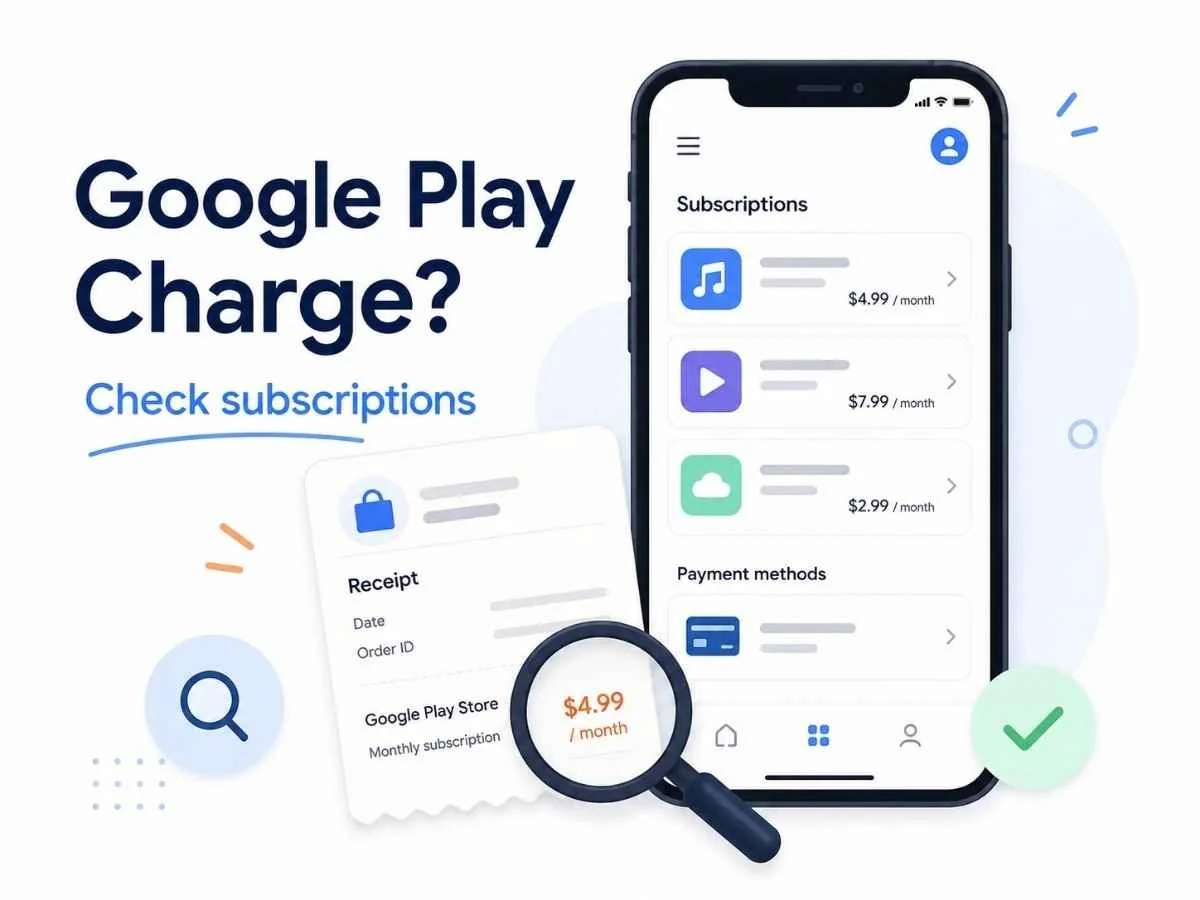
Illustration of a smartphone showing Google Play subscriptions, a receipt, and a magnifying glass highlighting a recurring monthly charge.
Quick Answer
You are probably being charged by Google Play because a subscription, app purchase, in-app purchase, movie, book, game, or other digital item was bought through Google Play using your Google account or payment method.
On card statements, Google Play charges often appear as something like “GOOGLE*App developer name,” “GOOGLE*App name,” or “GOOGLE*Content type.” Google says charges found in your Google Play order history are from Google Play.
The fastest way to check is:
Open the Google Play Store.
Tap your profile icon.
Tap Payments & subscriptions.
Check Subscriptions and Budget & history or Order history.
Make sure you are signed into the correct Google account.
If you find an active subscription, cancel it from Google Play. If you do not recognize the charge, check family purchases, other Google accounts, and Google’s unrecognized-charge process.
Why Google Play Charges Happen
A Google Play charge does not always mean you bought a new app. It can come from several places:
A monthly or annual app subscription
A free trial that converted into a paid subscription
An in-app purchase
A game purchase or game currency
A movie, TV, ebook, audiobook, or other digital content purchase
A family member using a shared family payment method
A purchase made from another Google account signed into your device
A delayed card posting from a previous purchase
Google notes that purchases through some payment methods can appear within a few days, and in rare cases may take up to 10 business days or more depending on the bank or payment provider.
This is why the charge may feel “random” even if the purchase happened earlier.
What Google Play Charges Look Like on a Bank Statement
Google says Google Play purchases may appear on your statement as:
GOOGLE*App developer name
GOOGLE*App name
GOOGLE*Content type, such as books
So a charge might not say “Google Play Subscription.” It may show the app name, developer name, or content category instead. That can make it harder to connect the charge to the app you actually signed up for.
This is classic billing-provider confusion: Google Play is processing the payment, but the thing you bought may belong to a separate app, game, or digital service.
Step 1: Check Your Google Play Order History
Start with your Google Play order history.
Open the Google Play Store app.
Tap your profile icon.
Tap Payments & subscriptions.
Tap Budget & history or check your order history.
Look for a charge that matches the amount and date on your bank statement.
Also check the Google account currently signed in. If you have multiple Gmail accounts, the charge may be hiding under another account.
Google’s own guidance says that if a charge appears in your Google Play order history, it is from Google Play.
Step 2: Check Active Google Play Subscriptions
If the charge repeats monthly or annually, it is probably a subscription.
To check on Android:
Open the Google Play Store.
Tap your profile icon.
Tap Payments & subscriptions.
Tap Subscriptions.
Look for any active subscription that matches the charge.
Google’s cancellation instructions say to select the subscription, tap Cancel subscription, and follow the instructions.
You can also use Google’s self-service cancellation flow when signed into the correct account.
Step 3: Cancel the Google Play Subscription
To cancel a subscription billed through Google Play:
Open the Google Play Store.
Tap your profile icon.
Tap Payments & subscriptions.
Tap Subscriptions.
Select the subscription.
Tap Cancel subscription.
Follow the prompts until cancellation is confirmed.
Do not stop after the first warning screen or discount offer. Keep going until Google Play shows that the subscription is canceled or set to expire.
Deleting the app usually does not cancel billing. You need to cancel the subscription itself.
Step 4: Check Family Purchases
If you are the family manager for a Google family group, another person may be using a family payment method.
Google says family members can use the family payment method for Google Play purchases and in-app purchases through Google Play’s billing system, and the family manager is responsible for purchases made with that family payment method. Google also says the family manager gets an email receipt each time a family member makes a purchase through Google Play’s billing system.
To investigate:
Search your email for Google Play receipt.
Search for the app name or charge amount.
Ask household members whether they bought an app, game item, book, movie, or in-app upgrade.
Review family payment settings.
Turn on purchase approvals if needed.
Google says parents in a family group can require approval for family members to purchase or download content through Google Play’s billing system.
Step 5: Check Other Google Accounts
This is one of the most common Google Play billing headaches.
You may have:
One Google account on your phone
Another Google account in the Play Store
A work or school Google account
An old Gmail account used for subscriptions
A child or family member’s account connected to the payment method
In the Google Play Store, tap your profile icon and switch accounts. Then check Payments & subscriptions under each account.
Google notes that if you cannot find a subscription, it may be on a different account.
What If You Do Not Recognize the Google Play Charge?
If the charge is not in your order history and nobody in your household recognizes it, treat it more seriously.
Google recommends reporting charges you do not recognize. For credit card, debit card, or PayPal transactions, Google says it can only take action within 120 days from the transaction date.
Before reporting it, check:
Your Google Play order history.
Every Google account you use.
Family payment method activity.
Email receipts from Google Play.
Whether the amount matches a free trial conversion.
Whether the card statement uses one of Google’s listed Google Play charge formats.
If you still do not recognize it, use Google’s unauthorized transaction process. Google’s unauthorized transaction form is intended for charges you do not recognize in your Google account and that were not made by someone you know.
Can You Get a Refund from Google Play?
Maybe, but do not assume it is automatic.
Refund eligibility depends on the purchase type, timing, app, subscription, region, and Google’s policy. If the charge was made by a family member or friend, Google says you may be eligible for a refund. If you believe the charge was fraudulent, Google directs users to a separate process.
Practical refund steps:
Find the charge in Google Play order history.
Open the transaction details.
Look for a refund or report-a-problem option.
Explain the issue clearly.
Save screenshots and confirmation emails.
If Google Play processed the payment, start with Google Play rather than the app developer. If the app developer billed you directly outside Google Play, you may need to contact the developer instead.
Common Roadblocks
“I deleted the app, but I am still being charged.”
Deleting an app usually removes the app from your device. It does not necessarily cancel the billing agreement. You need to cancel the subscription in Google Play or wherever you originally subscribed.
“The subscription is not showing in Google Play.”
You may be signed into the wrong Google account, or the subscription may not be billed through Google Play. Check Apple, PayPal, Amazon, Roku, the app’s website, or another billing provider.
“The charge says Google, but I do not know the app.”
Look at the statement descriptor. Google says Play charges may show the app name, developer name, or content type. Search your email for the exact amount, date, or “Google Play receipt.”
“Someone in my family bought something.”
Check family payment settings. The family manager may be responsible for purchases made with the family payment method. Purchase approvals can help prevent surprise purchases later.
“I canceled, but I was charged again.”
Check whether the charge was for a previous billing period, a different Google account, another subscription, or a delayed posting. Google says some payment methods may take several days to show charges, and rare cases can take longer.
How to Confirm Google Play Billing Has Stopped
After canceling, confirm it.
Look for:
A canceled or expiring status in Google Play subscriptions
A final access date
A confirmation email
No future renewal date
A screenshot of the cancellation confirmation
Keep the screenshot until at least one billing cycle has passed. Future you deserves receipts.
How to Prevent Surprise Google Play Charges
A few calm cleanup steps can save a lot of billing detective work later:
Review Google Play subscriptions once a month.
Turn on purchase approvals for family members.
Remove old payment methods you no longer want used.
Search your email for “Google Play receipt.”
Cancel free trials immediately after signing up if you only wanted the trial.
Use calendar reminders before annual renewals.
Check all Google accounts, not just your main one.
This is especially useful for parents, shared tablets, old Android phones, and anyone with multiple Gmail accounts.
The Not-Subscribed Note
Google Play billing can be confusing because Google is often the billing provider, not the actual app or subscription you meant to buy. That creates a messy middle layer: your bank statement says Google, the product belongs to an app developer, and the subscription may be hiding under whichever Google account was active at sign-up.
That is not automatically a scam. It is a common form of app-store billing confusion and negative option billing: once a subscription starts, billing continues until you actively cancel it in the right place.
The best move is simple: find the billing provider, cancel from the correct account, and save proof.
Subscription settings and cancellation steps can change. This guide is for general informational purposes and is not legal or financial advice. Always confirm cancellation directly in your account or with the billing provider.