
Quick Answer
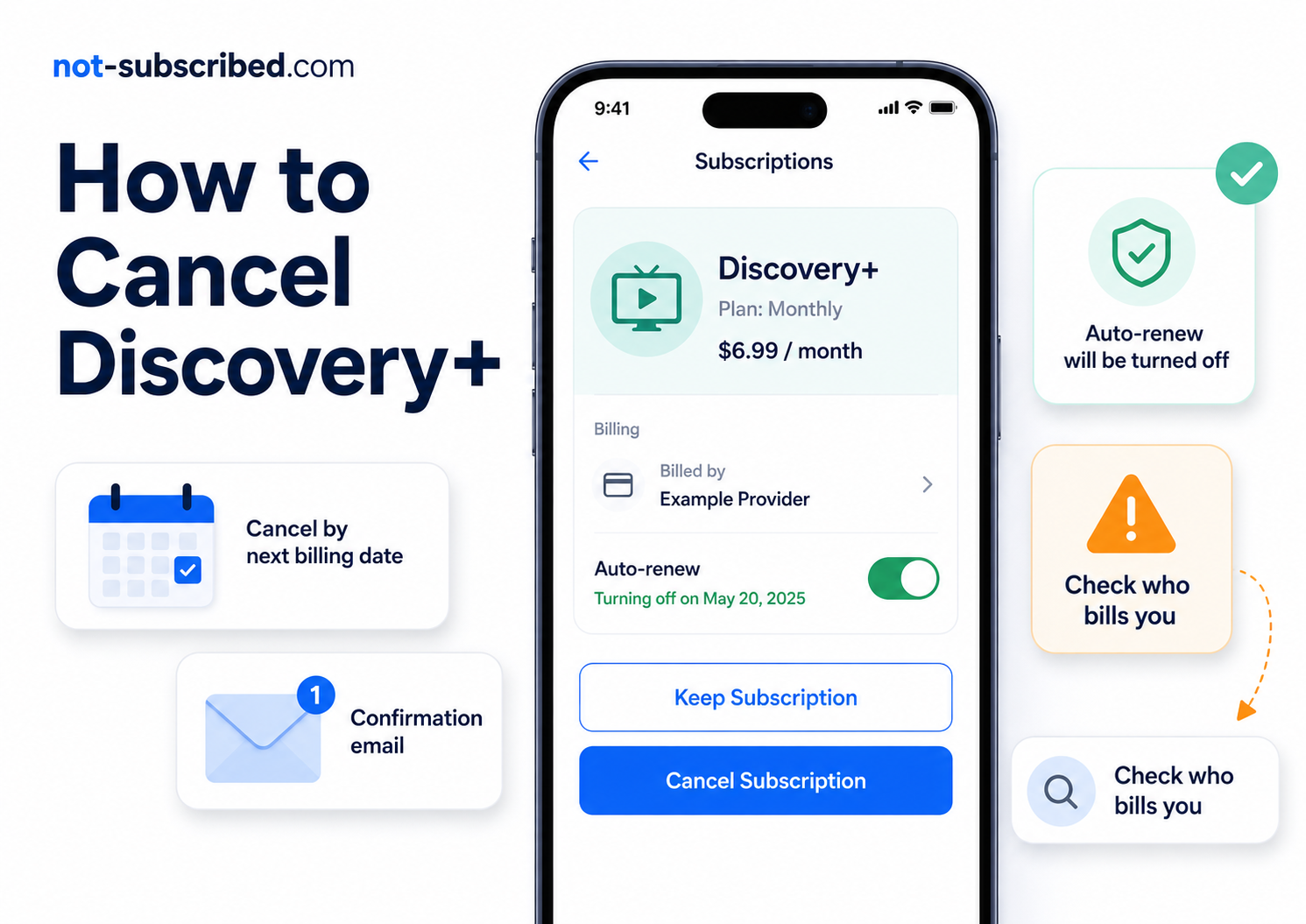
You can usually cancel Discovery+ by signing in at DiscoveryPlus.com, going to your subscription or account settings, and choosing Cancel Subscription. But there is one important catch: if you signed up through Apple, Google Play, Amazon, Roku, PayPal, a TV provider, or another billing partner, you may need to cancel through that provider instead.
Deleting the Discovery+ app does not cancel the subscription. That only removes the app from your device. The billing keeps going until the subscription itself is canceled.
Before You Cancel Discovery+
Before you start clicking around, check who is billing you. This matters because Discovery+ may not control the cancellation button if your subscription was started somewhere else.
Look for clues in:
Your email receipts
Your credit card or bank statement
Apple subscriptions
Google Play subscriptions
Roku subscriptions
Amazon memberships, Appstore subscriptions, or Prime Video add-ons
PayPal automatic payments
Also check your renewal date. In most cases, canceling stops the next renewal, but you can keep watching until the end of the period you already paid for. Discovery+ says subscriptions automatically renew until canceled, and if you cancel, access can continue until the subscription expires at the end of the billing period.
How to Cancel Discovery+ on the Website
Use this path if you subscribed directly through Discovery+.
Go to DiscoveryPlus.com.
Sign in to your account.
Open your account or subscription settings.
Look for Subscription, Manage Subscription, or Cancel Subscription.
Choose Cancel Subscription.
Follow every confirmation prompt until the cancellation is complete.
Save the confirmation email or take a screenshot.
Discovery+ support says cancellation steps vary depending on how you subscribed, so if you do not see a cancel option in your Discovery+ account, that usually means another company is handling the billing.
How to Cancel Discovery+ on iPhone or iPad
Use this if your Discovery+ subscription is billed through Apple.
Open the Settings app.
Tap your name at the top.
Tap Subscriptions.
Select Discovery+.
Tap Cancel Subscription.
Confirm the cancellation.
Apple notes that you may need to scroll to find the cancel button. If there is no cancel button or you see an expiration message, the subscription may already be canceled.
How to Cancel Discovery+ on Android Through Google Play
Use this if your Discovery+ subscription is billed through Google Play.
Open the Google Play Store.
Tap your profile icon.
Tap Payments & subscriptions.
Tap Subscriptions.
Select Discovery+.
Tap Cancel subscription.
Follow the on-screen instructions.
Google specifically warns that uninstalling an app does not cancel the subscription. After cancellation, you can usually keep using the subscription for the time you already paid for.
How to Cancel Discovery+ Through Roku
Use this if the charge appears as Roku, Roku for Discovery+, or The Roku Channel.
On the Roku website
Go to your Roku subscriptions page.
Sign in.
Find Discovery+ under active subscriptions.
Select Manage subscription.
Choose Turn off auto-renew.
Confirm the change.
On a Roku device
Press the Home button on your Roku remote.
Highlight the Discovery+ app.
Press the Star button.
Select Manage subscription.
Choose Turn off auto-renew.
Roku says subscriptions canceled this way usually stay active until the end of the current billing cycle.
How to Cancel Discovery+ Through Amazon
Discovery+ may be billed through Amazon in more than one way, so check whether it appears as an Amazon Appstore subscription, an Amazon membership/subscription, or a Prime Video add-on.
If billed through Amazon subscriptions
Sign in to your Amazon account.
Go to Your Memberships and Subscriptions.
Find Discovery+.
Select Manage Subscription.
Choose the cancellation or auto-renewal option.
Confirm.
Amazon’s help page says you can cancel by going to Your Memberships and Subscriptions, finding the subscription, selecting Manage Subscription, and choosing the cancel option.
If billed as a Prime Video add-on
Go to Prime Video Account & Settings.
Select Your subscriptions.
Find Discovery+.
Select Unsubscribe.
Confirm.
Amazon’s Prime Video help says add-on subscriptions can be canceled from Account & Settings under Your subscriptions.
How to Cancel Discovery+ Through PayPal
Use this if your Discovery+ payments are coming through PayPal automatic payments.
Sign in to PayPal.
Go to Settings.
Click Payments.
Select Subscriptions and saved businesses or Automatic Payments.
Choose the Discovery+ merchant entry.
Cancel the automatic payment or stop paying with PayPal.
Save confirmation.
PayPal describes automatic payments as subscriptions, billing agreements, or recurring payments, and says you can manage them from the Payments section of your PayPal settings.
Common Discovery+ Cancellation Roadblocks
“I do not see a cancel button.”
This usually means Discovery+ is not the billing provider. Check Apple, Google Play, Roku, Amazon, PayPal, your TV provider, or any partner that may have handled the original signup.
“I deleted the app but I am still being charged.”
That is normal, unfortunately. Deleting an app removes the app from your phone or TV. It does not cancel the billing agreement.
“Discovery+ says to cancel somewhere else.”
This is app-store billing confusion. The streaming account and the billing account may be separate. You might watch Discovery+ in the Discovery+ app, but pay through Apple, Google, Roku, Amazon, or another provider.
“I canceled, but I can still watch.”
That does not always mean cancellation failed. Many streaming subscriptions stay active until the end of the paid billing period. Check whether the account now says canceled, expires on, or auto-renew off.
“I cannot remember where I signed up.”
Search your email for:
“Discovery+”
“discoveryplus”
“Apple receipt”
“Google Play”
“Roku”
“Amazon subscription”
“PayPal automatic payment”
Then match the receipt to the account that is billing you.
How to Confirm Discovery+ Is Actually Canceled
Do not stop at the first “Are you sure?” screen. Keep going until you see proof.
Look for:
A confirmation email
A canceled status in Discovery+
An expiration date in Apple or Google Play
Auto-renew turned off in Roku or Amazon
A canceled automatic payment in PayPal
A final billing date
Take a screenshot. Future you deserves evidence.
What to Do If Discovery+ Charges You After Cancellation
First, figure out who processed the charge. The name on your bank or card statement matters.
If the charge came from Discovery+ directly, contact Discovery+ support and include your cancellation confirmation if you have it.
If the charge came from Apple, Google Play, Roku, Amazon, or PayPal, start with that billing provider. They may be the only party that can view or stop the recurring payment.
Practical next steps:
Recheck the billing provider.
Search your email for receipts.
Confirm you canceled the correct account.
Save screenshots and confirmation emails.
Contact support with the charge date and amount.
Request a refund when appropriate.
Consider a card dispute only after reasonable direct attempts, unless the charge is clearly unauthorized.
The Not-Subscribed Note
Discovery+ is a classic example of why subscription cancellation can feel more confusing than signup. The hard part is not always finding Discovery+. It is figuring out who owns the billing relationship.
That is subscription sludge: the extra confusion created when one company provides the service, another company processes the payment, and the cancel button lives in a third place entirely.
Cancel the billing source, confirm the status, and save proof. That is the calm path out.