
Quick Answer
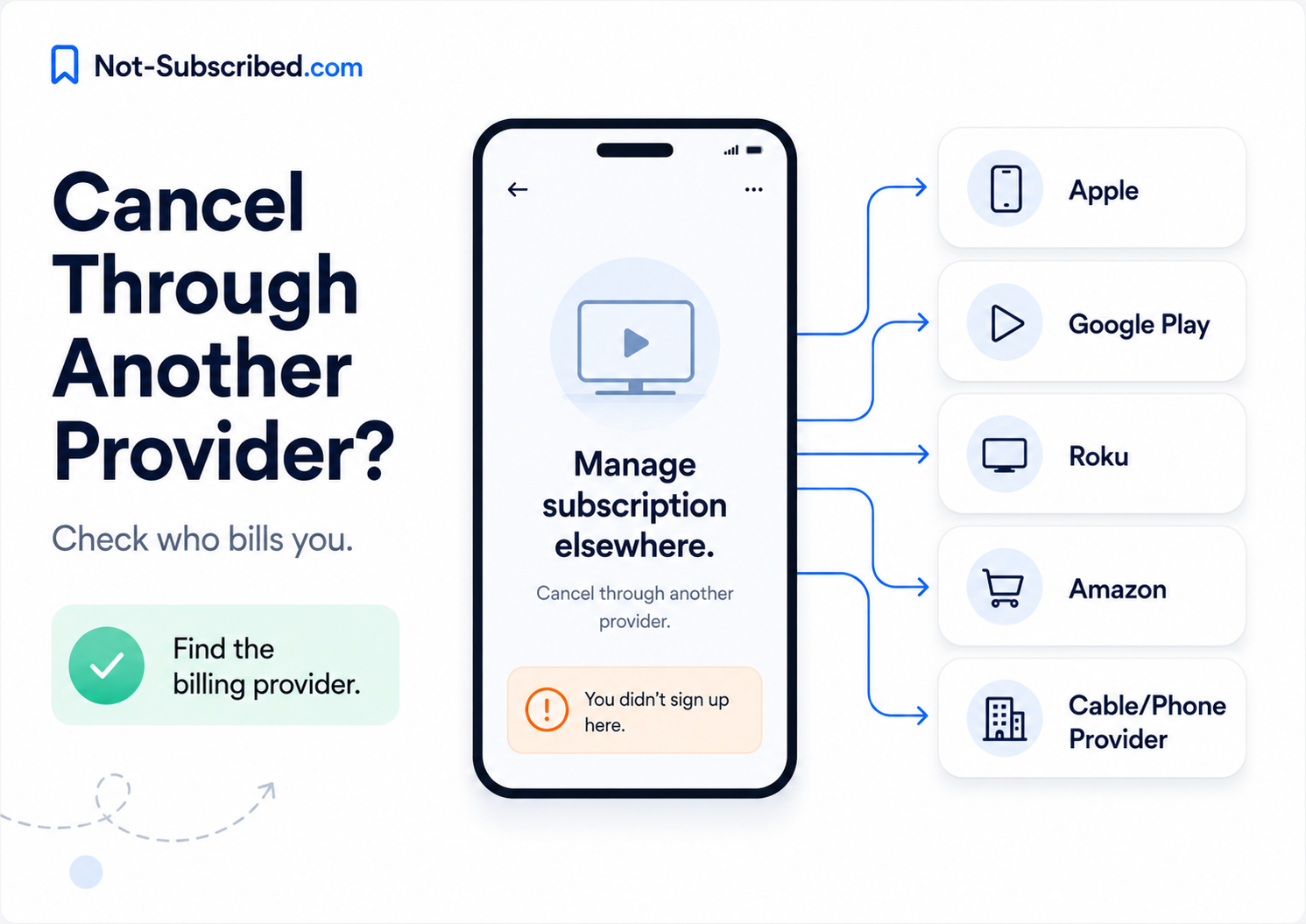
Your streaming app says “Cancel through another provider” because the app is not the company currently billing you.
That usually means you subscribed through a third party such as:
Apple App Store
Google Play
Roku
Amazon Prime Video Channels
A cable, phone, or internet provider
PayPal
A bundle partner, such as Verizon, Disney bundle billing, or another promotion
In plain English: the streaming app may control your login and viewing access, but another company controls the subscription charge. To stop billing, you usually need to cancel wherever the subscription was originally purchased.
This is one of the most common forms of app-store billing confusion, a major Not-Subscribed content lane identified in the site playbook.
Why This Happens
Streaming subscriptions are not always sold directly by the streaming company.
You might watch the same app on your phone, TV, laptop, or Roku, but the billing path can be totally different depending on where you signed up.
For example, you may have:
Created your account on the streaming service’s website
Started a free trial inside the iPhone app
Subscribed through your Roku remote
Added the service as an Amazon Prime Video Channel
Got access through a mobile carrier or cable bundle
From the user’s point of view, it feels like one subscription. Behind the scenes, it may be a billing handoff.
That is why the streaming app may show a message like:
“Your subscription is managed by another provider.”
Or:
“Cancel through Apple.”
Or:
“Manage your subscription through Roku.”
Or:
“Contact your billing provider.”
Annoying? Yes. Unusual? Not at all.
The App May Not Be Allowed to Cancel It for You
If Apple, Google, Roku, Amazon, or another provider is processing the payment, the streaming app often cannot directly stop the charge from inside its own settings.
Apple says App Store subscriptions can be viewed, changed, or canceled through Apple’s subscription settings. Google Play gives similar instructions for subscriptions purchased through Google Play: go to Google Play subscriptions, choose the subscription, and cancel from there.
Roku also explains that subscriptions managed through Roku can be canceled at my.roku.com/subscriptions or from the Roku device subscription menu. Amazon says Prime Video add-on subscriptions can be canceled from Amazon’s subscription management area.
So when the streaming app sends you somewhere else, it is usually saying:
“We recognize your account, but we are not the billing provider.”
How to Find Out Who Is Billing You
Before you try to cancel again, figure out where the charge is coming from.
1. Check the wording on your card statement
Look for clues like:
GOOGLE
ROKU
AMZN
Prime Video
The streaming service’s own name
Your cable, phone, or internet provider
The name on the charge is often the fastest clue.
2. Search your email for receipts
Search your inbox for:
The streaming service name
“subscription”
“renewal”
“receipt”
“Apple”
“Google Play”
“Roku”
“Amazon”
“PayPal”
Receipts usually show who processed the payment.
3. Check the app’s account page
Inside the streaming app, look under:
Account
Billing
Subscription
Membership
Manage plan
Payment details
If it says “Billed through Apple,” “Billed through Roku,” or “Managed by Amazon,” that is your cancellation path.
Where to Cancel Based on the Provider
If It Says Cancel Through Apple
Use this path:
Open Settings on your iPhone or iPad.
Tap your name.
Tap Subscriptions.
Select the streaming app.
Tap Cancel Subscription.
Confirm the cancellation.
Apple notes that if there is no cancel button, or if you see an expiration message, the subscription may already be canceled.
If It Says Cancel Through Google Play
Use this path:
Open the Google Play Store.
Tap your profile icon.
Tap Payments & subscriptions.
Tap Subscriptions.
Select the streaming app.
Tap Cancel subscription.
Follow the prompts.
Google Play also allows some subscriptions to be paused or changed, depending on the app and subscription terms.
If It Says Cancel Through Roku
Use this path on the Roku website:
Sign in.
Find the active subscription.
Select Manage subscription.
Choose Turn off auto-renew.
Roku says that when you turn off auto-renew, access usually continues until the current billing cycle ends.
You can also try this from a Roku device:
Press the Home button.
Highlight the app.
Press the Star button on the remote.
Select Manage subscription.
Turn off auto-renew.
If you do not see Manage subscription, Roku says the subscription may not be managed through Roku.
If It Says Cancel Through Amazon
This often happens with Prime Video Channels or streaming add-ons.
Use this path:
Go to Amazon.
Open Memberships & Subscriptions or Manage Your Subscriptions.
Find the streaming add-on.
Select Manage Subscription or Unsubscribe.
Follow the prompts until cancellation is confirmed.
Amazon’s help page for Prime Video add-on subscriptions directs users to manage and unsubscribe from add-on subscriptions through Amazon’s subscription settings.
If It Says Cancel Through a Cable, Phone, or Internet Provider
This usually means your streaming access is bundled.
Check providers such as:
Verizon
T-Mobile
AT&T
Xfinity
Spectrum
Cox
Comcast
Your cable TV provider
Your internet provider
Use this path:
Sign in to the provider’s website or app.
Look for Subscriptions, Add-ons, Entertainment, Services, or Billing.
Find the streaming service.
Remove the add-on or cancel the bundle.
Save confirmation.
The streaming app may not be able to cancel this for you because the subscription is tied to your provider account.
Common Roadblocks
“I deleted the app. Why am I still charged?”
Deleting the app does not cancel the subscription.
It only removes the app from your device. The billing agreement can continue through Apple, Google, Roku, Amazon, PayPal, or the streaming company.
This is one of the most frustrating subscription lessons because it feels like deleting the app should end the relationship. Billing systems do not work that way.
“The app does not show a cancel button.”
That usually means one of three things:
You are not signed into the right account.
The subscription is billed through another provider.
The account has access, but billing is controlled somewhere else.
Check the app’s billing page and your receipts before assuming the cancellation option is hidden.
“I canceled on the streaming website, but I am still charged by Apple or Roku.”
You may have canceled the wrong billing path.
For example, canceling a direct account on the streaming company’s website will not always cancel a separate App Store, Roku, or Amazon subscription. The charge must be stopped at the provider that processes it.
“The app says I do not have a subscription, but I can still watch.”
That can happen when your subscription is attached to another platform account.
For example, your streaming app login may be connected to access from Roku, Amazon, Apple, Google Play, or a provider bundle. The app may know you have access, but not show direct billing controls.
How to Confirm It Is Actually Canceled
Do not stop at “I think I canceled it.”
Look for proof.
Confirm at least one of these:
A cancellation confirmation email
A subscription status that says Canceled
A status that says Expires on [date]
Auto-renewal turned off
No future renewal date
A screenshot of the cancellation confirmation page
For Apple and Google Play subscriptions, check the subscription page again after canceling. For Roku, check your active subscriptions at my.roku.com/subscriptions. For Amazon, recheck your memberships and subscriptions page.
Take a screenshot. Future you may need it.
What to Do If You Are Still Charged
If the charge continues after cancellation:
Check the billing name on your statement.
Make sure the charge is from the provider you actually canceled.Search your email for the latest receipt.
The receipt may reveal a second account or different billing provider.Check Apple, Google Play, Roku, Amazon, PayPal, and the streaming website.
Many people have more than one billing path without realizing it.Contact the billing provider first.
If Apple processed the charge, start with Apple. If Roku processed it, start with Roku. If Amazon processed it, start with Amazon.Ask for a refund if appropriate.
Do not assume a refund is guaranteed. Policies vary by provider and situation. Apple and Google both have refund request processes for eligible purchases.Save screenshots and confirmation emails.
This helps if you need to escalate the issue.Dispute with your card provider only after reasonable direct attempts, unless the charge is clearly unauthorized.
The Not-Subscribed Note
“Cancel through another provider” is not always a trick, but it is a classic subscription confusion point.
The subscription was easy to start because app stores, TV platforms, and streaming bundles make sign-up feel seamless. Canceling can feel harder because now you have to remember which company handled the billing.
That gap is called cancellation friction.
The fix is not to panic. Follow the money:
Find the billing provider → cancel there → confirm auto-renewal is off → save proof.
That is the cleanest path out of the streaming subscription maze.