
Quick answer
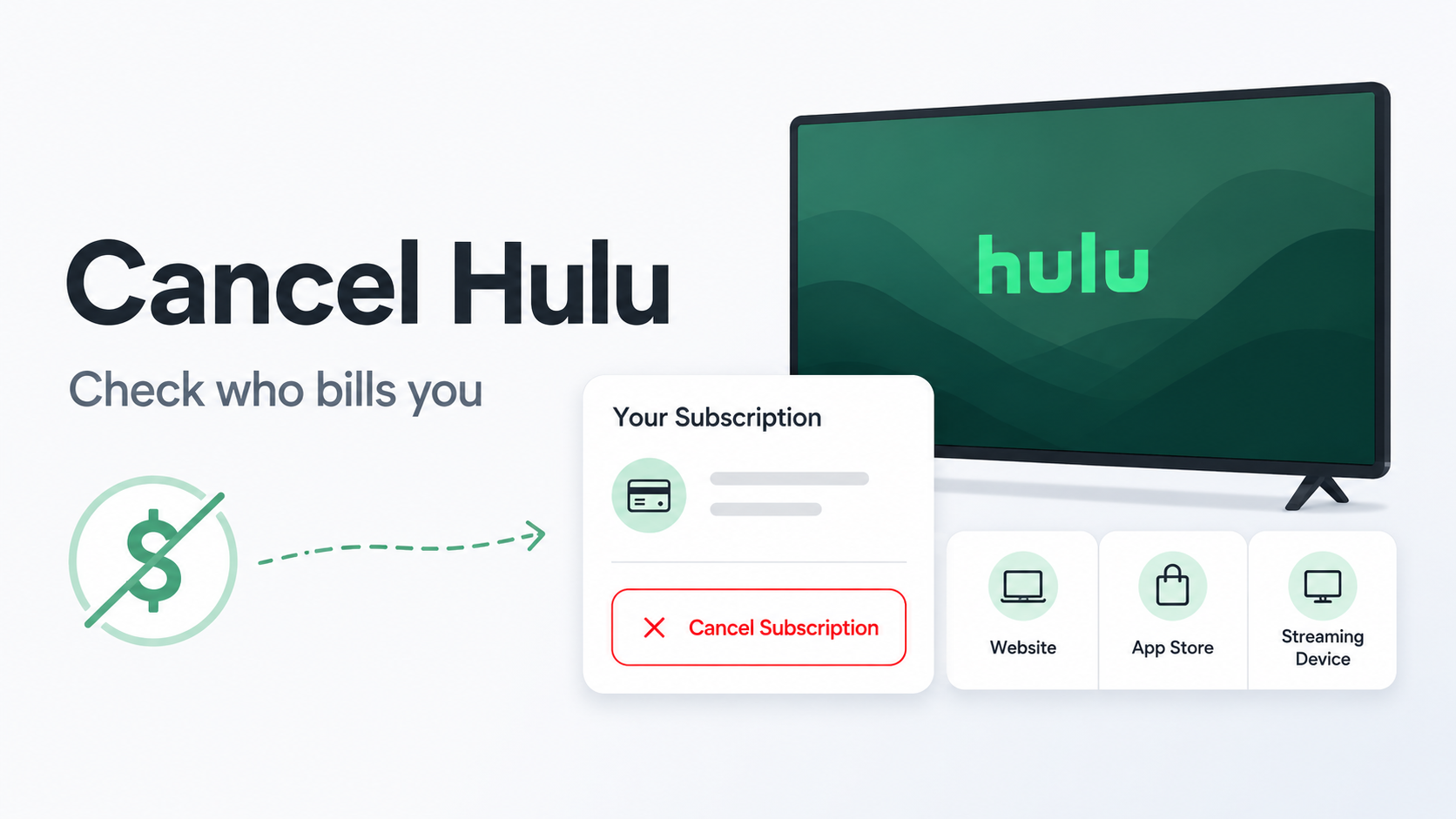
You can usually cancel Hulu by signing in to your Hulu account from a computer or mobile browser, going to your Account page, selecting Cancel under Your Subscription, and following the on-screen steps until you get confirmation. Hulu’s official help page says cancellation is handled from the Account page when Hulu bills you directly.
If you subscribed through Apple, Google Play, Roku, Amazon, Disney, a cable provider, or another third party, you may need to cancel through that billing provider instead. Hulu’s subscriber agreement says third-party subscriptions are billed by the third party and should be canceled through that third party’s cancellation instructions.
Activate $1 Cash Back
Deleting the Hulu app does not cancel your subscription.
Before you cancel Hulu
Before canceling, check who is billing you. This matters because the Hulu app is not always where the cancel button lives.
Look for:
The billing provider
Your renewal date
Whether you have Hulu only, Hulu + Live TV, or a Disney Bundle
Whether you subscribed through Apple, Google Play, Roku, Amazon, or another provider
Whether you want to cancel, pause, downgrade, or remove add-ons
Whether access ends immediately or at the end of the billing period
Common billing paths:
If your charge says… You may need to check… Hulu Hulu account page Disney / Disney Bundle Disney or Hulu account settings Apple.com/Bill Apple subscriptions Google Play Google Play subscriptions Roku Roku or Hulu account settings Amazon Amazon memberships or Prime Video Channels PayPal PayPal automatic payments Cable, phone, or internet provider That provider’s account portal
Hulu says you can confirm your billing party from your Hulu Account page under the Payment Information section.
How to cancel Hulu on the website
Use this path if Hulu bills you directly.
Go to Hulu.com from a computer or mobile browser.
Sign in to your Hulu account.
Select your profile or account icon.
Go to Account.
Find Your Subscription.
Select Cancel.
Follow the on-screen instructions.
Continue until Hulu confirms the cancellation.
Do not stop at a pause offer, discount offer, survey, or “are you sure?” screen. Those are common retention steps. Keep going until your account shows that the subscription is canceled or set to expire.
How to cancel Hulu on iPhone or iPad
Use this path if Apple bills you.
Open the Settings app.
Tap your name.
Tap Subscriptions.
Select Hulu.
Tap Cancel Subscription.
Confirm the cancellation.
If you do not see Hulu listed, check that you are signed into the correct Apple ID. The Hulu subscription may also be billed directly by Hulu or through another provider instead.
How to cancel Hulu on Android or Google Play
Use this path if Google Play bills you.
Open the Google Play Store.
Tap your profile icon.
Tap Payments & subscriptions.
Tap Subscriptions.
Select Hulu.
Tap Cancel subscription.
Follow the confirmation steps.
If Hulu does not appear in Google Play subscriptions, check Hulu directly, Apple, Roku, Amazon, PayPal, or another billing provider.
How to cancel Hulu through Roku
Hulu’s Roku billing situation can be confusing. Hulu has a help page specifically for Roku-billed Hulu accounts, and Roku also provides its own instructions for managing or turning off auto-renewal for Roku-managed subscriptions.
Option 1: Cancel from your Hulu account
Go to Hulu.com from a browser.
Sign in.
Go to Account.
Look for your subscription details.
Select Cancel if the option is available.
Follow the confirmation steps.
Option 2: Cancel from your Roku account
Go to your Roku account subscriptions page.
Sign in.
Find Hulu under active subscriptions.
Select Manage subscription.
Choose Turn off auto-renew.
Confirm.
Option 3: Cancel from your Roku device
Press the Home button on your Roku remote.
Highlight the Hulu app.
Press the Star button.
Select Manage subscription.
Choose Turn off auto-renew.
Confirm.
Roku says that when you turn off auto-renewal, the subscription usually stays active until the end of the current billing cycle.
How to cancel Hulu through Amazon
Use this path if you subscribed through Amazon or a Fire TV-related billing path.
Sign in to your Amazon account.
Go to your memberships or subscriptions area.
Look for Hulu or a Hulu-related subscription.
Select the subscription.
Choose the cancellation or turn-off auto-renewal option.
Confirm the cancellation.
If you subscribed to Hulu directly, it may not appear in Amazon. If you subscribed through a Hulu app on a Fire TV device, check both Amazon and Hulu before assuming it is canceled.
How to cancel Hulu if you have the Disney Bundle
Hulu can be part of a Disney Bundle, which may include Disney+ and ESPN-related access depending on your plan. This can make cancellation more confusing because you may not be canceling a standalone Hulu subscription.
Check:
Whether your bill comes from Hulu, Disney, Apple, Google Play, Roku, Amazon, or another provider.
Whether your account page shows Hulu only or a Disney Bundle.
Whether canceling Hulu cancels the entire bundle.
Whether you want to cancel everything or only change the plan.
If Hulu is part of a bundle, read the cancellation screen carefully before confirming. You may be changing more than just Hulu.
How to pause Hulu instead of canceling
Hulu may offer a pause option during cancellation. Hulu’s support materials mention pausing as an alternative if you are not ready to cancel for good.
A pause can be useful if you only want a short break. But it is not the same as canceling.
Before pausing, check:
How long the pause lasts
When billing restarts
Whether the pause applies to your exact plan
Whether you will get a reminder before billing resumes
If your goal is to stop billing completely, cancel instead of pausing.
Common Hulu cancellation roadblocks
“I do not see a cancel button”
You may be billed through a third party. Check your Hulu Account page for billing information, then check Apple, Google Play, Roku, Amazon, PayPal, or your provider account.
“Hulu says I need to manage my subscription somewhere else”
That usually means Hulu is not your billing provider. The company billing you usually controls cancellation and refunds.
“I canceled, but I can still watch Hulu”
That may be normal. Many subscriptions keep access active until the end of the billing period.
“I deleted the app, but Hulu still charged me”
Deleting the app removes Hulu from your device. It does not cancel the subscription.
“I have Hulu through Roku, but I’m not sure where to cancel”
Check both Hulu and Roku. Hulu has separate guidance for Roku-billed accounts, and Roku has its own subscription-management page.
“I see a pause option instead of cancellation”
Pause is a retention option. It may be useful, but it allows billing to restart later. Keep going if you want to cancel completely.
“I have Hulu + Live TV”
Hulu + Live TV is usually more expensive than a basic Hulu plan, so check your next billing date before canceling. Hulu’s current public plan page shows Hulu + Live TV pricing and trial language can vary by offer.
How to confirm Hulu is canceled
Before you close the tab, confirm the cancellation.
Look for:
A confirmation email
Your Hulu account showing canceled status
A message that access ends on a specific date
A renewal date removed or changed to an expiration date
Apple, Google Play, Roku, Amazon, or PayPal showing the subscription as canceled
A screenshot of the final cancellation page
Save proof. A screenshot is boring until you need it.
What to do if Hulu charges you after cancellation
Check the exact charge name on your card or bank statement.
Confirm whether the charge came from Hulu, Disney, Apple, Google Play, Roku, Amazon, PayPal, or another provider.
Search your email for “Hulu,” “receipt,” “renewal,” “Disney,” “Apple,” “Google Play,” “Roku,” and “Amazon.”
Make sure you canceled the correct account.
Check whether you have a second Hulu account under another email.
Contact the billing provider that processed the charge.
Ask whether the charge is eligible for a refund.
Save screenshots, emails, and chat transcripts.
Contact your card provider if the charge appears unauthorized or the billing provider cannot resolve it.
Do not assume Hulu can refund every Hulu-related charge. If a third party processed the payment, that third party may control the refund and cancellation process.
The Not-Subscribed note
Hulu is a good example of streaming billing confusion. The app you watch is not always the company billing you. Hulu, Disney, Apple, Google Play, Roku, Amazon, PayPal, or another provider may sit between you and the real cancel button.
That is cancellation friction, but not always in the obvious “hidden button” way. Sometimes the hardest part is simply figuring out which company has permission to keep charging you.
Before canceling any streaming service, find the billing provider first. That is usually where the subscription actually lives.