
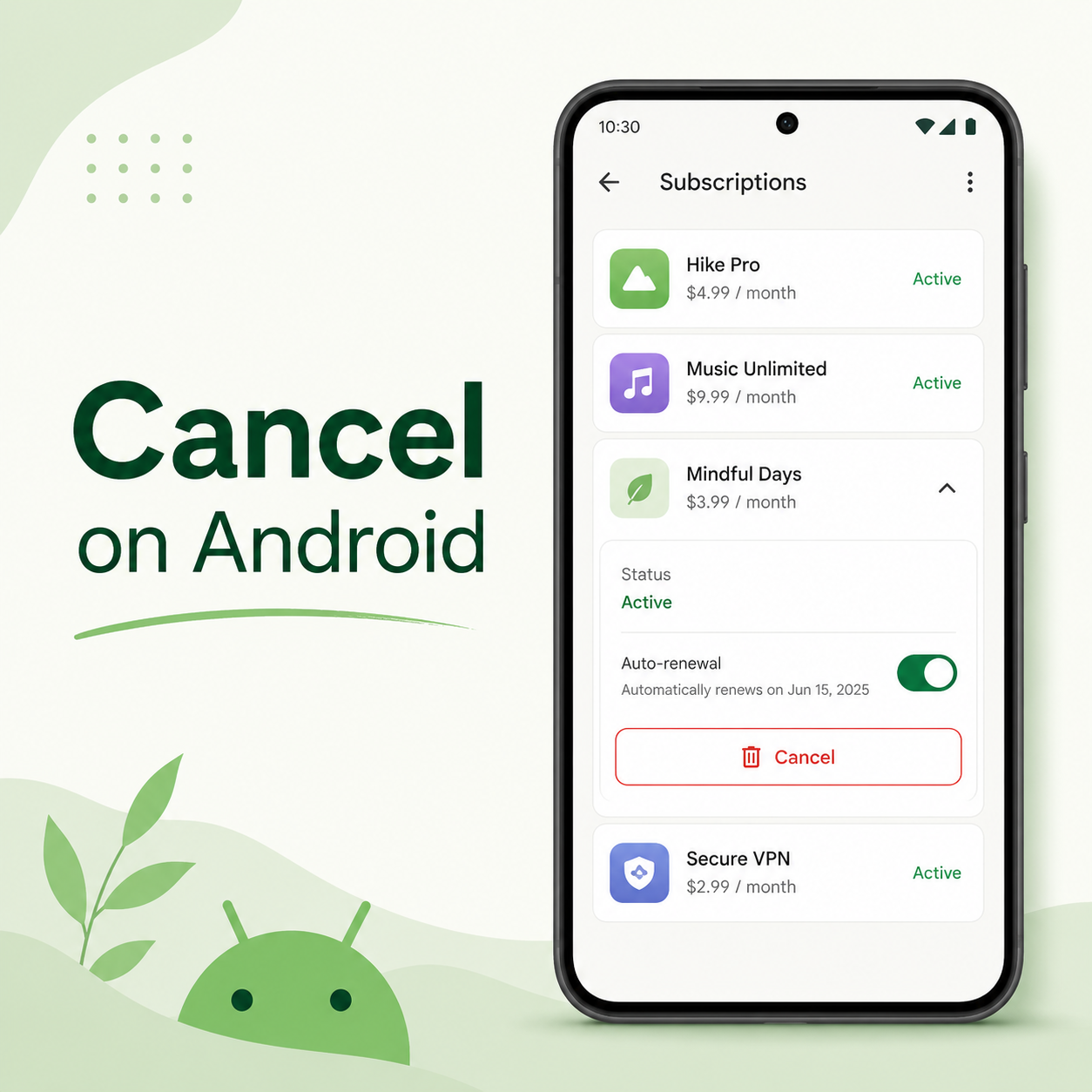
Quick Answer
You can cancel most Android app subscriptions through the Google Play Store:
Open the Google Play Store app.
Tap your profile icon.
Tap Payments & subscriptions.
Tap Subscriptions.
Choose the subscription you want to cancel.
Tap Cancel subscription.
Follow the prompts until Google Play confirms it is canceled.
Important: Deleting the app does not cancel the subscription. Google’s own support guidance says uninstalling an app will not cancel an active subscription.
Before You Cancel an Android Subscription
Before you tap cancel, check a few things so you do not accidentally chase the wrong billing path.
1. Check who is billing you
On Android, a subscription may be billed through:
Google Play
The app or service’s own website
Samsung Galaxy Store
PayPal
Your phone carrier
Another third-party billing provider
This matters because Google Play can only cancel subscriptions that were actually purchased through Google Play.
2. Check the renewal date
In Google Play subscriptions, look for the next billing or renewal date. Canceling usually stops the next renewal, but you may keep access until the end of the period you already paid for. Google says that after stopping renewal on some payment plans, users can continue access until the next renewal date, though remaining payments on the current plan may still apply depending on the plan.
3. Do not rely on deleting the app
This is the classic Android subscription trap: you delete the app, feel productive, and then the charge comes back next month like a raccoon with your credit card.
Uninstalling the app removes it from your phone. It does not necessarily cancel the billing agreement.
4. Look for pause or downgrade options
Some subscriptions let you pause instead of cancel. Google says some apps allow subscription pauses, with pause lengths depending on the app and subscription.
Pause can be useful if you actually want the service later. Cancel is better if you want billing to stop.
How to Cancel a Subscription on Android Through Google Play
Use this if you subscribed from an Android app using Google Play billing.
Open the Google Play Store app.
Tap your profile icon in the top-right corner.
Tap Payments & subscriptions.
Tap Subscriptions.
Select the subscription you want to cancel.
Tap Cancel subscription.
Choose a reason if Google asks.
Follow the remaining prompts.
Keep going until you see confirmation that the subscription is canceled.
Google’s official instructions are to go to subscriptions in Google Play, select the subscription, tap Cancel subscription, and follow the instructions.
How to Cancel from a Browser
You can also check Google subscriptions from a browser if you do not have your Android phone nearby.
Go to your Google Account’s Payments & subscriptions area.
Sign in with the Google account that may be paying for the subscription.
Look for active subscriptions or recurring payments.
Select the subscription.
Choose Manage.
Select Cancel subscription, if available.
Google’s payments and subscriptions page lets signed-in users view payment info, transactions, recurring payments, and reservations.
What If the Subscription Does Not Show Up in Google Play?
If you do not see the subscription in Google Play, do not panic. It usually means one of four things.
You are signed into the wrong Google account
Many people have more than one Google account. Check the profile icon in the Play Store and switch accounts if needed.
Google notes that if you cannot find a subscription, it may be on a different account.
You subscribed directly through the company
Some apps let you create an account in the Android app, but bill you directly through their website. In that case, Google Play may not show the subscription.
Go to the service’s website and check:
Account
Billing
Membership
Subscription
Plan settings
You subscribed through Samsung Galaxy Store
If you use a Samsung phone, some app subscriptions may come through the Galaxy Store, not Google Play. Check the Galaxy Store app’s menu or subscription area.
You subscribed through PayPal, your carrier, or another provider
Search your email for receipts using terms like:
“subscription”
“renewal”
“Google Play”
“PayPal”
the app name
the company name
“receipt”
The billing provider is usually named on the receipt.
How to Pause a Subscription on Android
Some Android subscriptions can be paused through Google Play.
Open the Google Play Store.
Tap your profile icon.
Tap Payments & subscriptions.
Tap Subscriptions.
Select the subscription.
Tap Manage.
Tap Pause payments, if available.
Choose the pause period.
Tap Confirm.
Google says some apps support pausing, and the subscription pauses at the end of the current billing period.
If you do not see a pause option, that subscription probably does not offer one.
How to Change the Payment Method Instead of Canceling
If your goal is to update the card, not cancel the subscription:
Open Google Play Store.
Tap your profile icon.
Tap Payments & subscriptions.
Tap Subscriptions.
Select the subscription.
Tap Manage.
Tap Update next to the payment method.
Follow the prompts.
Google says the same payment method used to buy the subscription is generally charged at renewal, and users can update payment methods from the subscription management area.
Common Android Subscription Roadblocks
“I deleted the app, but I’m still being charged.”
Deleting the app does not cancel the subscription. You need to cancel through Google Play, the service’s website, or whichever billing provider is charging you.
“The app says I have to cancel somewhere else.”
That usually means the app can see your account, but it does not control your billing. Check Google Play, the company website, Samsung Galaxy Store, PayPal, or your email receipts.
“I do not see the cancel button.”
Possible reasons:
You are in the wrong Google account.
The subscription was already canceled.
The subscription is billed directly by the company.
The plan is prepaid and expires on its own.
The subscription is managed by another provider.
Google says prepaid plans last for a limited time and automatically expire at the end of the billing period.
“Google Play says canceling does not stop remaining payments.”
Some payment plans may allow you to stop auto-renewal without canceling remaining payments already tied to the current plan. Read the cancellation screen carefully before confirming.
“The app offers me a discount before I cancel.”
That is a retention flow. It may be a perfectly valid offer, but it is also designed to slow you down and keep you subscribed. Choose the discount only if you actually want to keep the service.
How to Confirm the Android Subscription Is Actually Canceled
Do not stop at “I think I canceled it.” Confirm it.
Look for:
A Google Play confirmation screen
A cancellation confirmation email
The subscription showing as canceled or expiring
The next renewal date being removed or changed
An expiration date instead of an upcoming charge date
Take a screenshot of the cancellation confirmation. Future-you deserves evidence.
What to Do If You Are Still Charged After Canceling
If a subscription charge appears after you canceled, try this:
Check the charge name on your bank or card statement.
Search your email for the app name, “Google Play,” “receipt,” and “subscription.”
Check every Google account you use.
Open Google Play subscriptions and look for active plans.
Check the service’s own website in case you subscribed directly.
Contact the billing provider that processed the charge.
Request a refund if the charge seems eligible.
Save screenshots and emails showing you canceled.
Dispute with your card provider only after reasonable direct attempts, unless the charge is clearly unauthorized.
Google’s support page includes subscription refund guidance and notes that refunds are handled according to Google Play’s refund policy.
The Not-Subscribed Note
Android subscriptions are a perfect example of app-store billing confusion. The app you use, the account you log into, and the company billing your card are not always the same thing.
That is how people end up deleting an app and still getting charged. It feels like canceling, but billing lives somewhere else.
The trick is to follow the money: Google Play, the company website, Samsung, PayPal, your carrier, or another billing provider. Once you find the billing source, cancel there, confirm it, and save proof.
Cancel smarter. Subscribe slower.