
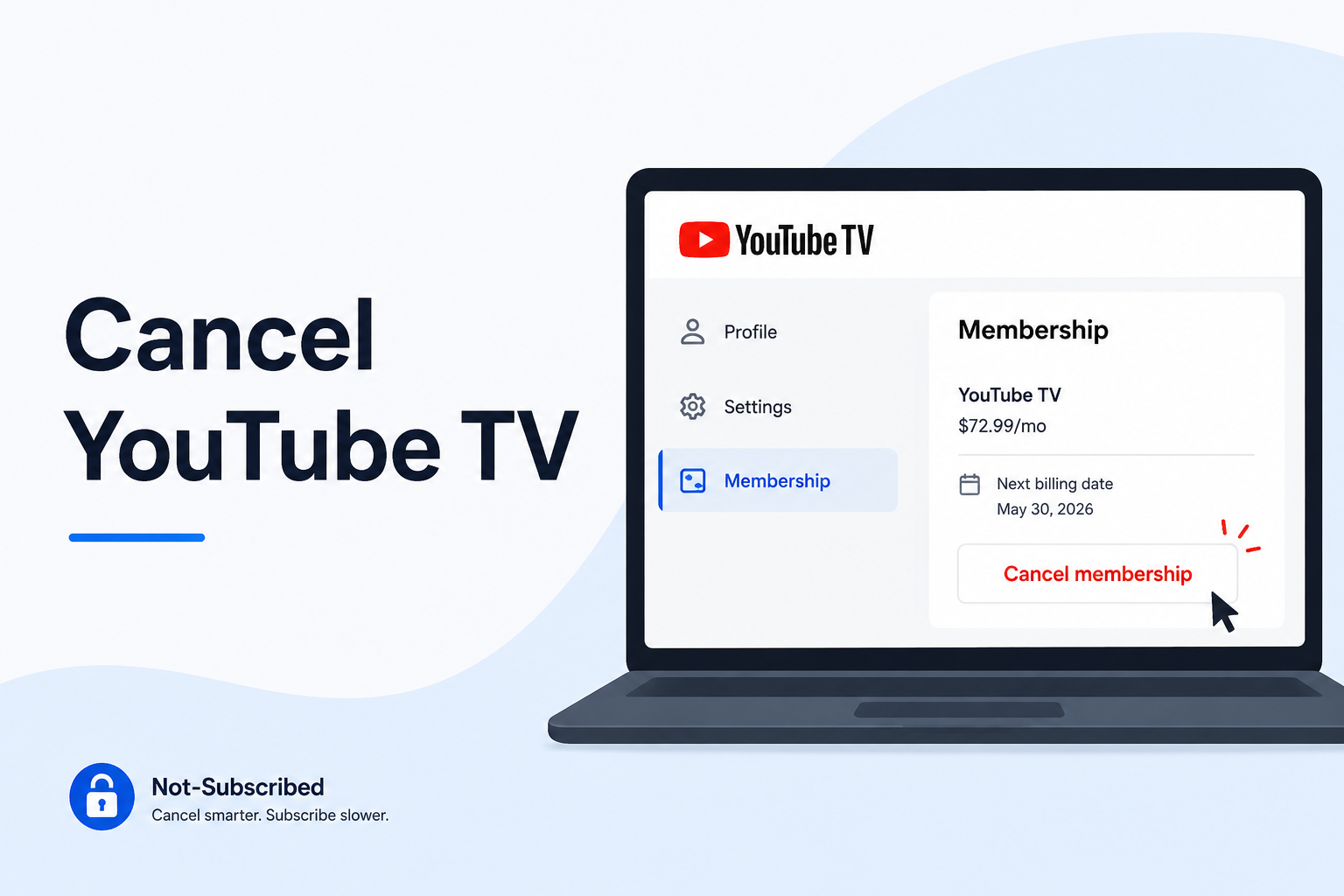
How to cancel YouTube TV membership from account settings.
Quick answer
You can cancel YouTube TV by going to YouTube TV in a web browser, selecting your profile photo, opening Settings, choosing Membership, clicking Manage, then selecting Cancel membership and confirming. Google’s YouTube TV help page says you can cancel or pause your membership at any time, and cancellation usually leaves access active until the end of your payment period.
If you subscribed through another billing provider, you may need to cancel through that provider instead. Check whether YouTube TV, Google, Google Play, Apple, or another company is billing you before assuming the cancellation is complete.
Deleting the YouTube TV app does not cancel your subscription.
Before you cancel YouTube TV
Before canceling, check a few things:
Which Google account is subscribed
Whether you are the family manager
Your next billing date
Whether you want to cancel or pause
Whether you have add-ons, sports packages, or premium channels
Whether YouTube TV or another provider is billing you
Whether you are still in a trial period
YouTube TV can be expensive compared with smaller streaming apps, so checking the next billing date matters. If your goal is to avoid the next charge, cancel before the renewal date and confirm the account shows cancellation.
How to cancel YouTube TV on a computer
This is the clearest path if YouTube TV bills you directly.
Go to YouTube TV in a web browser.
Sign in to the Google account that pays for YouTube TV.
Select your profile photo.
Go to Settings.
Select Membership.
Click Manage.
Select Cancel membership.
Choose Cancel again to confirm.
Google’s official steps use this same path: Profile photo → Settings → Membership → Manage → Cancel membership → Cancel.
Do not stop at a pause offer, survey, reminder, discount, or warning screen. Keep going until you see confirmation that the membership is canceled.
How to cancel YouTube TV on iPhone or iPad
YouTube TV’s iPhone billing path can depend on how you originally signed up.
Start with YouTube TV:
Open a browser and go to YouTube TV.
Sign in to the Google account that manages the membership.
Tap your profile photo.
Tap Settings.
Tap Membership.
Tap Manage.
Choose Cancel membership.
Confirm.
If you think Apple bills you:
Open the Settings app on your iPhone or iPad.
Tap your name.
Tap Subscriptions.
Look for YouTube TV.
Tap Cancel Subscription if it appears.
Confirm.
If YouTube TV does not appear in Apple subscriptions, check YouTube TV directly or another Google account.
How to cancel YouTube TV on Android or Google Play
Start with YouTube TV:
Open YouTube TV or go to YouTube TV in a browser.
Sign in to the correct Google account.
Tap your profile photo.
Go to Settings.
Tap Membership.
Tap Manage.
Choose Cancel membership.
Confirm.
If Google Play manages your billing:
Open the Google Play Store.
Tap your profile icon.
Tap Payments & subscriptions.
Tap Subscriptions.
Select YouTube TV.
Tap Cancel subscription.
Follow the confirmation steps.
If you cannot find YouTube TV in Google Play, check the YouTube TV membership page and make sure you are signed into the correct Google account.
How to pause YouTube TV instead of canceling
YouTube TV lets you pause your membership. This can be useful if you only need a short break, such as during travel, an off-season, or a month when you are not watching live TV.
To pause YouTube TV:
Go to YouTube TV in a web browser.
Select your profile photo.
Go to Settings.
Select Membership.
Click Manage.
Use the slider to choose how many weeks to pause.
Click Pause.
Google’s help page says the pause option lets you choose how many weeks to pause the membership.
A pause is not the same as cancellation. Make sure you understand when billing restarts.
What happens after you cancel YouTube TV?
When you cancel or pause YouTube TV, Google says you will still have access until the end of your payment period. Canceling does not immediately remove access, even during a free trial.
That means you may cancel today and still be able to watch until your current period ends. That is normal. What matters is whether the account shows that the membership will not renew.
Can you get a refund after canceling YouTube TV?
Do not count on a prorated refund.
Google’s YouTube TV refund page says it does not give refunds or credits for partial billing periods. It also says that when you cancel your membership, access continues until the end of the billing period.
You can still contact support if something looks wrong, especially if you believe the charge was unauthorized, duplicated, or tied to the wrong account. But do not assume canceling mid-month automatically gives money back.
How to cancel YouTube TV add-ons
YouTube TV may include add-ons such as premium networks, sports packages, or extra features.
Before canceling the whole membership, you may be able to remove add-ons:
Go to YouTube TV.
Sign in.
Select your profile photo.
Go to Settings.
Select Membership.
Review your base plan and add-ons.
Remove the add-on you no longer want.
Confirm the change.
This is useful if you still want YouTube TV but want to lower the bill.
Common YouTube TV cancellation roadblocks
“I canceled, but I can still watch YouTube TV”
That may be normal. Google says access usually continues until the end of the payment period after cancellation.
“I see pause instead of cancel”
Pause is a retention option. It can be useful, but it is not the same as canceling. If you want billing to stop permanently, continue to the cancellation option.
“I cannot find my YouTube TV membership”
You may be signed into the wrong Google account. Check other Gmail accounts, family manager accounts, and the account that receives YouTube TV receipts.
“I am in a family group”
Only the family manager may be able to manage the YouTube TV membership. If you are a family member, ask the family manager to check membership settings.
“I canceled YouTube Premium, but YouTube TV still billed me”
YouTube Premium and YouTube TV are different subscriptions. Canceling one does not automatically cancel the other.
“I canceled the app, but I am still charged”
Deleting the YouTube TV app or removing it from a TV device does not cancel billing. You need to cancel the membership itself.
“I was offered a deal before canceling”
That is a retention flow. It may be worth considering if you still want YouTube TV, but accepting an offer is not the same as canceling.
How to confirm YouTube TV is canceled
Before closing the page, confirm the cancellation.
Look for:
A confirmation email from Google or YouTube TV
Membership status showing canceled
A message that access ends on a specific date
The next billing date removed or changed
Google Play or Apple showing the subscription as canceled, if applicable
A screenshot of the final cancellation page
Save proof. A screenshot is boring until you need it.
What to do if YouTube TV charges you after cancellation
Check the exact charge name on your bank or card statement.
Confirm which Google account is tied to the charge.
Search your email for “YouTube TV,” “Google,” “receipt,” “renewal,” and “membership.”
Check whether another household member or family manager owns the subscription.
Make sure you canceled YouTube TV, not YouTube Premium.
Check whether an add-on or separate subscription is still active.
Contact YouTube TV support with the charge date, amount, and account email.
Ask whether the charge is eligible for review or refund.
Save screenshots, cancellation emails, and support messages.
Contact your card provider if the charge appears unauthorized or cannot be resolved through Google.
The Not-Subscribed note
YouTube TV is a good example of pause-versus-cancel confusion. The service gives users a way to take a break, which can be genuinely useful. But if your goal is to stop billing completely, you need to make sure the membership is canceled, not just paused.
It is also a reminder that “YouTube” can mean several different subscriptions. YouTube TV, YouTube Premium, YouTube Music, and channel memberships are not all the same thing.
Before canceling, check the exact subscription. Before closing the page, confirm it is actually canceled.