
Quick answer
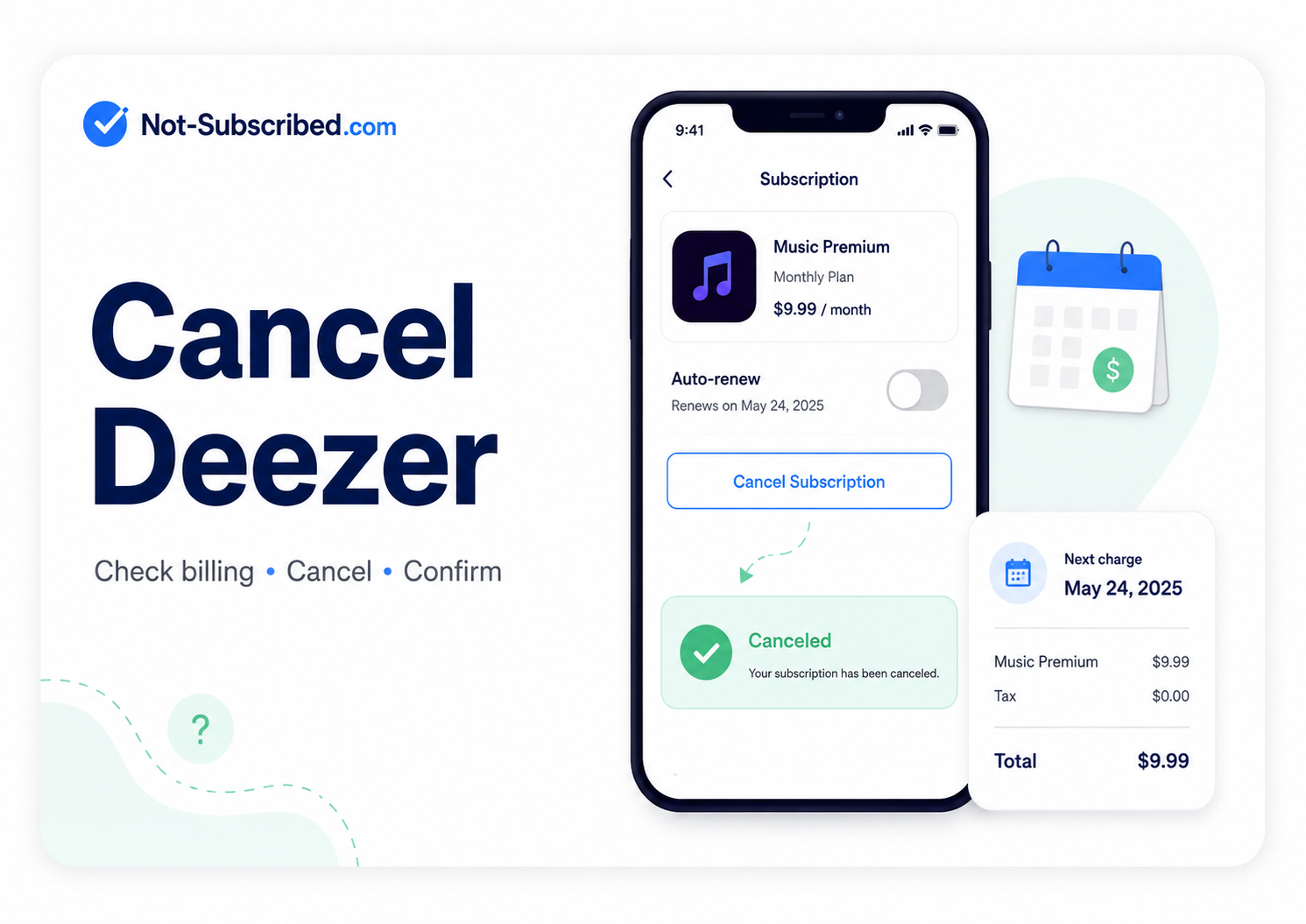
You can usually cancel Deezer from your Deezer account under Account Settings → Manage my subscription → Cancel my subscription. In the Deezer mobile app, Deezer’s current help page lists cancellation under your profile icon → Settings → Plan management / Manage my subscription → Cancel. After canceling, Deezer says you should receive a confirmation email.
Important: if you subscribed through Apple, Google Play, PayPal, a mobile carrier, or another third party, you may need to cancel through that billing provider instead of Deezer. Deezer says third-party subscriptions must be managed through the third party, and Deezer cannot access iTunes/Apple-billed subscriptions.
Before you cancel Deezer
Before you hit cancel, check these three things:
Who is billing you?
Look at your receipt or bank statement. It may say Deezer, Apple, Google Play, PayPal, your phone provider, or another partner.When does your plan renew?
Cancel before the renewal date if you do not want another charge.Are you canceling the subscription or deleting the account?
Canceling Deezer Premium stops future paid billing and returns the account to Deezer Free. Deezer says your playlists and favorite tracks stay in your music library, but downloaded music will no longer be playable offline.
Deleting your Deezer account is different. Deezer says account deletion is irreversible, so do not use that option unless you really want the account gone.
How to cancel Deezer on the website
Go to Deezer and sign in.
Open your profile.
Select Account Settings.
Select Manage my subscription.
Select Cancel my subscription.
Choose a cancellation reason if asked.
Select Confirm.
Do not stop at the survey or reason screen. Keep going until Deezer shows that the subscription is canceled or sends you a confirmation email. Deezer’s support page says a cancellation email should be sent after cancellation.
How to cancel Deezer in the iPhone app
Deezer lists these general in-app steps for iOS:
Open the Deezer app.
Tap your profile icon.
Tap the Settings cog.
Under Subscription, select Plan management.
Select Subscription details & invoices.
Select Cancel my subscription.
Choose a reason and confirm.
But there is one big catch: if you bought Deezer through Apple, the Deezer app may send you to Apple instead.
If Deezer is billed through Apple
Open Settings on your iPhone.
Tap your name.
Tap Subscriptions.
Select Deezer.
Tap Cancel Subscription.
Confirm.
Apple says that if there is no cancel button, or you see an expiration message, the subscription is already canceled.
How to cancel Deezer on Android
Deezer lists these general Android steps:
Open the Deezer app.
Tap your profile icon.
Tap the Settings cog.
Under My Subscription Plan, select Manage my subscription.
Scroll to Want to cancel your subscription?
Select Cancel subscription.
If Deezer is billed through Google Play
Open the Google Play Store.
Tap your profile icon.
Tap Payments & subscriptions.
Tap Subscriptions.
Select Deezer.
Tap Cancel subscription.
Follow the on-screen instructions.
Google specifically warns that uninstalling an app does not cancel the subscription.
How to cancel Deezer through PayPal
If your Deezer charge is connected to PayPal, check PayPal’s automatic payments:
Log in to PayPal.
Go to Settings.
Click Payments.
Select Subscriptions and saved businesses or Automatic Payments.
Choose the Deezer merchant entry.
Cancel the automatic payment.
PayPal’s help page says automatic payments can be managed from this area, including canceling the payment or changing the backup payment method.
What if Deezer came through a mobile carrier or partner?
Some Deezer subscriptions are sold through phone companies, internet providers, bundles, or partner offers. Deezer says that if you subscribed through another company, you must cancel through that provider first.
Check:
Your email for “Deezer receipt,” “subscription,” “invoice,” or the name of your mobile provider.
Your phone bill or carrier account.
Your Deezer account’s subscription page for billing clues.
The partner’s app or website.
This is app-store billing confusion’s slightly more annoying cousin: partner billing confusion.
Common Deezer cancellation roadblocks
“I deleted the Deezer app. Why am I still charged?”
Deleting the app does not cancel the subscription. You need to cancel through Deezer, Apple, Google Play, PayPal, or whoever is billing you. Google’s own subscription help page makes this point clearly for Google Play subscriptions.
“Deezer says I need to cancel somewhere else.”
That usually means Deezer is not the billing provider. Check Apple, Google Play, PayPal, your mobile carrier, or the partner that sold the plan.
“I cannot find Deezer in Apple or Google subscriptions.”
Make sure you are signed into the correct Apple ID or Google account. Google says that if you cannot find a subscription, it may be on a different account.
“I want to delete my Deezer account.”
Cancel the paid plan first. Account deletion is separate from subscription cancellation, and Deezer says deletion is irreversible.
How to confirm Deezer is actually canceled
After canceling, look for at least one of these:
A confirmation email from Deezer, Apple, Google Play, PayPal, or your billing provider.
A Deezer account page showing the plan is canceled or ending.
An Apple or Google subscription page showing an expiration date.
No future renewal date.
A screenshot of the final cancellation confirmation.
Save the screenshot. Future you may be very grateful.
What to do if Deezer charges you after cancellation
Check who processed the charge.
Was it Deezer, Apple, Google Play, PayPal, or a mobile provider?Search your email for receipts.
Try “Deezer,” “Apple receipt,” “Google Play,” “PayPal,” “subscription,” and “invoice.”Check the correct billing account.
Many surprise charges happen because the subscription is attached to an old Apple ID, Google account, PayPal account, or carrier bundle.Contact the billing provider.
If Apple billed you, contact Apple. If Google Play billed you, use Google Play support. If PayPal processed it, check the transaction and automatic payment settings.Request a refund when appropriate.
Do not assume refunds are automatic. Ask the billing provider or Deezer support and keep screenshots.Dispute only after reasonable direct attempts.
If the charge looks unauthorized or support cannot resolve it, contact your card provider or payment platform with your proof.
The Not-Subscribed note
Deezer cancellation is a good example of billing-provider confusion more than a classic “hard to find the exit” subscription maze. The main challenge is figuring out whether Deezer, Apple, Google Play, PayPal, a carrier, or another partner controls the billing.
That confusion is still a form of cancellation friction. The subscription may feel like “a Deezer subscription,” but the actual cancel button may live in a completely different account.
The move: find the billing provider first, cancel there, then confirm with proof.