
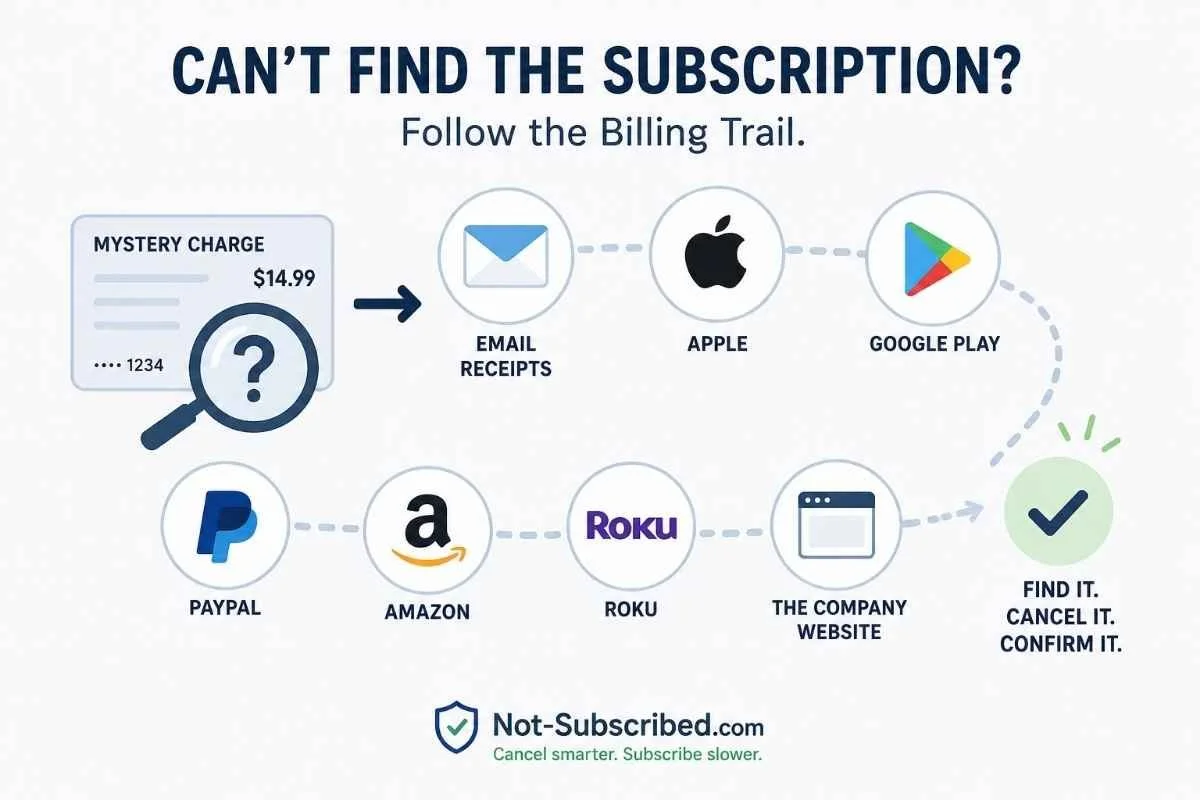
A simple visual roadmap showing how to track down a mystery subscription charge. The graphic guides readers from an unknown recurring payment to checking the most common billing providers before finding, canceling, and confirming the subscription.
Last updated: July 1, 2026
If you can't figure out which subscription is charging your card, don't start canceling random accounts. Instead, work backward from the charge itself.
Most recurring subscription charges can be traced by checking your email receipts, your Apple or Google subscriptions, PayPal automatic payments, Amazon memberships, Roku subscriptions, or the company's own billing page. In many cases, the subscription isn't missing—it was simply purchased through a different billing provider than you expected.
Before You Start
Have the following information ready:
The exact merchant name shown on your credit card or bank statement
The amount of the charge
The date it appears each month or year
The last four digits of the card being billed
Any wording like Apple.com/Bill, Google, PayPal, Amazon, Roku, or another recognizable billing platform
These details will help you identify who is actually processing the subscription.
Step 1: Search Your Email for the Receipt
This is often the fastest way to solve the mystery.
Search every email account you regularly use for:
receipt
subscription
renewal
invoice
payment
trial
Apple
Google Play
PayPal
Roku
Amazon
Most subscription services send an initial purchase confirmation and recurring payment receipts. Those emails usually identify both the service and the billing provider.
If you have multiple email addresses, repeat the search in each one.
Step 2: Check Your Apple Subscriptions
If you use an iPhone, iPad, or Mac, the subscription may be billed through Apple instead of the company directly.
According to Apple Support:
Open Settings
Tap your name
Tap Subscriptions
Review your active subscriptions
Select any subscription to view billing details or cancel it
If you don't see the subscription listed, Apple probably isn't processing the payments.
Step 3: Check Google Play
Android subscriptions are often managed through Google Play rather than inside the app itself.
According to Google Play Help:
Open the Google Play Store
Tap your profile picture
Select Payments & subscriptions
Tap Subscriptions
Review your active subscriptions
If the subscription isn't listed there, it was likely purchased elsewhere.
Step 4: Look for Automatic Payments in PayPal
Many online services bill through PayPal instead of charging your card directly.
According to PayPal Help:
Log into PayPal
Open Settings
Select Payments
Open Automatic Payments (or Subscriptions & Saved Businesses)
Review merchants with recurring billing
Remember that canceling the PayPal payment may stop future billing, but you should also cancel the subscription with the company whenever possible.
Step 5: Check Amazon
Amazon manages several different subscription types, including:
Prime Membership
Prime Video Channels
Kindle Unlimited
Audible
Amazon Kids+
Subscribe & Save
You can review them from Amazon's Memberships & Subscriptions page.
If you're looking for a streaming add-on, Amazon also provides Prime Video subscription instructions.
Step 6: Check Roku
If your statement references Roku, the subscription may have been purchased through your Roku account instead of directly from the streaming service.
According to Roku Support:
Visit your Roku account
Open Manage Subscriptions
Review active subscriptions
Disable auto-renew if you want to cancel
If Roku doesn't show the subscription, Roku recommends checking whether the service bills you directly instead.
Step 7: Sign Into the Company's Website
If none of the billing providers have your subscription, it's time to check the company directly.
Look for pages labeled:
Billing
Membership
Subscription
Plans
Account Settings
Manage Plan
Also try signing in with every email address you might have used.
Many people accidentally create multiple accounts over the years.
Step 8: Check Other Places You May Have Signed Up
If you're still coming up empty, check:
Saved passwords
Password managers
Family accounts
Work email
School email
Shared streaming devices
Smart TVs
Tablets
Old phones
A surprising number of "mystery subscriptions" turn out to be attached to an email address people forgot they ever used.
Common Reasons You Can't Find the Subscription
You Subscribed Through Apple or Google
Many apps don't handle billing themselves.
Instead, Apple or Google processes the payment, which means the cancellation must happen there.
You Used a Different Email Address
This is one of the most common causes.
Try every Gmail, Outlook, Yahoo, iCloud, business, or school account you own.
The Merchant Name Looks Different
Credit card statements don't always display the brand you recognize.
Instead, they may show:
the parent company
a payment processor
the software developer
the billing platform
You Deleted the App
Deleting an app does not cancel the subscription.
Recurring billing continues until you actually cancel it.
Someone Else Started It
Family members sometimes subscribe using shared payment methods.
Check family plans, shared devices, and household streaming accounts.
It's an Annual Renewal
Annual subscriptions are easy to forget because they only appear once each year.
Many people don't remember signing up until the renewal arrives.
What If You Still Can't Identify the Charge?
If you've exhausted the common billing providers:
Contact the Merchant
Provide:
your name
possible email addresses
charge amount
charge date
last four digits of your payment card
Ask them whether they can locate an account associated with your payment.
Contact Your Card Issuer
Banks often have additional merchant information that isn't shown on your statement.
They may be able to identify the company receiving the payment.
If the Charge Appears Unauthorized
If you genuinely cannot identify the charge after reasonable investigation, contact your financial institution promptly.
The Federal Trade Commission provides guidance on disputing billing errors, while the Consumer Financial Protection Bureau explains how to stop authorized automatic payments from your bank account.
How to Confirm It's Actually Canceled
Once you've located the subscription:
Save the confirmation email.
Take a screenshot of the cancellation page.
Verify the renewal date has changed.
Confirm the subscription now shows Canceled, Expires On, or Will Not Renew.
Keep your confirmation until after your next billing cycle.
Don't stop after the first confirmation screen. Many services display retention offers, discounts, pause options, or surveys before the cancellation is actually complete.
The Not-Subscribed Note
Most "missing subscriptions" aren't actually hidden—they're simply billed through a different company than the one you remember signing up with.
This is one of the biggest sources of app-store billing confusion. You may subscribe inside an app, on a streaming device, or through PayPal, but the company processing the payments is the one that controls cancellation.
When you're trying to stop recurring charges, don't start by looking for the app.
Start by identifying who is billing you.
Cancel smarter. Subscribe slower.
Disclaimer
Subscription settings and cancellation paths can change over time. This guide is for general informational purposes and is not legal or financial advice. Always confirm cancellation directly with the service or billing provider.