
Quick Answer
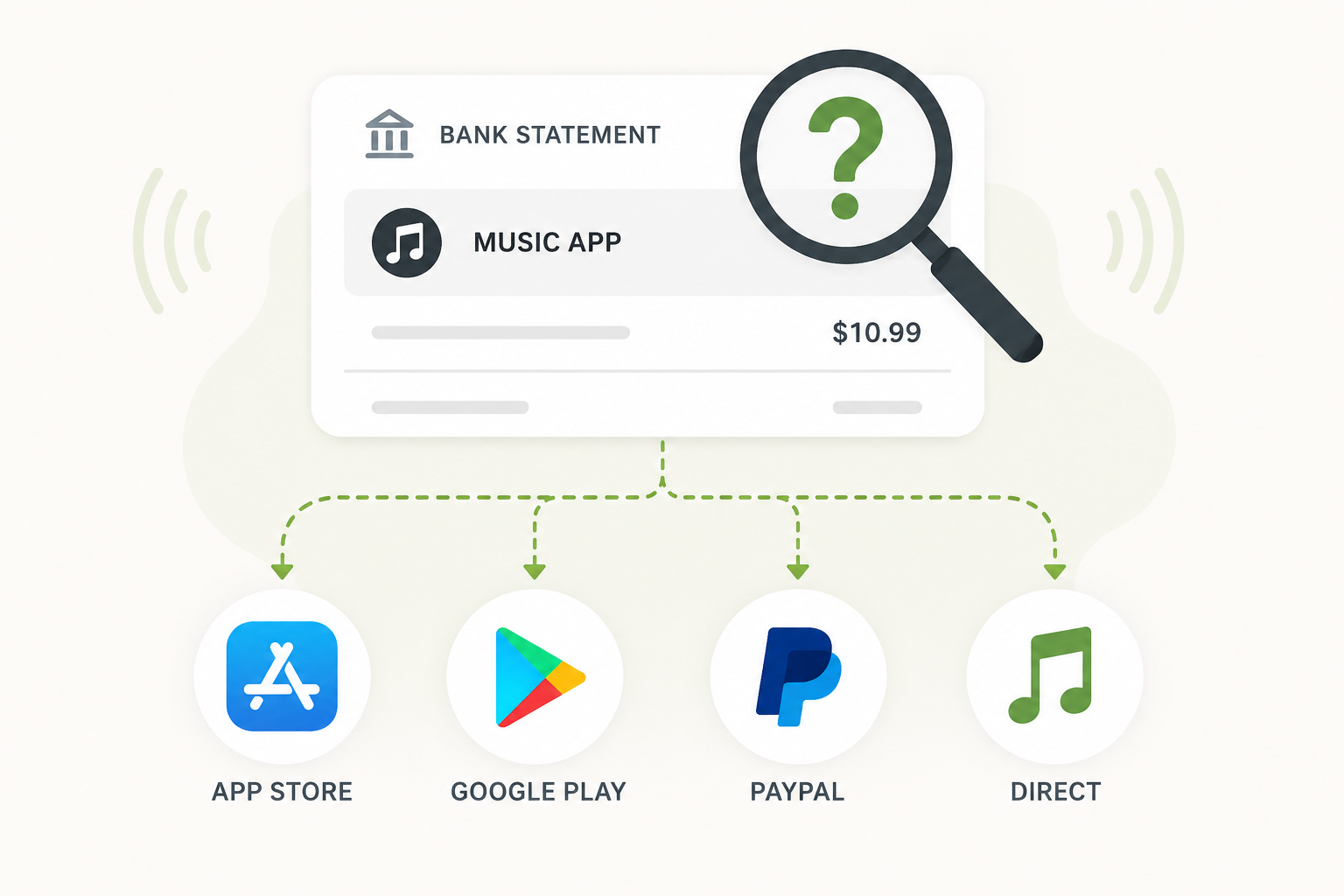
To find out which music app is charging your card, start with the exact name that appears on your bank or credit card statement. Then check the most common billing places: your music app account, Apple Subscriptions, Google Play Subscriptions, PayPal automatic payments, Amazon subscriptions, and your email receipts.
The charge may not clearly say Spotify, Apple Music, Amazon Music, Pandora, YouTube Music, Tidal, or another music app. It might show up as APPLE.COM/BILL, GOOGLE, GOOGLE PLAY, AMZN, PAYPAL, or a similar billing-provider name.
Deleting the app does not cancel the subscription. To stop the charge, you need to find out who is billing you and cancel through that billing path.
Why Music App Charges Can Be Confusing
Music subscriptions are not always billed directly by the app you use.
For example, you may listen through Spotify, Apple Music, YouTube Music, Pandora, Tidal, Deezer, SiriusXM, or Amazon Music, but the payment may be handled by another company.
A music subscription may be billed through:
Apple
Google Play
Amazon
PayPal
The music app directly
A family member’s account
A bundle, such as Apple One, YouTube Premium, or Amazon Prime
That is why the first step is not guessing which app you use most. The first step is following the charge.
Step 1: Check the Exact Card Statement Name
Open your banking or credit card app and tap the charge.
Look closely at:
The merchant name.
The charge amount.
The charge date.
Whether it repeats monthly or annually.
Any extra details, such as a phone number, merchant category, or transaction ID.
A charge that looks like a music app may be a music subscription, but it could also be a bundle, podcast subscription, audiobook plan, creator membership, or app-store purchase.
Write down the exact wording. Even small clues matter.
For example:
APPLE.COM/BILL often means Apple billed the purchase.
GOOGLE or GOOGLE PLAY often means Google Play billed it.
AMZN or Amazon Digital may point to Amazon Music or another Amazon digital subscription.
PAYPAL means PayPal may be the payment layer.
A direct name like SPOTIFY, PANDORA, TIDAL, or SIRIUSXM usually points to that service directly.
Step 2: Search Your Email for Receipts
Your email inbox is often the fastest way to identify the charge.
Search for the exact amount first. Then search for likely billing words.
Try searches like:
Spotify receipt
Apple receipt
Google Play receipt
Amazon Music
Pandora receipt
YouTube Music
YouTube Premium
Tidal
SiriusXM
PayPal receipt
$10.99
$16.99
subscription renewal
music subscription
Check all email accounts you use, including older ones. Many subscription mysteries come from an account you created years ago and forgot about.
Also check your spam, promotions, updates, and receipts folders. Subscription receipts do not always land in your main inbox.
Step 3: Check Apple Subscriptions
Check Apple if the charge says APPLE.COM/BILL, if you subscribed on an iPhone or iPad, or if you are not sure where the music app subscription started.
How to check on iPhone or iPad
Open Settings.
Tap your name at the top.
Tap Subscriptions.
Look for Apple Music, Spotify, Pandora, Tidal, YouTube Music, or another music app.
Tap the subscription to view the renewal date, price, and cancellation option.
If you see the subscription there, Apple is probably the billing provider.
What to watch for
Apple subscriptions are tied to an Apple ID. If you have more than one Apple ID, check the others too.
This is especially common if:
You changed email addresses.
You use Family Sharing.
You had an old iPhone or iPad.
A family member signed up using your device.
You use one Apple ID for purchases and another for iCloud.
If the subscription does not appear, Apple may not be the billing provider.
Step 4: Check Google Play Subscriptions
Check Google Play if the charge says GOOGLE, GOOGLE PLAY, or if you subscribed from an Android phone or tablet.
How to check on Android
Open the Google Play Store.
Tap your profile icon.
Tap Payments & subscriptions.
Tap Subscriptions.
Look for the music app.
Tap it to view billing details or cancel.
How to check from a browser
Go to Google Play in a browser.
Make sure you are signed into the right Google account.
Open Payments & subscriptions.
Review your subscriptions and order history.
What to watch for
The subscription may be attached to a different Google account than the one you use every day.
Check old Gmail accounts, work accounts, school accounts, or shared family devices. If you have multiple Google profiles on your phone, switch accounts inside Google Play and check each one.
Step 5: Check the Music App Account Directly
If Apple and Google do not show the subscription, log into the music app itself.
Check account settings for words like:
Account
Plan
Premium
Billing
Subscription
Payments
Receipts
Order history
Manage subscription
This is especially important for services that often bill directly, such as Spotify, SiriusXM, Tidal, Pandora, Deezer, or Amazon Music.
When you open the billing page, look for the billing provider. Some apps will say something like:
“Your subscription is managed by Apple.”
or:
“Your subscription is managed by Google Play.”
That means the app may show your plan, but the cancellation button is probably somewhere else.
The music app is where you listen. The billing provider is who controls the charge.
Step 6: Check PayPal Automatic Payments
If your card statement says PAYPAL, log into PayPal and check automatic payments.
How to check PayPal
Log into PayPal.
Open Settings.
Go to Payments.
Look for Automatic Payments, Subscriptions, or Saved businesses.
Select the merchant.
Review the billing details.
Cancel the automatic payment if it is the one you want to stop.
PayPal can sit between your card and the music service. That means your card statement may say PayPal even though the actual subscription is with a music app.
After canceling a PayPal automatic payment, still check the music app account. You want to make sure the subscription itself is canceled, downgraded, or no longer renewing.
Step 7: Check Amazon Music and Amazon Digital Subscriptions
If the charge says AMZN, Amazon Music, Amazon Digital, or something similar, check your Amazon account.
Look in your Amazon account for:
Amazon Music Unlimited
Amazon Prime-related music benefits
Digital subscriptions
Appstore subscriptions
Memberships and subscriptions
Household or family plan activity
Amazon charges can be confusing because Amazon has multiple subscription areas. A music-related charge may not appear exactly where you expect it.
Also check whether another person in your Amazon Household started the plan.
Step 8: Check for Bundles and Family Plans
Sometimes the charge is not a standalone music app subscription.
It may be part of a larger bundle.
Check whether the charge could be from:
Apple One
YouTube Premium
Amazon Prime
Amazon Music Unlimited
SiriusXM
A family music plan
A student plan that renewed at a higher price
A podcast or creator subscription
An audiobook subscription
A mobile carrier bundle
This matters because canceling the music app alone may not cancel the full bundle. For example, if YouTube Music is included with YouTube Premium, you may need to manage YouTube Premium instead.
Common Roadblocks
“I deleted the music app, but I’m still being charged.”
Deleting an app usually removes it from your phone. It does not cancel the billing agreement.
You still need to cancel through Apple, Google Play, PayPal, Amazon, or the music service directly.
This is one of the most common subscription traps. The app disappears from your screen, but the billing keeps going quietly in the background.
“The music app says I don’t have Premium.”
You may be logged into the wrong account.
Try signing in with:
Another email address.
Apple sign-in.
Google sign-in.
Facebook login.
A family member’s account.
An old school or work email.
Also check whether the subscription belongs to someone else on a shared plan.
“The charge says Apple or Google, not the music app.”
That usually means Apple or Google is the billing provider.
Check Apple Subscriptions or Google Play Subscriptions first. The music app may not be able to cancel it from inside the app.
“There is no cancel button.”
If there is no cancel button, the subscription may already be canceled, expired, or managed somewhere else.
Look for wording like:
Expires on
Renewal canceled
Managed by Apple
Managed by Google Play
Billed through partner
Contact provider
Take a screenshot before leaving the page.
“I have more than one charge.”
Multiple charges can happen if you have:
Two accounts.
A family plan and an individual plan.
A direct subscription plus an app-store subscription.
A plan upgrade or plan change.
A trial that converted.
A music bundle and a separate music app plan.
Check the dates and amounts carefully. Two similar charges do not always come from the same subscription.
How to Confirm You Found the Right Subscription
Before canceling or disputing a charge, make sure the details match.
Compare:
The amount.
The billing date.
The card or PayPal account.
The plan name.
The email address.
The renewal schedule.
Then save proof.
Take screenshots of:
The active subscription page.
The billing details.
The cancellation confirmation.
The expiration date.
The receipt or order history page.
Also save any confirmation email you receive.
This gives you a paper trail if the charge comes back later.
What to Do If You Still Cannot Identify the Charge
Use this order:
Search your email for the exact charge amount.
Check Apple Subscriptions.
Check Google Play Subscriptions.
Check PayPal automatic payments.
Check Amazon digital subscriptions.
Log into each music app you use.
Check old email addresses.
Ask family members on shared plans or devices.
Contact the suspected billing provider.
Contact your card issuer and ask for more merchant details.
If the charge appears unauthorized, contact your card provider promptly.
If it looks like a real subscription but you cannot find it, try to identify and cancel it before disputing. A dispute may help with unauthorized or unresolved charges, but it does not always cancel the subscription itself.
Quick Music Charge Detective Checklist
Before you call your bank, check these places:
Your card statement details.
Your email receipts.
Apple Subscriptions.
Google Play Subscriptions.
PayPal automatic payments.
Amazon digital subscriptions.
The music app’s billing page.
Old email accounts.
Family plans or shared accounts.
Bundles like Apple One, YouTube Premium, or Amazon Prime.
Once you find the subscription, cancel through the billing provider and save proof.
The Not-Subscribed Note
Music subscriptions are a classic case of app-store billing confusion.
You may think, “Spotify is charging me,” or “Apple Music is charging me,” but the actual billing path might run through Apple, Google Play, Amazon, PayPal, or a direct music-app account.
That does not mean anything shady happened. It means the cancellation path may be one layer away from where you expect it.
The safest move is to follow the trail:
Card statement → email receipt → billing provider → cancellation page → confirmation screenshot
That is how you stop guessing and start canceling smarter.
Subscription settings and cancellation steps can change. This guide is for general informational purposes and is not legal or financial advice. Always confirm cancellation directly in your account or with the billing provider.