
Quick answer
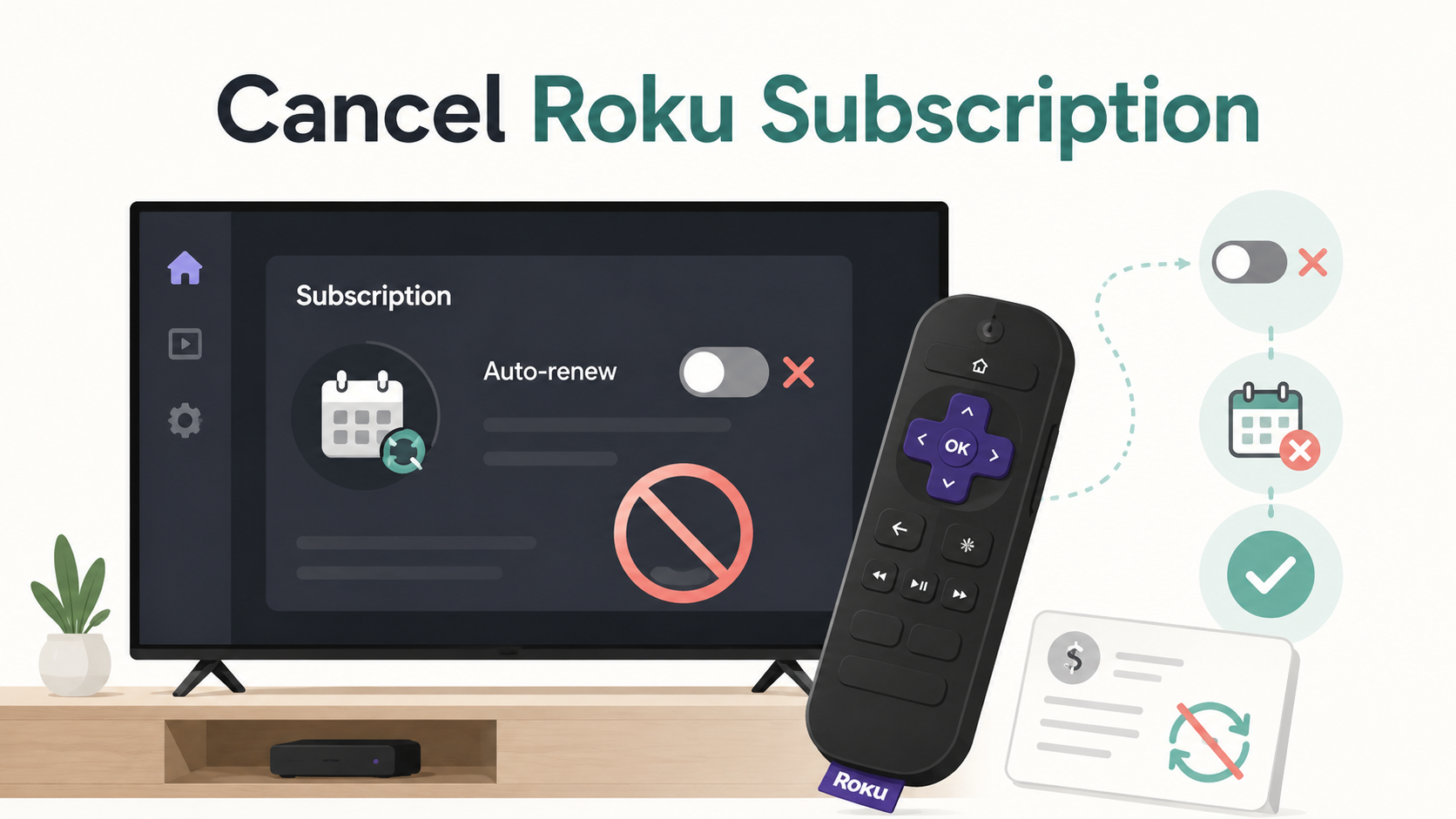
You can cancel most Roku-billed subscriptions by going to your Roku account’s subscriptions page, choosing the subscription, selecting Manage subscription, and then choosing Turn off auto-renew. Roku says turning off auto-renew cancels the subscription and lets you keep access until the end of the current billing cycle.
You can also cancel some Roku-billed subscriptions directly from your Roku device by highlighting the app, pressing the Star button on your remote, choosing Manage subscription, and selecting Turn off auto-renew.
The important part: Roku can only cancel subscriptions that are billed or managed through Roku. If the subscription was started directly through the streaming service, Apple, Google Play, Amazon, PayPal, or another provider, you’ll need to cancel through that provider instead.
Before you cancel a Roku subscription
Before you start tapping buttons, check who is actually billing you.
Roku subscriptions can get confusing because you might watch a service on a Roku device without actually paying Roku for it. For example, you may use Netflix, Hulu, Disney+, Paramount+, Max, or another app on Roku, but the billing could still be handled by the streaming service directly or by another app store.
Look for:
The billing name on your card statement
The email receipt
The subscription listed in your Roku account
The renewal date
Whether the charge says “Roku” or “Roku for [provider name]”
Roku says transactions in Roku purchase history and bank statements may appear as “Roku” or “Roku for [provider name].” If your statement does not reference Roku, the charge may not be from Roku.
Also, remember this small but expensive detail: removing a channel from your Roku device does not necessarily cancel the subscription. You need to turn off auto-renew or cancel through the correct billing provider.
How to cancel a Roku subscription on the website
Use this method if you can sign in to your Roku account from a phone, tablet, or computer.
Go to Roku’s subscriptions page.
Sign in to the Roku account connected to the subscription.
Find the subscription under Active subscriptions.
Select the subscription you want to cancel.
Choose Manage subscription.
Select Turn off auto-renew.
Follow any remaining prompts until Roku confirms the subscription will not renew.
After you turn off auto-renew, Roku says you should keep access until the end of your current billing cycle.
How to cancel a Roku subscription on your Roku device
Use this method if the subscription appears on your Roku home screen and is managed through Roku.
Press the Home button on your Roku remote.
Highlight the app or channel you want to cancel.
Press the Star button on your remote.
Select Manage subscription.
Review the renewal date and subscription details.
Select Turn off auto-renew.
Confirm the cancellation.
If you do not see Manage subscription, Roku says the subscription may not be managed through Roku. In that case, you’ll need to cancel through the streaming service or billing provider that handles the charge.
What if the subscription does not appear in Roku?
If the subscription is not listed in your Roku account, that usually means one of three things:
You are signed in to the wrong Roku account.
The subscription is billed by the streaming service directly.
The subscription is billed through another provider, such as Apple, Google Play, Amazon, PayPal, or your cable/internet provider.
Check your email for receipts using search terms like:
“Roku”
“subscription”
“renewal”
The streaming service name
“Apple”
“Google Play”
“Amazon”
“PayPal”
Roku specifically notes that if a subscription is billed directly by a streaming service provider, your billing relationship is with that provider and you must contact that provider to cancel.
How to cancel if Roku says the subscription is managed by the service provider
Some subscriptions may be watched on Roku but managed somewhere else. Roku gives examples of services where the provider may need to be contacted directly, including Disney+, Hulu, Netflix, Apple TV+, YouTube TV, and Amazon Prime Video, depending on how you signed up.
Try this:
Go to the streaming service’s website.
Sign in with the email address you use for that service.
Open Account, Billing, Subscription, or Membership settings.
Look for Cancel, Manage subscription, or Turn off auto-renew.
Follow the prompts until you get confirmation.
If you subscribed through Apple or Google Play, cancel through your phone’s subscription settings instead.
Common Roku cancellation roadblocks
“I don’t see Manage subscription.”
That usually means Roku is not managing the subscription. You may still use the app on Roku, but the billing may live somewhere else.
“I deleted the app but I’m still being charged.”
Deleting a Roku channel is not the same as canceling the paid subscription. You need to turn off auto-renew through Roku or cancel through the correct billing provider.
“The charge says Roku, but I don’t recognize the service.”
Check your Roku purchase history and your email receipts. Roku says charges may appear as “Roku” or “Roku for [provider name],” which can make the charge look less obvious at first glance.
“I signed in, but the subscription is missing.”
You may have more than one Roku account. Try other email addresses you commonly use, especially older emails or family accounts.
“I canceled, but it still works.”
That can be normal. Roku says canceled subscriptions can remain active until the end of the current billing cycle after auto-renew is turned off.
How to confirm your Roku subscription is actually canceled
Do not stop at “I think I clicked the right thing.” Confirm it.
Look for:
The subscription showing canceled, expired, or auto-renew off
The renewal date being removed or changed to an end date
A Roku confirmation email
A screenshot of the cancellation confirmation page
No active subscription listed under Roku’s active subscriptions
Save the confirmation email or screenshot. It is boring future-you paperwork, but useful boring future-you paperwork.
What to do if Roku charges you after cancellation
If you are charged after canceling:
Recheck whether the subscription is still active in your Roku account.
Confirm you canceled the correct Roku account.
Search your email for Roku receipts and cancellation confirmations.
Check whether the charge came from Roku, the streaming service, Apple, Google Play, Amazon, PayPal, or another provider.
Contact the billing provider that processed the charge.
Save screenshots, receipts, and cancellation confirmations.
Request a refund if appropriate, but do not assume one is automatic.
Roku’s support materials say subscriptions billed and managed through Roku can be managed from the Roku subscriptions page, while some provider-managed services need to be handled directly with that provider.
Use a card dispute as a later step, not the first step, unless the charge is clearly unauthorized.
Does closing your Roku account cancel subscriptions?
Roku says that if you want to close your Roku account, you should first sign in, select Manage your subscriptions, and cancel your subscriptions before deactivating the account.
In plain English: cancel the paid subscriptions first, then close the account if you still want to. Closing an account is not the same as carefully confirming every recurring charge has stopped.
The Not-Subscribed note
Roku subscriptions are a classic example of billing-provider confusion. The app you watch, the device you use, and the company billing your card may all be different.
That does not mean anything shady is automatically happening. It does mean the cancellation path can feel like a maze: Roku might send you to the streaming service, the streaming service might say you subscribed through Roku, and your card statement might only give you half the clue.
The move is simple: find the billing provider first, then cancel there, then confirm auto-renew is off.
Cancel smarter. Subscribe slower.