
Quick Answer
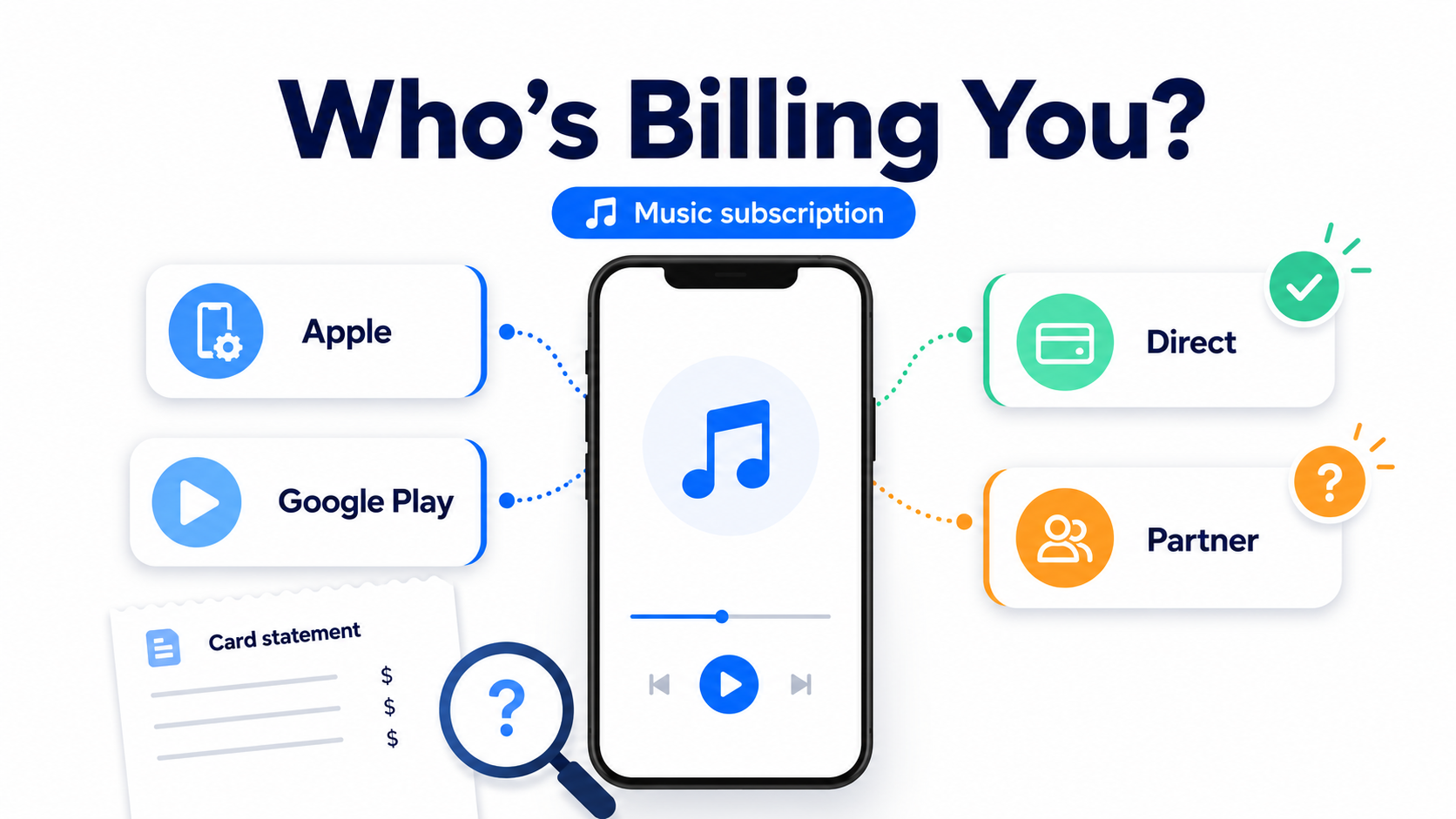
Music subscriptions can be confusing because the app you use is not always the company billing you.
You might listen in Spotify, Apple Music, YouTube Music, Amazon Music, TIDAL, Pandora, or another music app — but the charge may be handled by Apple, Google Play, Amazon, PayPal, your mobile carrier, or the music service directly.
That means the cancel button may not be inside the music app. You may need to cancel through the billing provider instead.
Apple says subscriptions purchased from Apple or inside apps can be canceled through the App Store on your device. Google Play says subscriptions continue until you unsubscribe, and warns that uninstalling an app does not cancel the subscription.
Why Music App Billing Gets So Confusing
Music apps are especially messy because they often have several possible billing paths.
You may have signed up:
In the music app
On the music service’s website
Through Apple’s App Store
Through Google Play
Through Amazon
Through PayPal
Through a mobile phone plan
Through a family, student, bundle, or partner offer
The app on your phone may look like the obvious place to cancel. But if Apple or Google is the billing provider, the music app may not control your subscription.
That is the heart of App Store billing confusion: the service you use and the company charging your card may be different.
Common Signs You Are Being Billed Through Apple or Google Play
You may be dealing with App Store billing if your card statement says something like:
Apple Services
Google Play
GOOGLE *AppName
Google *MusicApp
iTunes
App Store
You may also see the subscription listed under your phone’s subscription settings rather than inside the music app itself.
For Apple billing, check your Apple purchase history or subscriptions. Apple’s billing support page includes tools for canceling subscriptions, viewing purchase history, checking unfamiliar charges, and requesting refunds when eligible.
For Google Play billing, make sure you are signed into the Google Account that actually has the subscription. Google notes that if you cannot find a subscription, it may be under a different Google Account.
How to Check Where Your Music Subscription Is Billed
Before you cancel, do a quick billing detective check.
1. Search your email
Look for:
“receipt”
“subscription”
“renewal”
“Apple”
“Google Play”
the name of the music app
“Premium”
“trial”
“your subscription”
Receipts usually reveal who processed the payment.
2. Check your phone’s subscription settings
On iPhone:
Open Settings.
Tap your name.
Tap Subscriptions.
Look for the music app.
Tap it to view renewal, expiration, or cancellation options.
On Android:
Open Google Play.
Tap your profile icon.
Tap Payments & subscriptions.
Tap Subscriptions.
Look for the music app.
Google’s cancellation path is to open subscriptions in Google Play, select the subscription, tap Cancel subscription, and follow the instructions.
3. Check the music app account page
Sign into the music service on the web, not just inside the app. Look for:
Account
Plan
Billing
Subscription
Manage plan
Payment
Premium
Spotify, for example, says Premium can be canceled from the account page by going to Manage your plan and selecting Cancel subscription. Spotify also notes that if there is no option to change the plan, the plan may be associated with a partner company, such as a mobile or internet provider.
4. Check family or bundle plans
Sometimes you are not the plan owner. You may be a member of someone else’s family or duo plan.
Spotify notes that a Family or Duo plan member can remove their own account from the plan, but the plan manager must cancel or update the payment method.
Why the App May Say “Cancel Somewhere Else”
This is frustrating, but it is usually not random.
If you subscribed through Apple, Apple controls billing.
If you subscribed through Google Play, Google controls billing.
If you subscribed through a mobile carrier, the carrier may control billing.
If you subscribed directly on the music service’s website, the service controls billing.
That is why the app may show a message like:
“Manage your subscription through Apple”
“Manage subscription in Google Play”
“Your subscription is managed by a partner”
“Go to your account page”
“No subscription found”
The app may know you have Premium access, but not have permission to cancel the billing relationship if another company processes the payment.
The Spotify Example: Why Music Billing Paths Change
Spotify is a useful example because its billing options have changed over time and can vary by platform.
Spotify currently says users cannot subscribe to Premium through the iOS app for iPhone and iPad, and directs users to Spotify’s website to choose a Premium plan.
That means a reader might remember subscribing one way years ago, see something different today, and wonder why the app does not match their memory. Interfaces, billing rules, and app-store policies can change. Always check the current billing source before assuming where to cancel.
Common Roadblocks
“I deleted the music app, but I am still being charged.”
Deleting the app does not cancel the subscription. Google says this directly for Google Play subscriptions.
You need to cancel the billing plan, not just remove the app icon.
“The app says I am on the free plan, but I am still charged.”
You may be signed into the wrong account. You may also have Premium under another email, Apple ID, Google Account, family plan, or partner subscription.
Spotify says that if an account is on Spotify Free but you are being charged, you likely have Premium on a different Spotify account.
“I cannot find the subscription in Apple or Google Play.”
Try checking:
A different Apple ID
A different Google Account
Your email receipts
PayPal recurring payments
Amazon memberships and subscriptions
Your mobile carrier account
The music service’s website
This is classic billing-provider confusion. The subscription exists somewhere, but not necessarily where you first look.
“The music app keeps sending me in circles.”
That circular feeling usually happens when the app, app store, and billing provider each control a different piece of the subscription. The music app controls access. Apple or Google may control payment. A partner may control the plan. Your job is to find the billing source, then cancel there.
Annoying? Yes. Personal failure? Absolutely not.
How to Cancel Based on Who Is Billing You
If Apple is billing you
Open Settings on your iPhone or iPad.
Tap your name.
Tap Subscriptions.
Select the music subscription.
Tap Cancel Subscription.
Save the confirmation or screenshot the expiration date.
Apple’s billing support page also lets users start cancellation, view purchase history, check unfamiliar charges, and request a refund when eligible.
If Google Play is billing you
Open Google Play.
Tap your profile icon.
Tap Payments & subscriptions.
Tap Subscriptions.
Select the music subscription.
Tap Cancel subscription.
Follow the instructions.
Google says you should still have access for the time you already paid after canceling a subscription.
If the music service bills you directly
Go to the music service’s website.
Sign in.
Open Account, Plan, Billing, or Subscription.
Choose Cancel, Change plan, or Manage plan.
Continue until you see confirmation.
Do not stop at a discount offer, survey, or “are you sure?” screen. Those are often part of the retention flow.
If a partner bills you
Check the account page for the partner name. This could be:
Your phone carrier
Internet provider
Student verification partner
Bundle provider
Family plan manager
Amazon
PayPal
Spotify says that when a plan is associated with a partner company, users should check the payment section on their account page for the partner’s contact link.
How to Confirm It Is Actually Canceled
Do not rely on “I think I canceled it.”
Look for one of these:
A confirmation email
A canceled status
An expiration date
A renewal date removed
“Premium ends on [date]”
“Subscription expires on [date]”
Apple or Google showing the plan as canceled
A screenshot of the final confirmation page
Keep the proof until after the next billing date passes.
This is one of the simplest ways to protect yourself from subscription sludge: do not leave the cancellation flow until you have a receipt, status change, or screenshot.
What to Do If You Are Still Charged
Recheck the charge description on your card statement.
Search your email for the exact amount.
Check Apple subscriptions.
Check Google Play subscriptions.
Check the music service’s website account.
Check PayPal, Amazon, and your phone carrier.
Contact the billing provider that processed the charge.
Save screenshots and cancellation confirmations.
Request a refund when appropriate.
Consider a card dispute only after reasonable direct attempts, unless the charge is clearly unauthorized.
Apple says App Store and iTunes Store purchases may be eligible for a refund and provides a refund request process. Google’s support page also points users to its refund policies for subscription refund questions.
The Not-Subscribed Note
Music subscriptions are a perfect example of app-store billing confusion.
The product feels simple: tap, listen, pay monthly. But behind the scenes, the payment path may involve Apple, Google Play, the music company, a carrier, a family plan owner, or a bundle partner. That gap creates cancellation friction.
The fix is not to panic-click around the app. Start with the billing provider. Find who is charging you, cancel there, and save proof.
Cancel smarter. Subscribe slower.