
Quick answer
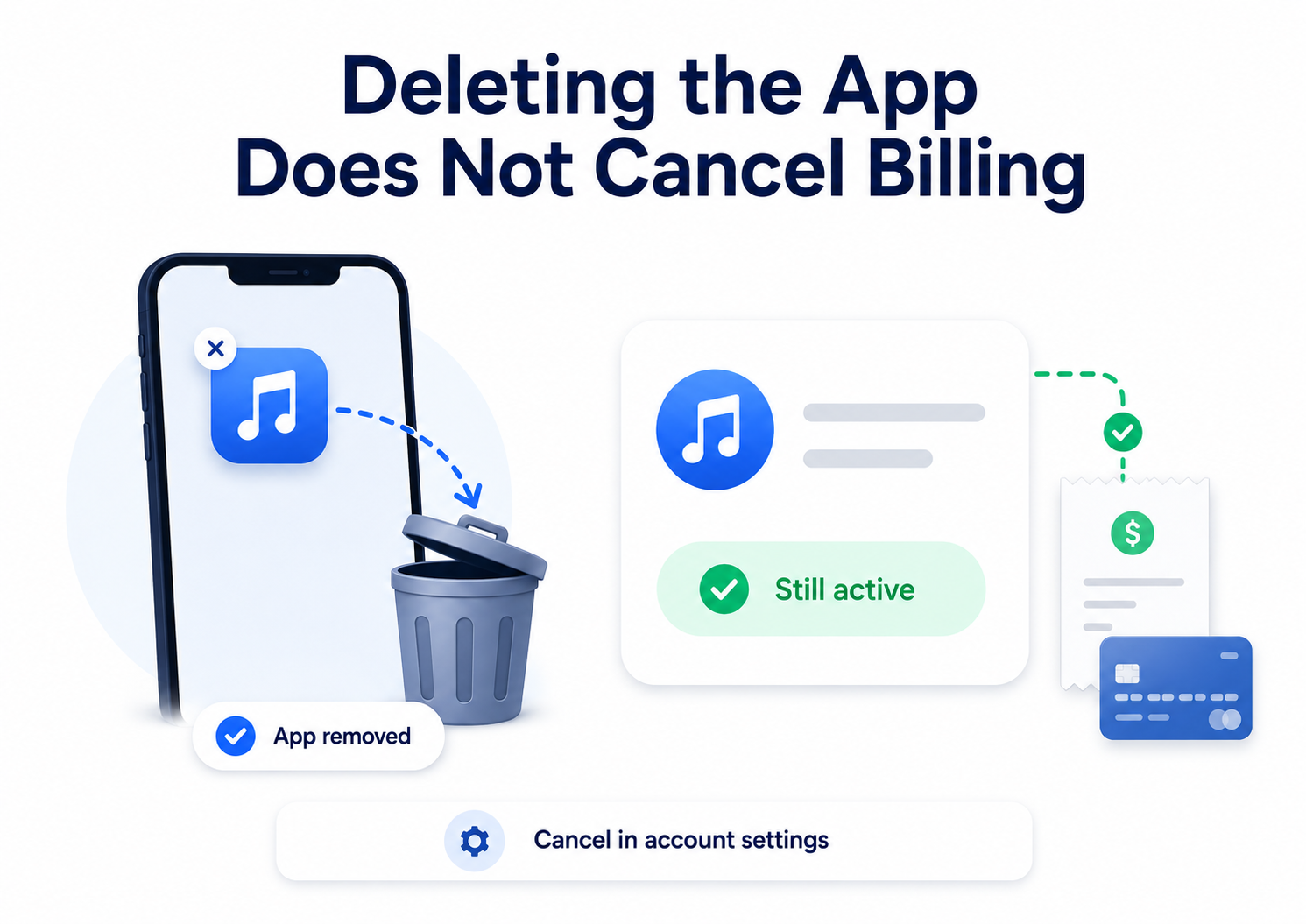
Deleting a music app from your phone usually does not cancel the subscription. It only removes the app from your device.
If you are paying for Spotify Premium, Apple Music, YouTube Music Premium, Amazon Music Unlimited, TIDAL, Pandora, SoundCloud Go, or another music subscription, the billing usually continues until you cancel through the correct billing provider.
That provider might be Apple, Google Play, the music service’s website, Amazon, PayPal, your phone carrier, or the person who manages your family plan.
Think of the app as the front door. The subscription lives somewhere else.
Why deleting the app does not stop billing
When you delete a music app, your phone removes the app icon, downloaded data, and local app files. But your subscription is usually connected to an account and payment system, not the app itself.
That means the company or billing provider may still have your account, subscription status, payment method, renewal date, and billing agreement.
So even if the app is gone, the subscription can keep renewing in the background.
This is a common form of app-store billing confusion. You may feel like you “got rid of” the service, but the billing system sees something different: an active subscription that has not been canceled.
Apple’s own support instructions tell users to cancel subscriptions through Settings under their Apple Account, not by deleting the app. On iPhone, the path is Settings → your name → Subscriptions → select subscription → Cancel Subscription. Google Play gives similar instructions for Android: go to Google Play subscriptions, select the subscription, tap Cancel subscription, and follow the prompts.
Deleting is not the same as canceling
Deleting the app removes it from your phone. It does not usually contact Apple, Google Play, PayPal, Amazon, or the music service to say, “Please stop billing me.”
Logging out also does not cancel billing. It only signs you out of the account.
Deleting downloaded songs or podcasts does not cancel billing either. It only removes saved content from your device.
Even deleting your account can be different from canceling your subscription, depending on the service and billing provider. Some services require you to cancel the paid plan first, then delete the account separately.
The action that matters is canceling the subscription. That is what turns off future renewal.
Where your music subscription might be hiding
Before you cancel, figure out who is billing you. This matters more than which app you deleted.
Check Apple subscriptions
On iPhone or iPad:
Open Settings.
Tap your name.
Tap Subscriptions.
Look for the music service.
Tap it.
Tap Cancel Subscription if it is active.
If there is no cancel button or you see an expiration message, the subscription may already be canceled.
Check Google Play subscriptions
On Android:
Open the Google Play Store.
Tap your profile icon.
Tap Payments & subscriptions.
Tap Subscriptions.
Select the music subscription.
Tap Cancel subscription.
Follow the instructions.
If you cannot find the subscription, check whether you are signed into the same Google account that started it.
Check the music service’s website
Some subscriptions are billed directly through the music service. In that case, deleting the app will not help because the billing is connected to your web account.
Try this:
Go to the music service’s official website.
Sign in.
Open Account, Plan, Billing, Subscription, or Manage plan.
Look for Cancel, Change plan, or Turn off auto-renewal.
Continue until you see confirmation.
Check Amazon, PayPal, or your phone carrier
Some music subscriptions are bundled or billed through another company. The charge may come through Amazon, PayPal, Verizon, T-Mobile, AT&T, a student bundle, or a family organizer’s account.
If the app says “manage through your billing provider,” believe it. That usually means the music app cannot cancel the charge directly.
Common roadblocks
“I deleted the app and I’m still being charged”
That usually means the subscription was never canceled. Reinstalling the app may help you identify the account, but the cancellation will likely need to happen through Apple, Google Play, the service website, or the billing provider.
“The app says I don’t have a subscription”
This can happen when you are signed into the wrong account.
Music apps are especially messy because people often sign up with Apple, Google, Facebook, email, phone number, or a family plan. You may have deleted the app from one account while the paid plan is attached to another.
Search your email for words like:
receipt
invoice
subscription
premium
Apple
Google Play
Spotify
YouTube Music
Amazon Music
Pandora
TIDAL
Receipts often show who processed the payment.
“I canceled, but I can still listen”
That may be normal. Many subscriptions keep access active until the end of the billing period.
What matters is whether the renewal is turned off. Look for language such as expires on, ends on, canceled, premium until, or auto-renew off.
“I removed my payment method”
Removing a card is not the same as canceling. It may prevent future charges in some cases, but it can also create unpaid balances or account issues.
Cancel the subscription directly whenever possible.
How to confirm the music subscription is actually canceled
Do not stop at the first “Are you sure?” screen.
Many cancellation flows include a retention flow. That means you may see discount offers, pause options, warning screens, surveys, or “before you go” prompts before cancellation is complete.
Keep going until you see proof.
Look for a confirmation email, a canceled status in your account, an expiration date in Apple or Google Play, a renewal date removed from the plan page, a final billing date, or a confirmation page you can screenshot.
Taking a screenshot is a good idea. Future you may need it.
What to do if you are still charged after deleting the app
First, check who billed you. Look at the exact name on your card statement.
Next, search your email for receipts. The receipt often tells you whether Apple, Google Play, PayPal, Amazon, or the service itself billed you.
Then check Apple and Google Play subscriptions using the account that likely made the purchase. If you have more than one Apple ID or Google account, check each one.
After that, log into the music service website and review account or billing settings.
If the charge came from a billing provider, contact that provider first. For example, if Apple processed the charge, start with Apple. If Google processed it, start with Google Play.
You can request a refund when appropriate, but do not assume one is guaranteed. Save screenshots, cancellation emails, and support messages.
Consider disputing a charge with your card provider only after reasonable direct attempts, unless the charge is clearly unauthorized.
Why this design confuses people
Deleting an app feels like canceling because, from the user’s point of view, the service is gone.
But subscription billing is built around negative option billing, which means the paid plan continues unless you actively cancel it. The burden is on you to find the right cancellation path.
That does not mean every music app is doing something shady. But it does create a predictable trap: signing up can happen inside an app in seconds, while canceling may require figuring out which company is actually billing you.
That gap is classic cancellation friction. Not always dramatic. Definitely annoying.
The Not-Subscribed note
Deleting a music app is like throwing away the remote while the stereo keeps playing in another room. The app disappears, but the billing agreement keeps humming along.
Before deleting any paid app, cancel first, confirm second, then delete. That order saves money, confusion, and the deeply irritating experience of paying for an app you no longer even have installed.
Subscription settings and cancellation steps can change. This guide is for general informational purposes and is not legal or financial advice. Always confirm cancellation directly in your account or with the billing provider.